Reading this in another language? Use your browser's built-in translate option. Button and field names stay in English on purpose, to match what you see in Keysender.
Customize your Access Page with your logo, live chat, analytics, and legal links. The Access Page is where your customers view and access their purchased products, so it is the one screen every buyer sees. Brand it once and every delivery across your connected channels uses it, including fraud screening, which runs only on Access Page deliveries.
TL;DR
Make sure you have:
Open Account, then Settings in Keysender.
Click the Access page tab.
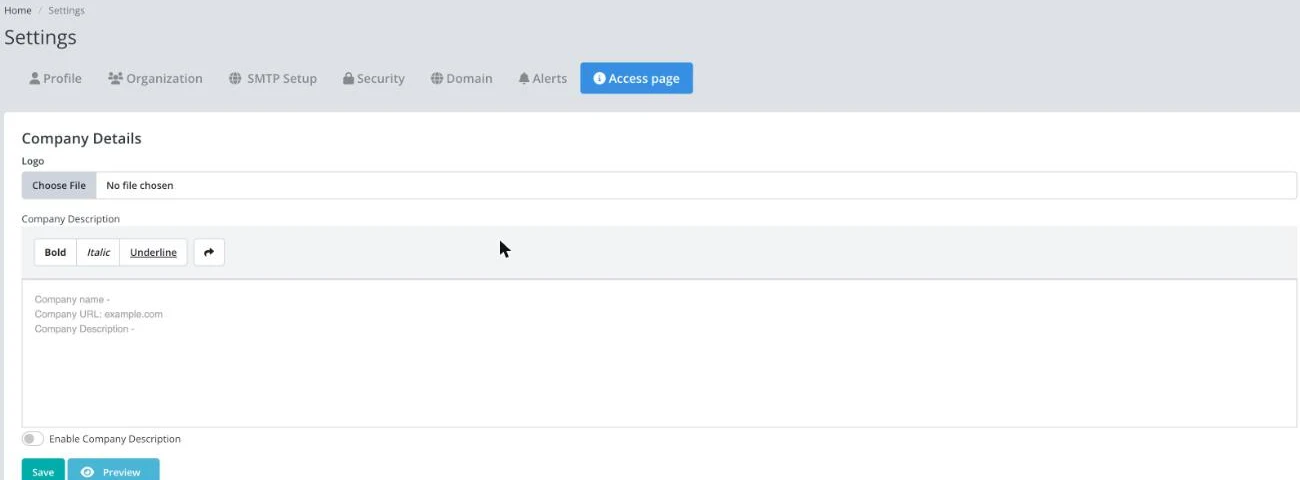
Under Company Details, click Choose File to upload your logo.
Optionally, turn on Enable Company Description and add your company name, URL and a short description.
Click Save.
Create an account or log in at Crisp.
Open Settings, then Website Settings, then Setup Instructions in Crisp.
Copy your website ID.
Paste the website ID into the Crisp Chat field under Links, then click Save.
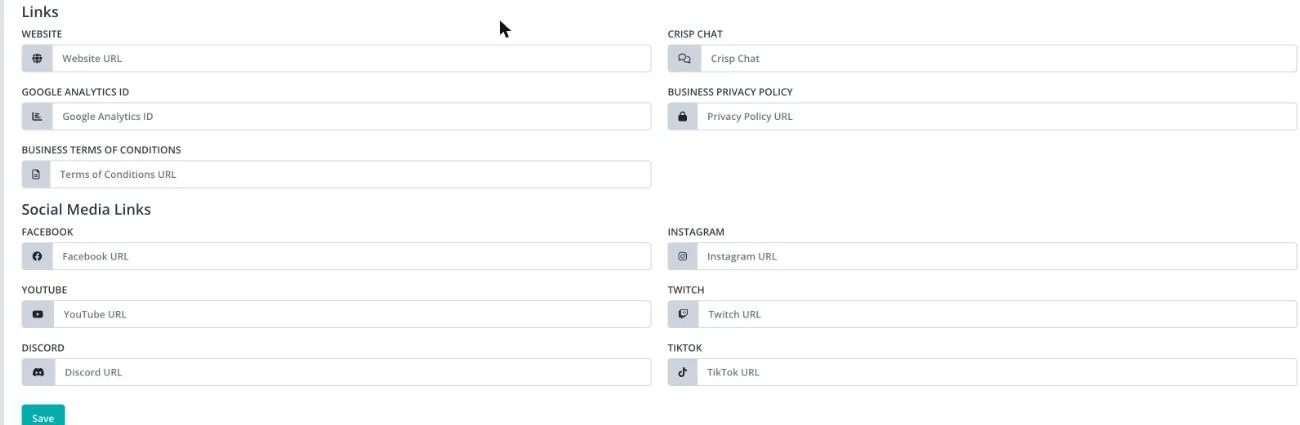
Add your Google Analytics ID to track how customers interact with the Access Page.
Add links to your Business Privacy Policy and Business Terms of Conditions if needed.
Under Social Media Links, add any of your profiles: Facebook, Instagram, YouTube, Twitch, Discord and TikTok.
Click Save.
Since your Access Page also runs fraud screening on every delivery, can show buyer-facing FAQs, and can be served from your own domain, it is worth reviewing all three once branding is set up.
Click Preview next to Save, or open your Access Page link directly, and confirm your logo, chat widget, and links display correctly. Send a test order to verify the full delivery flow.
| Symptom | Cause | Action |
|---|---|---|
| The Company Description does not show on the Access Page | Enable Company Description is still off | Turn it on under Company Details, then Save |
| Crisp Chat does not appear | The website ID was pasted incorrectly, or the Crisp site is not yet verified | Recheck the ID against Crisp's Setup Instructions page |
| A social icon does not appear | The field for that platform was left blank | Add a URL to the matching field under Social Media Links |
Submit a claim so Keysender Support can review it.
The Access Page is where your customers view and access their purchased products. You can customize it with your logo, live chat, analytics, and legal links, so buyers reach a branded page that matches the rest of your store.
Create an account or log in at Crisp, then open Settings, Website Settings, and Setup Instructions to find your website ID. Copy the ID and paste it into the Crisp Chat field in Keysender, then save.
Open your Access Page link and confirm your logo, chat widget, and links display correctly. Send a test order to verify the full delivery flow, so you know buyers reach a working page after they purchase.
