Reading this in another language? Use your browser's built-in translate option. Button and field names stay in English on purpose, to match what you see in Keysender.
Create an email or inbox template in Keysender to control how delivery messages reach your buyers across your connected channels. Email templates are used when the code is sent by email; inbox templates are used when the channel delivers through its own messaging. You can keep one template for every product or assign a different one per inventory.
TL;DR
[CODE] and [ORDER_NUMBER] so order data fills in automatically.Make sure you have:
Open Account in Keysender, then select Templates.
Find the starred Default template in the list. Keysender creates it automatically and applies it to products with monitoring active.
Click Add new.
Enter a template name, then set I want to send to Html for styled emails with design blocks, or Plain for marketplace inboxes such as eBay or Mercado Libre, which require plain text to display correctly.
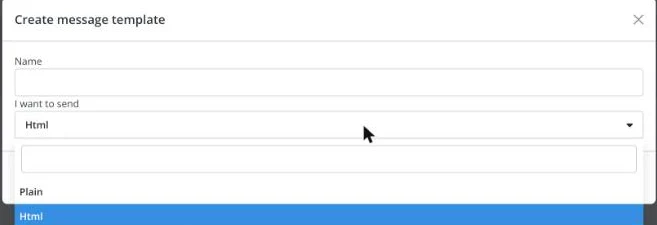
Click Save.
Click Reply to to reveal the field, and set the address you want customer replies sent to. This is usually filled with the email you use to log in to Keysender.
Click Send copy to to reveal the field, if you want a copy of each sent email forwarded to another inbox.

Add your content and insert variables where you want order data to appear automatically.
Available variables:
[ID] for the auction or product number.[PRODUCT_NAME] for the product name.[PM] for the product message.[NAME] for the customer name.[EMAIL] for the customer email.[PHONE_NUMBER] for the customer phone number.[STATUS] for a link to the order Access Page.[USER] for the customer username.[ORDER_NUMBER] for the order number.[ORDER_TIME] for the order date and time.[PRICE] for the price and currency.[CODE] for the text code or a link to files.[CODES] for a link to all purchased codes in a .zip file.For Html templates, arrange the design blocks you need under Modules. See Fully customizing an HTML email template for full control beyond these blocks.
Available blocks: Header with a logo you can replace by clicking it in the editor, Title for the email headline, Text body for the main content, Order codes to show the delivered code directly in the email, Checkout status for a secure link to the Access Page, Order details for the order number, date and status, and Footer for disclaimers, contact details, or links.
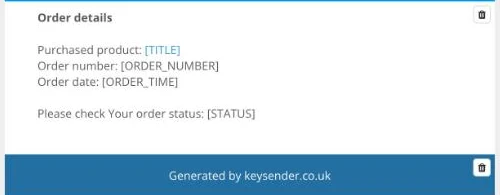
The Order details block's own preview shows a [TITLE] placeholder next to "Purchased product," but this is not in Keysender's documented variable list above; use [PRODUCT_NAME] for the product name.
Click Save.
Choose whether to apply the template to all products currently using it.
The new template appears in your template list. Products with monitoring active keep the Default template until you assign a different template in product settings.
| Symptom | Cause | Action |
|---|---|---|
| Reply to or Send copy to will not accept an address | The field is still collapsed | Click the Reply to or Send copy to label to reveal the input first |
| An eBay or Mercado Libre message shows raw HTML | The template type is set to Html | Create or switch to a Plain template for that channel |
A variable shows literally as [CODE] in the sent email |
The variable was typed by hand with a typo, or is not supported in that block | Copy the variable name exactly from this article, and confirm it is used in a block that supports it |
Submit a claim so Keysender Support can review it.
Choose HTML Email for styled emails that use design blocks like Header, Body, and Order Codes. Choose Plain Text Email for marketplace inboxes such as eBay or Mercado Libre, which require plain text to display order details correctly.
Insert variables where you want order data to appear. For example, use [PRODUCT_NAME] for the product name, [NAME] for the customer name, [ORDER_NUMBER] for the order number, and [CODE] for the text code or a link to files.
No. Products with monitoring active keep the starred Default template until you assign a different template in product settings. When you save a new template, you can choose whether to apply it to all products currently using it.
