Reading this in another language? Use your browser's built-in translate option. Button and field names stay in English on purpose, to match what you see in Keysender.
Build a fully custom HTML email template in Keysender to control the design and layout of your delivery emails. Paste your own HTML with inline CSS, place the delivery variables where the code and order details should appear, and Keysender fills them in at send time. Use this when the standard design blocks are not flexible enough.
TL;DR
[CODE] and [ORDER_NUMBER] in your HTML, then send yourself a test email.Make sure you have:
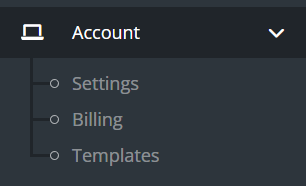
Open Account then Templates in Keysender.
Click Add new.
Set I want to send to Html.
Enter a clear template name.
Click Reply to to reveal the field, and set an address if you want customer replies sent to a specific email.
Click Send copy to to reveal the field, if you want a copy of each outgoing message sent to additional addresses.
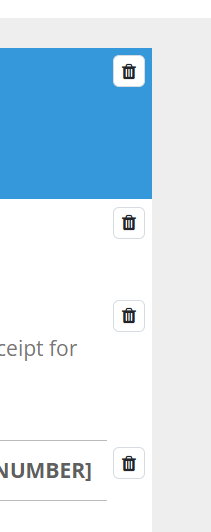
Remove every default block from the editor. Click each block and use the trash icon to delete it until the canvas is blank.
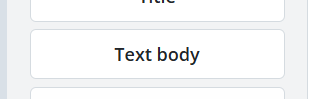
Under Modules, select Text body to add the body block.
In the top style bar, click the code button to switch to code view.
Paste your custom HTML into the editor and add any inline CSS your design needs.
Click Save.
Insert these tags in your HTML. Keysender replaces each one with the correct value for the order. This list matches Keysender's own tag reference in the template editor.
| Tag | Description |
|---|---|
[PRODUCT_ID] |
Integration Product ID |
[PRODUCT_NAME] |
Integration Product Name |
[INVENTORY_NAME] |
Inventory Name |
[SKU] |
Inventory SKU |
[INVENTORY_MESSAGE] |
Inventory Message |
[FIRST_NAME] |
Customer First Name |
[LAST_NAME] |
Customer Last Name |
[EMAIL] |
Customer Email |
[PHONE_NUMBER] |
Customer Phone |
[USER] |
Customer Username |
[INTERNAL_ORDER_ID] |
Internal Order ID |
[ORDER_NUMBER] |
External Order ID |
[ORDER_TIME] |
Order Time |
[PRICE] |
Price and Currency |
[STATUS] |
Link to Order Access Page |
[BUSINESS_NAME] |
Business Name |
[BUSINESS_EMAIL] |
Organization Business Email |
[BUSINESS_SUPPORT_EMAIL] |
Organization Support Email |
[BUSINESS_VAT] |
Organization VAT Number |
[BUSINESS_PHONE] |
Organization Phone Number |
[NL] |
New Line, a line break |
Place each tag where you want the customer or order data to appear.
Use this as a starting point. Paste it into the Text body block in code view, then adjust it for your design.
<!DOCTYPE html>
<html>
  <body style="font-family: Arial, sans-serif; background: #f7f7f7; margin: 0; padding: 0;">
    <div style="max-width: 400px; margin: 40px auto; background: #fff; border-radius: 7px; box-shadow: 0 1px 6px #eee; padding: 24px;">
      <p style="margin: 0 0 16px 0;">
        Hi [FIRST_NAME],
      </p>
      <p style="margin: 0 0 16px 0;">
        Here is your <b>[PRODUCT_NAME]</b>.<br>
        Order: [ORDER_NUMBER]
      </p>
      <div style="font-family: monospace; background: #f0f0f0; padding: 12px; border-radius: 5px; margin: 18px 0; text-align: center;">
        [CODE]
      </div>
      <p style="margin: 0 0 16px 0;">
        Thank you for your purchase.
      </p>
      <div style="color: #bbb; font-size: 0.95em; text-align: center; margin-top: 24px;">
        Need help? [BUSINESS_SUPPORT_EMAIL]
      </div>
    </div>
  </body>
</html>
Assign the template to a product, as described in Connecting your products to a connected channel.
Send yourself a test email to confirm the design and variable placement display correctly.
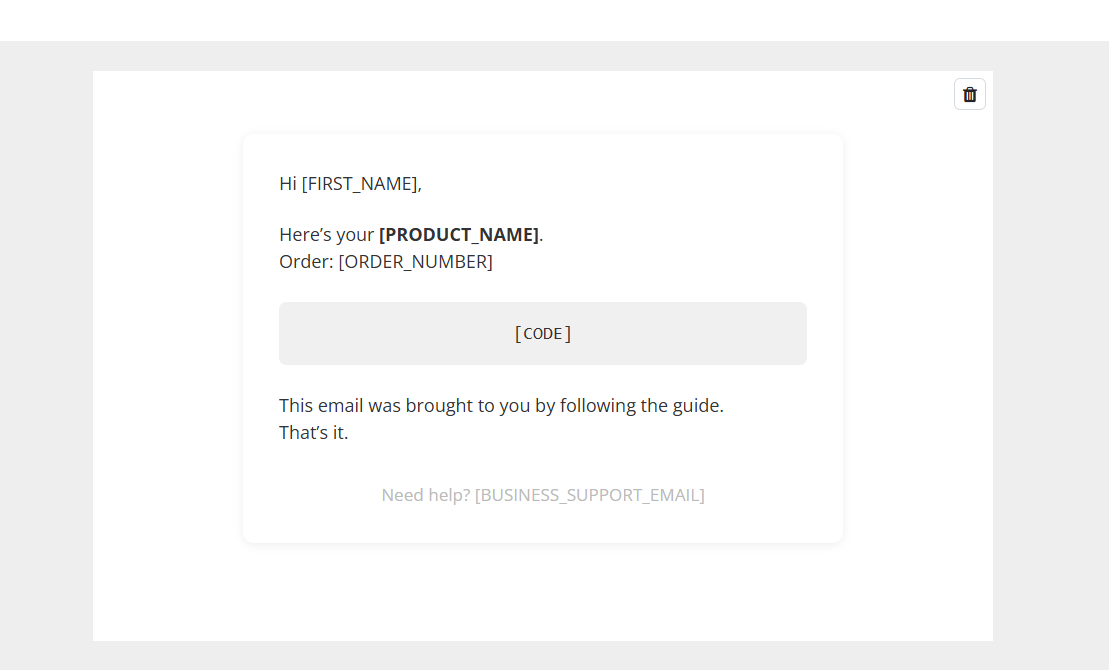
Keysender replaces every tag with real order details when the email is sent. Your test email should match the layout below.
| Symptom | Cause | Action |
|---|---|---|
A variable shows literally in the sent email, like [CODE] |
The tag has a typo, or is not one of the documented tags above | Copy the tag exactly, including the brackets, from the table above |
| The email still shows the old default blocks | A block was not fully deleted before adding the Text body block | Reopen the template and delete every remaining block, then add Text body again |
| The layout looks different in an inbox than in the test email | The channel's own inbox (eBay, Mercado Libre) strips HTML and CSS | Use a Plain template for channels that deliver through their own messaging instead of email |
Submit a claim so Keysender Support can review it.
You need access to your Keysender vendor account and your custom HTML code ready, with inline CSS for styling. Open Account, then Templates, click Add New, and select HTML Email as the template type before pasting your code.
Remove every default block by clicking each one and using the trash icon until the canvas is blank. In the left sidebar, select Text Body, then click the code button in the top style bar to switch to code view and paste your HTML.
Insert variable tags in your HTML and Keysender replaces each one with the order value. For example, use [FIRST_NAME] for the customer first name, [PRODUCT_NAME] for the product name, [ORDER_NUMBER] for the external order ID, and [BUSINESS_SUPPORT_EMAIL] for your support email.
