Reading this in another language? Use your browser's built-in translate option. Button and field names stay in English on purpose, to match what you see in Keysender.
Connect your BigCommerce store to Keysender to automate digital product delivery for BigCommerce orders. After the connection, Keysender watches for paid orders on the products you map, then delivers the code by email or through your Access Page. You need admin access to the store to authorize the connection.
TL;DR
Make sure you have:
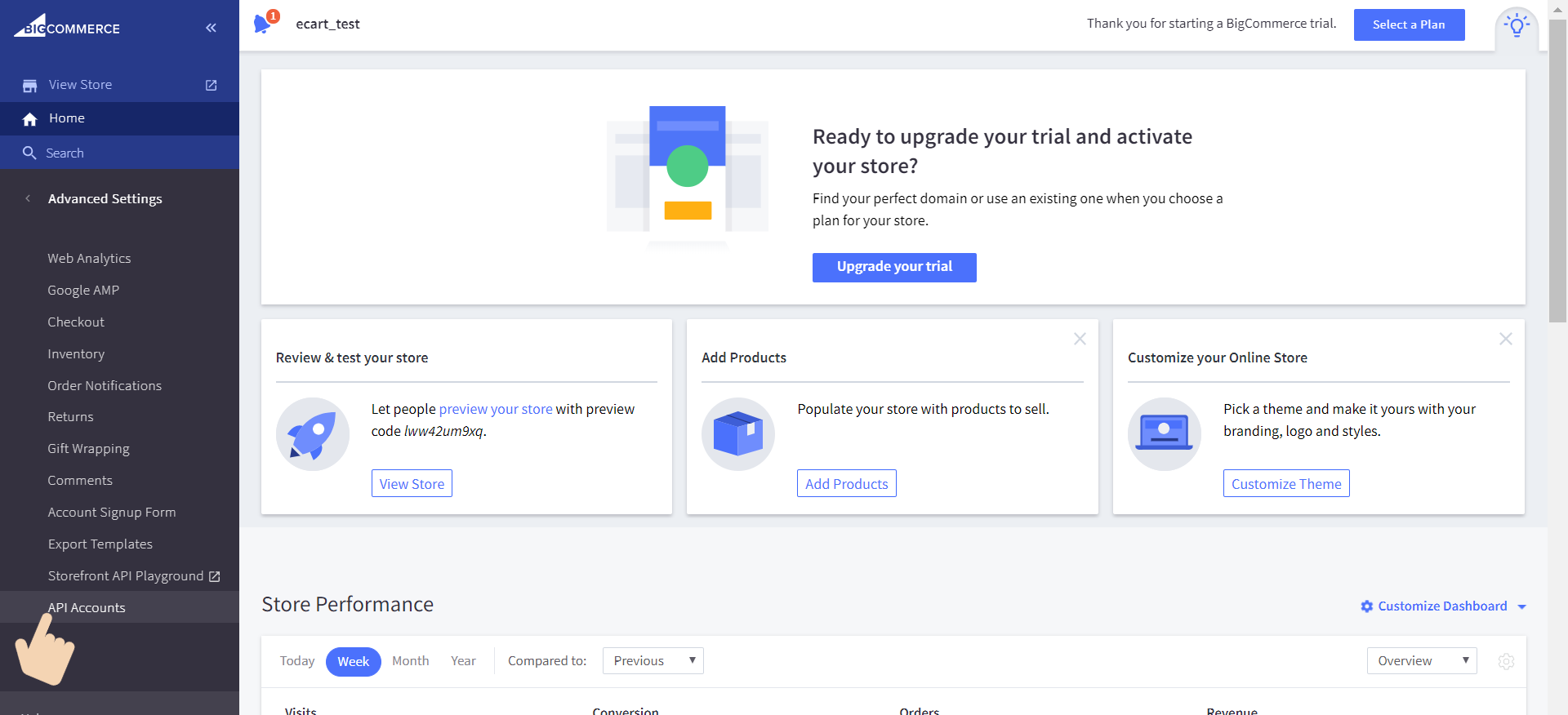
In your BigCommerce admin, open Settings, then API, then API Accounts.
Click Create V2/V3 API token.
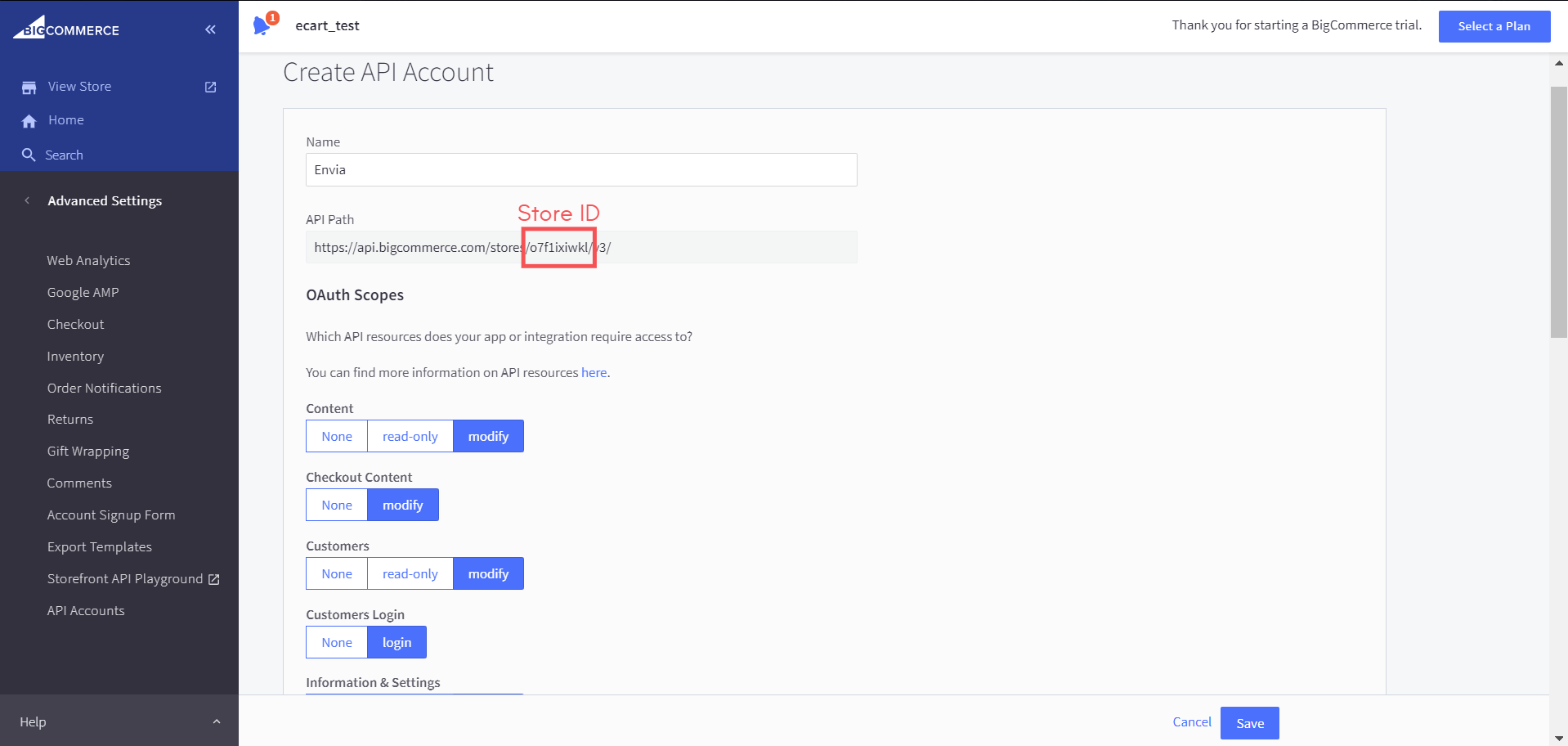
Set every scope to the highest permission level available.
Save the API account. BigCommerce displays the Client ID, Secret, and Access Token.
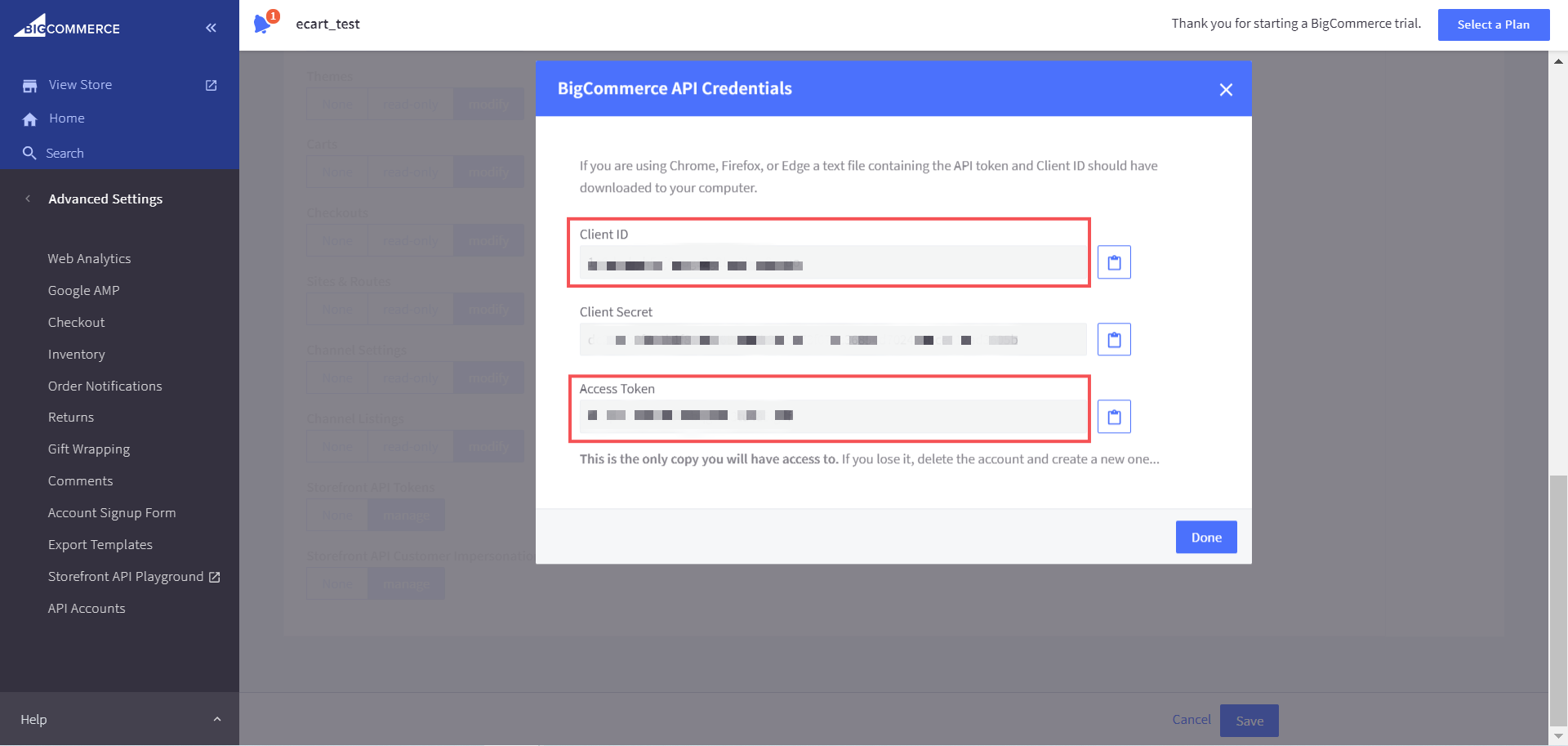
Copy the Client ID and Access Token, and note your Store ID from the BigCommerce settings.
Open Integrations in Keysender.
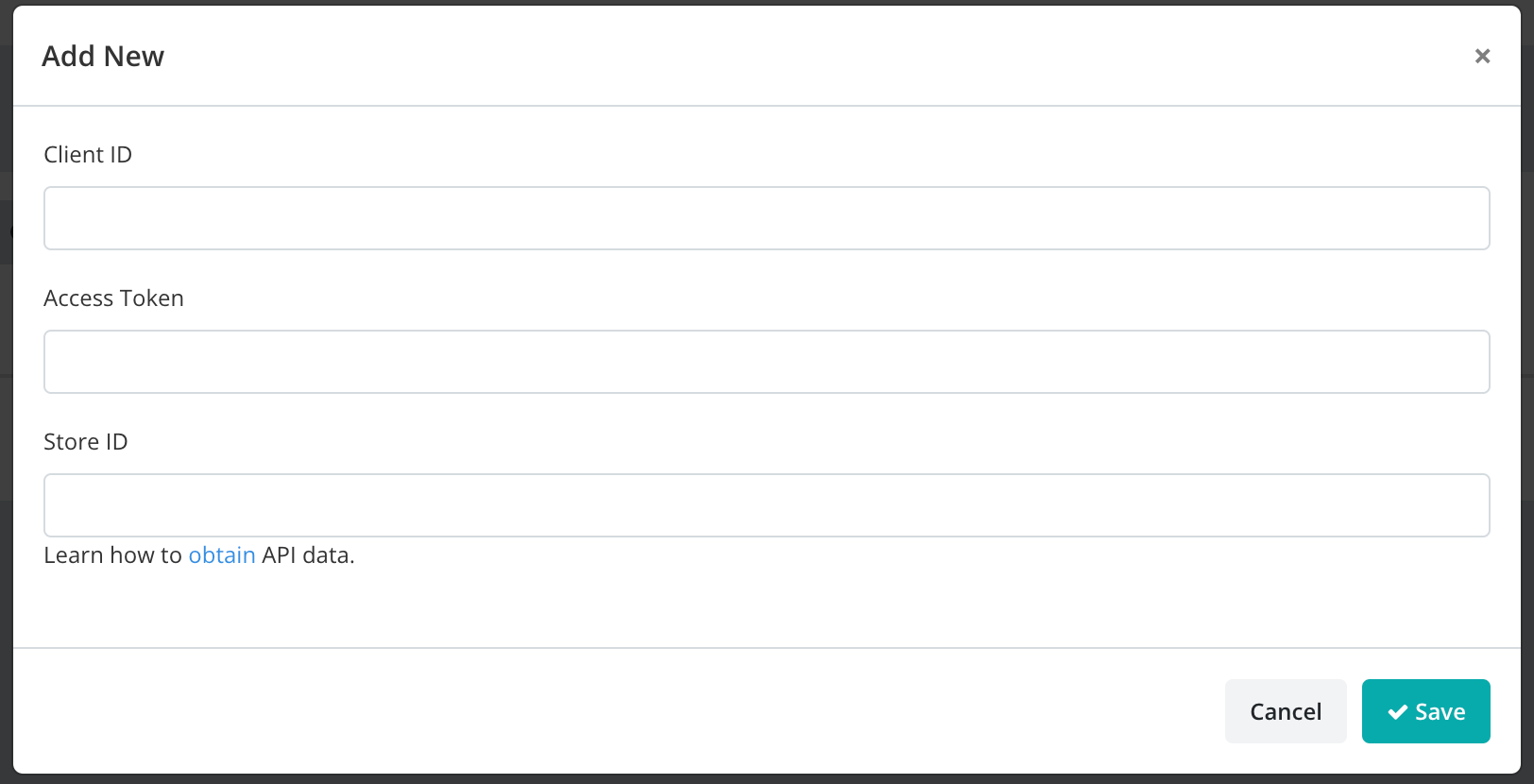
Click Add New, select BigCommerce, and click Next.
Enter your Client ID, Access Token, and Store ID.
Click Save.
In Keysender, open BigCommerce, then Products.

Assign each product to the correct Keysender inventory and an email template.
Your BigCommerce products appear in Keysender with an inventory and email templates assigned. When a buyer purchases on your BigCommerce store, Keysender fulfills the order automatically.
| Symptom | Cause | Action |
|---|---|---|
| Keysender cannot connect to BigCommerce | An API scope was left below the highest permission level | Recreate the API account with every scope set to full access |
| An order was placed but no code was delivered | The product was not connected to an inventory | Connect it under BigCommerce, Products, then resend the order |
| The wrong template sends on delivery | The product's email template selection was not saved | Reopen the product, reselect the template, and save |
Submit a claim so Keysender Support can review it.
Create a V2/V3 API token in your BigCommerce admin under Settings, API, then API Accounts, with every scope set to the highest permission level. Copy the Client ID and Access Token, and note your Store ID from the BigCommerce settings.
When you create the V2/V3 API token, setting every scope to the highest permission level available lets Keysender read orders and manage delivery for your store. BigCommerce then displays the Client ID, Secret, and Access Token for you to copy into Keysender.
In Keysender, open Integrations, click Add New, select BigCommerce, and enter your Client ID, Access Token, and Store ID. Then open BigCommerce, then Products, and assign each product to the correct inventory database and an email template.
