Also available in: Français·हिन्दी·Polski·中文
Reading this in another language? Use your browser's built-in translate option. Button and field names stay in English on purpose, to match what you see in Keysender.
Connect your Shopify store to Keysender to automate digital product delivery for Shopify orders. Keysender is available as a Shopify app: once your store is connected and a product is mapped to an inventory, every paid order receives its code automatically by email or through your Access Page, and stock stays in sync across your channels.
TL;DR
Make sure you have:
[your-shop-name].myshopify.com.Log in to your Shopify admin.
Open Apps, then click Develop apps.

Click Create an app.

Set the app name to Keysender, then click Create app.
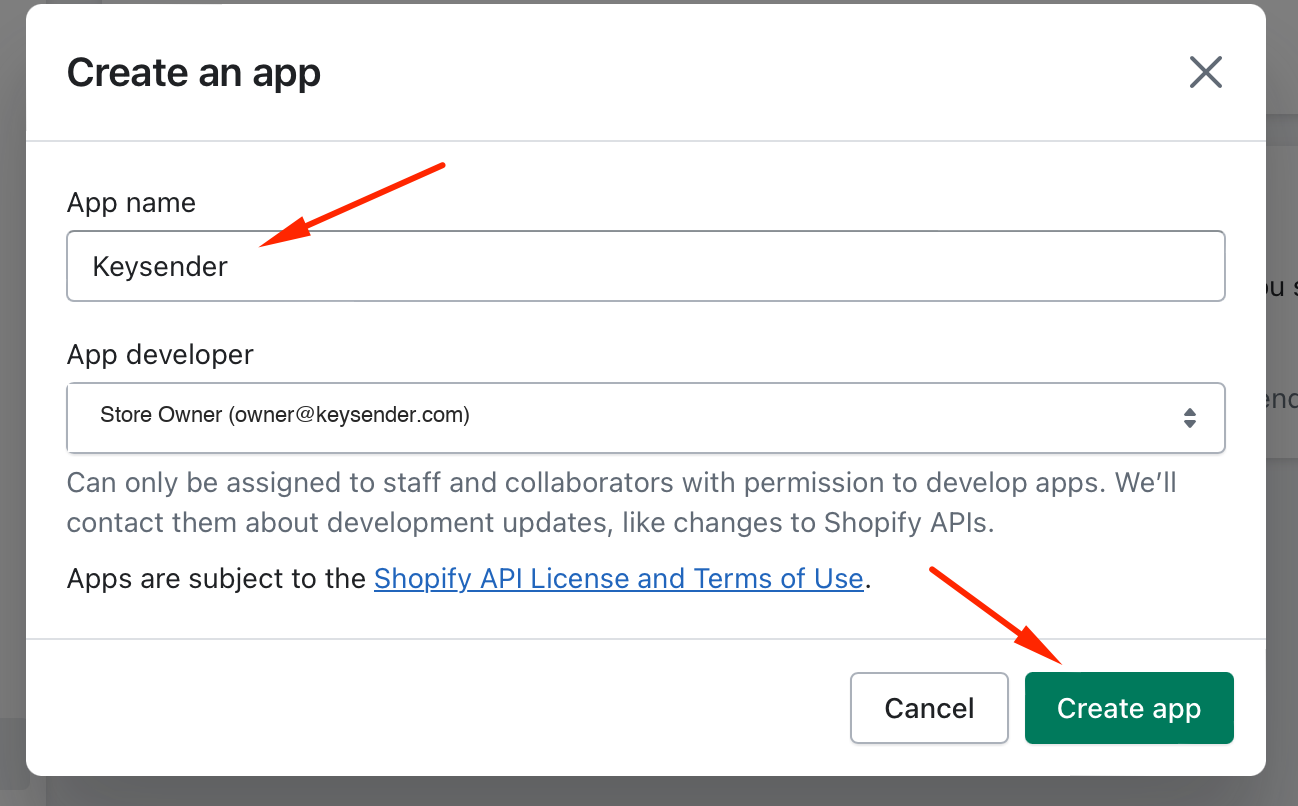
Open Overview, then click Configure Admin API Scopes.
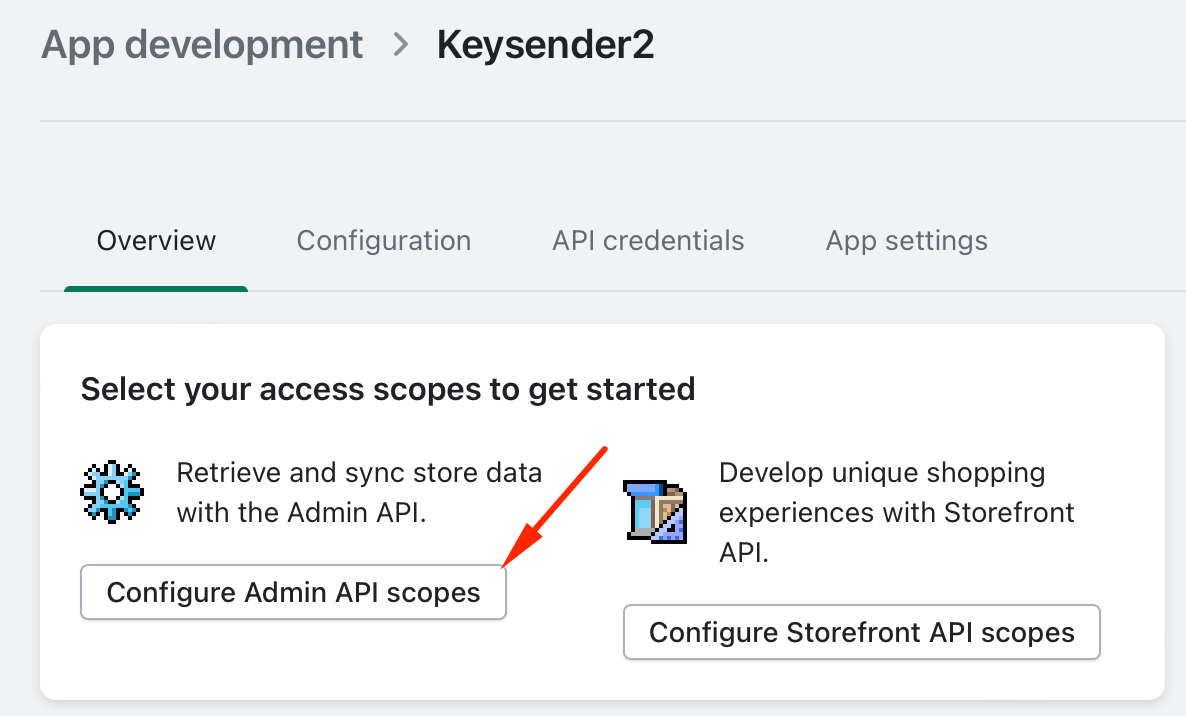
Select both read and write for each of the following scopes:
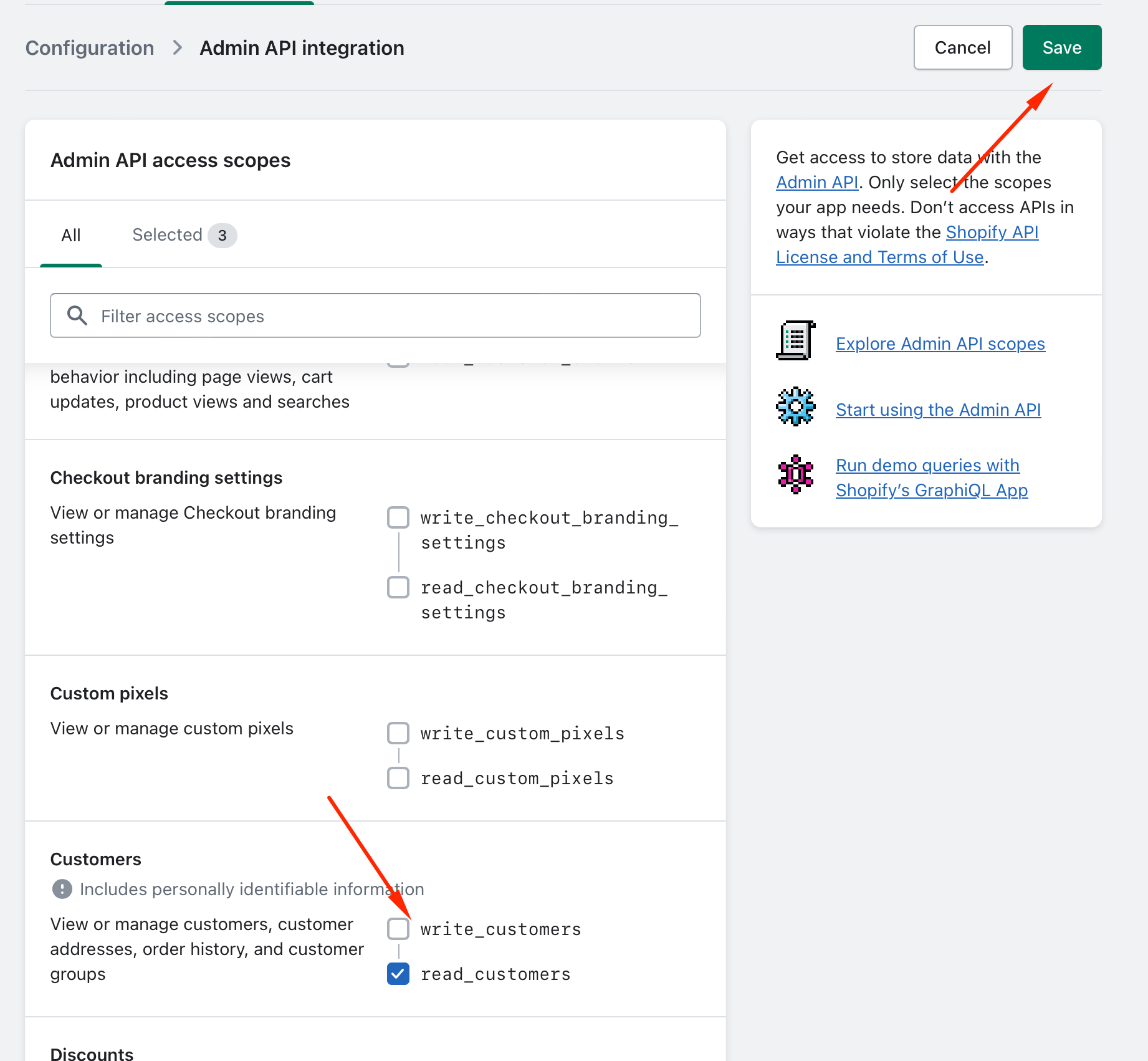
Click Save.
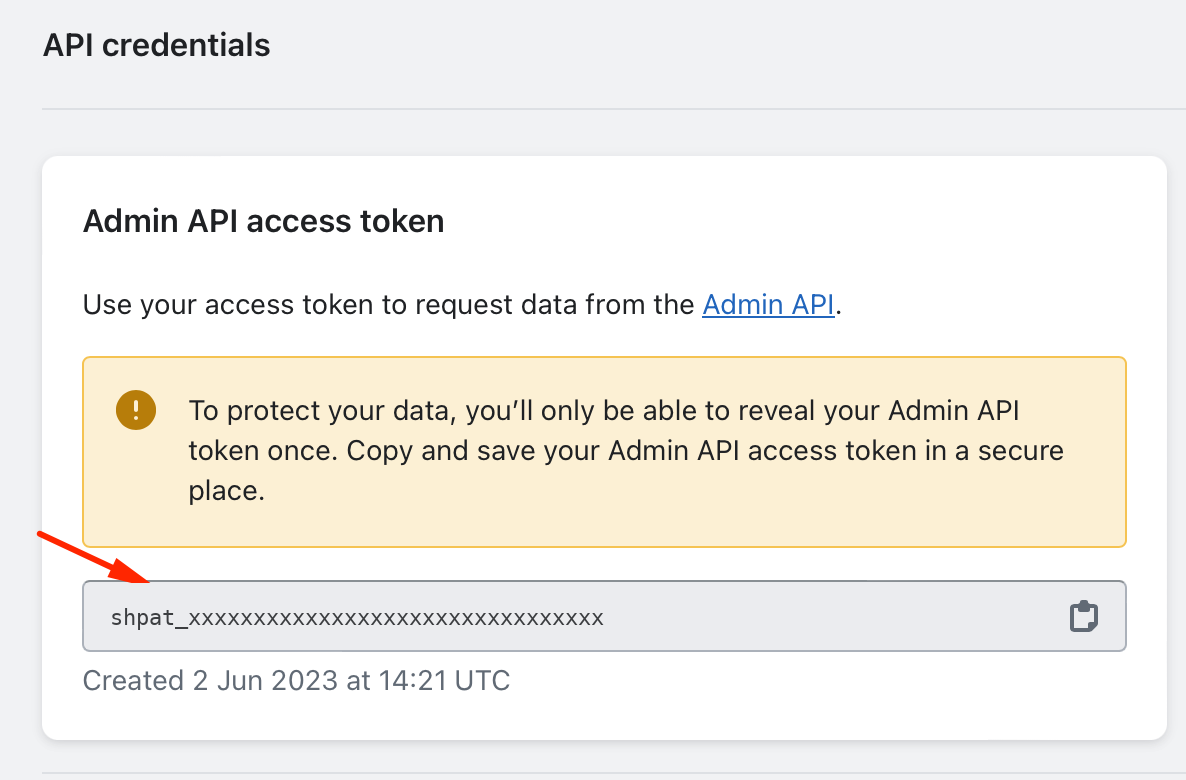
Open API credentials, then click Install app.
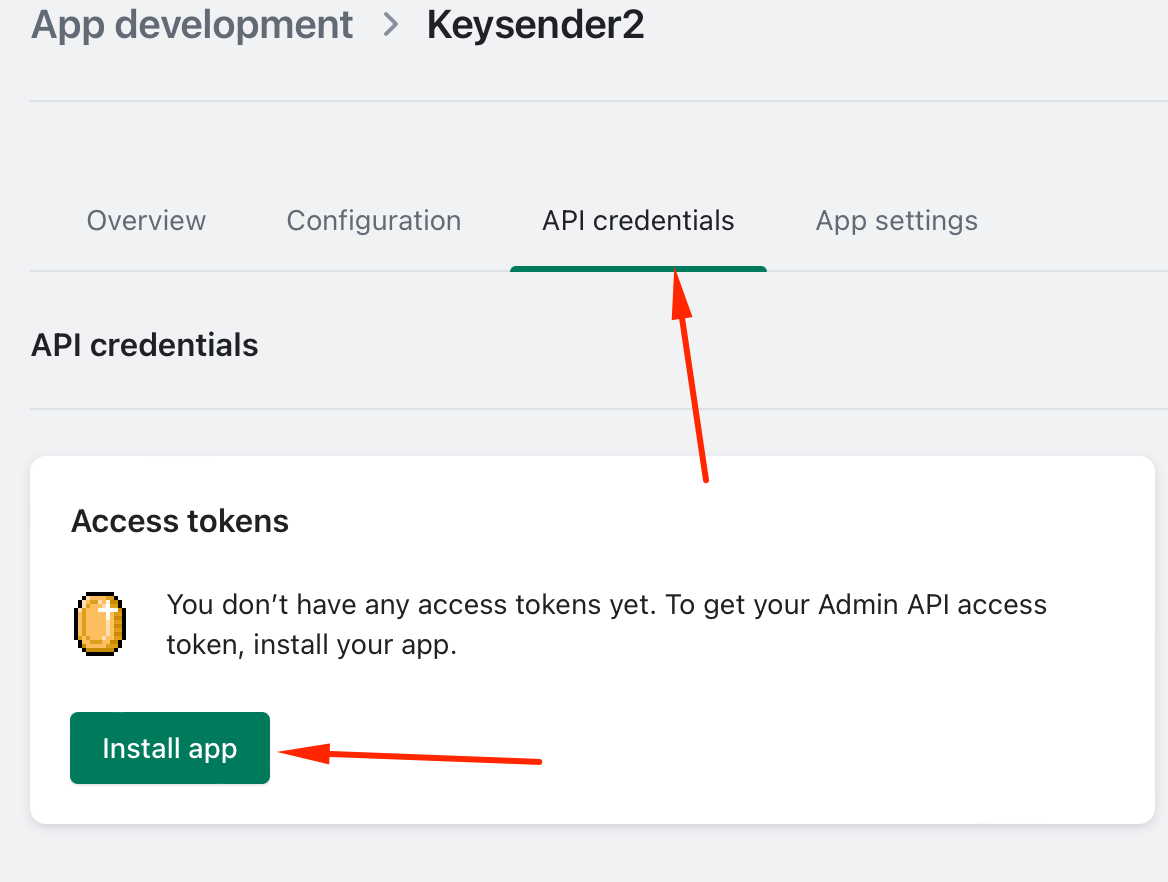
Copy the Admin API access token.
Open Integrations in Keysender.
Click Shopify to activate it.
Select Shopify in the side panel, then click Stores.

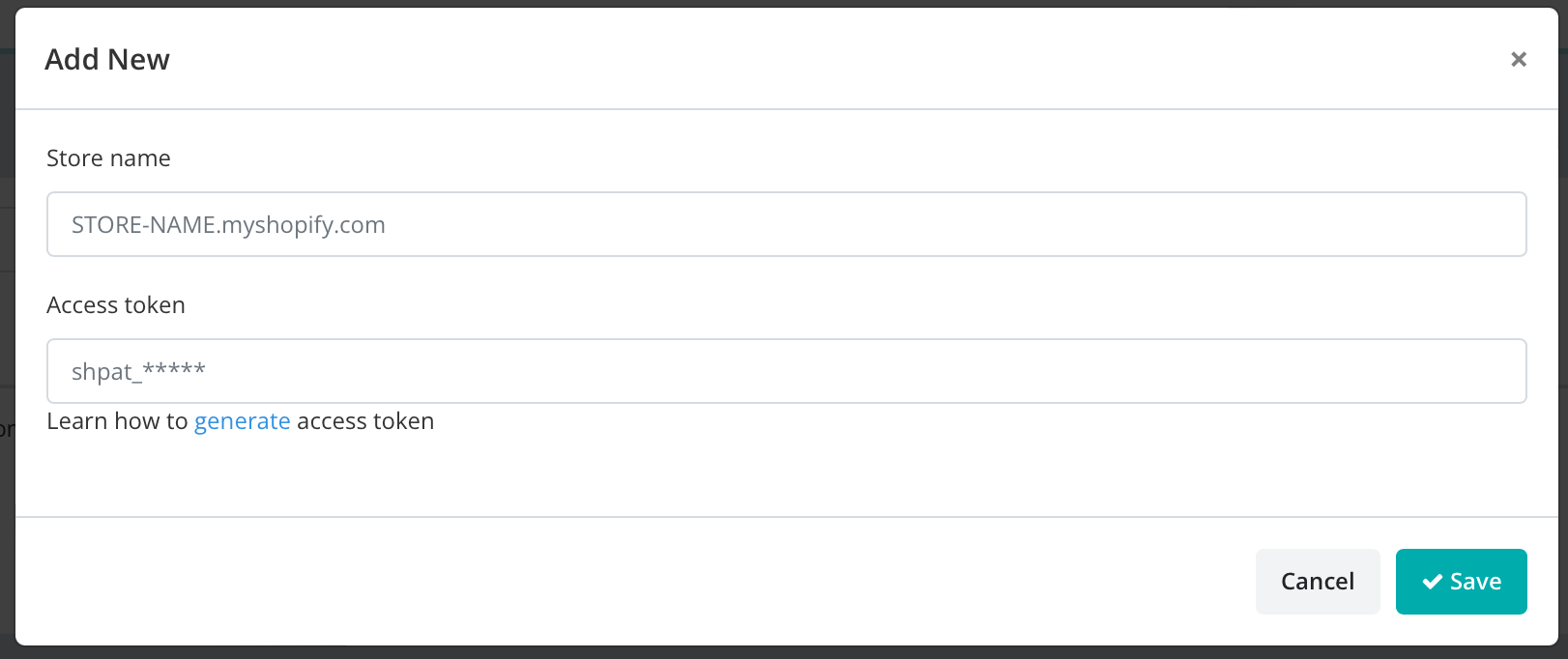
Click Add New.
Enter your Shopify store URL in the format [your-shop-name].myshopify.com. You can find this under Settings, then Store details, in your Shopify admin.
Paste the access token you copied from Shopify.
Click Save.
Open Products under Shopify in Keysender.
Select a product and click Details, then set its Inventory as described in Connecting your products to a connected channel.

Assign an email template if you want to use a custom template for distribution. Then save.
Your Shopify products appear in Keysender with an inventory assigned. When a buyer purchases on your Shopify store, Keysender fulfills the order automatically.
| Symptom | Cause | Action |
|---|---|---|
| Keysender cannot connect to the store | The Admin API access token is wrong, or a required scope is missing | Recheck every scope in Configure Admin API Scopes is set to both read and write, save, then paste the token into Keysender again |
| A Shopify product does not appear in Keysender | The app has not finished syncing, or the product is not published to the Online Store sales channel | Reload the Shopify Products list in Keysender; confirm the product is published to a sales channel in Shopify |
| An order was placed but no code was delivered | The product was not connected to an inventory when the order came in | Connect the inventory now, then resend the order |
Submit a claim so Keysender Support can review it.
Select both read and write for each of these scopes: Assigned fulfillment orders, Customers, Fulfillment services, Merchant-managed fulfillment orders, Orders, and Products. Then click Save. These scopes let Keysender read orders and fulfill them automatically.
After configuring scopes, open API credentials in Shopify, click Install app, and copy the Admin API access token. Your store URL is under Settings, then Store details, in the format [your-shop-name].myshopify.com. Paste both into the Stores form in Keysender.
Open Products under Shopify in Keysender, select a product, and connect it to the correct Keysender inventory database. Assign an email template if you want a custom one. When a buyer purchases on your Shopify store, Keysender fulfills the order automatically.
