Reading this in another language? Use your browser's built-in translate option. Button and field names stay in English on purpose, to match what you see in Keysender.
Connect your Ecwid store to Keysender to automate digital product delivery for Ecwid orders. Once the store is authorized, Keysender receives each paid order, matches it to the inventory you connected, and delivers the code to the buyer. You need an active Ecwid store with admin access to complete the setup.
TL;DR
Make sure you have:
Open Integrations in Keysender.
Find Ecwid and click Activate.

Select Ecwid in the side panel.
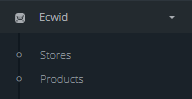
Click Stores in the side panel.
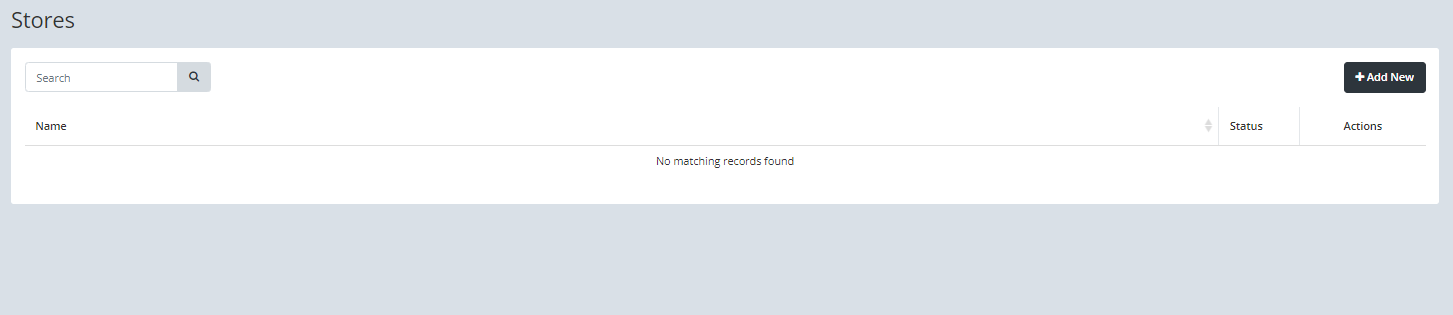
Click Add New.

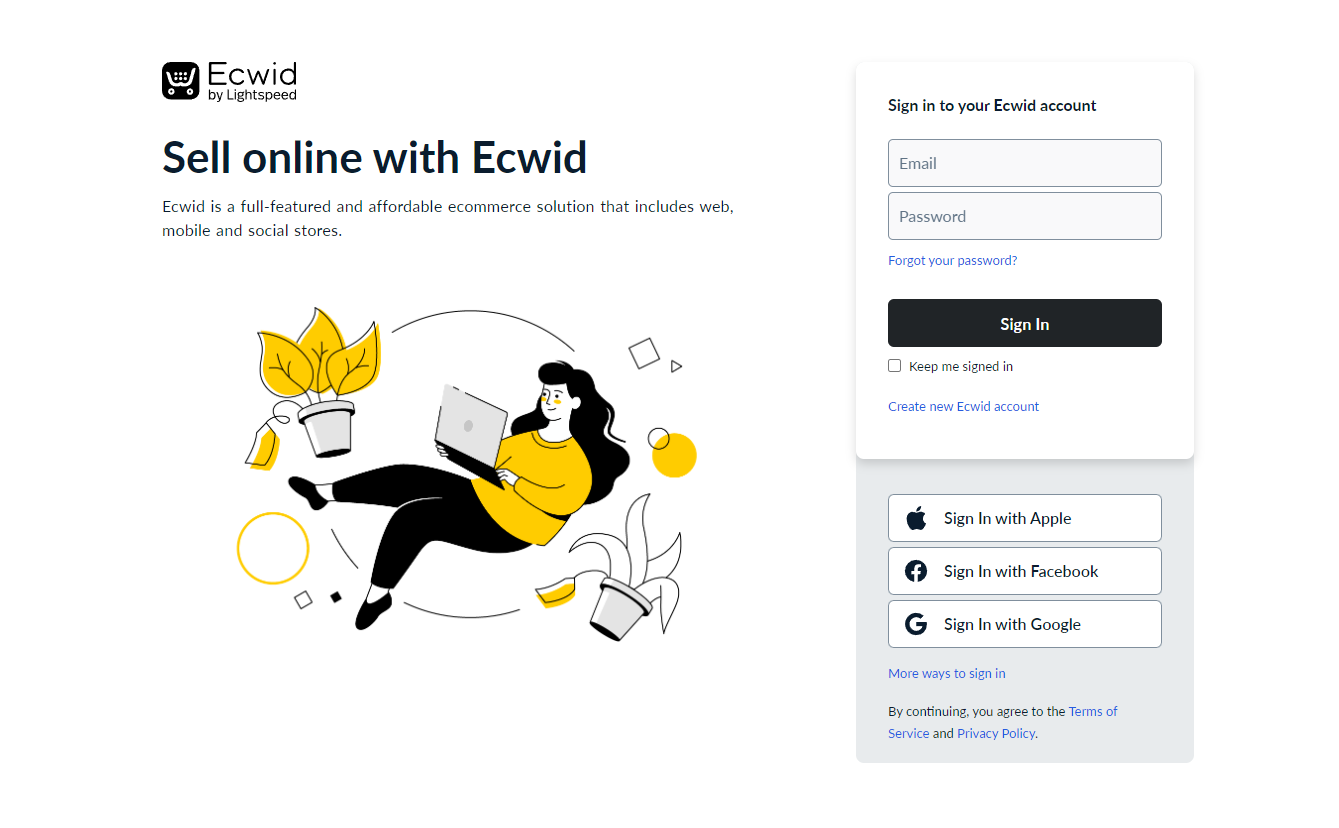
Enter your Ecwid store login and password.
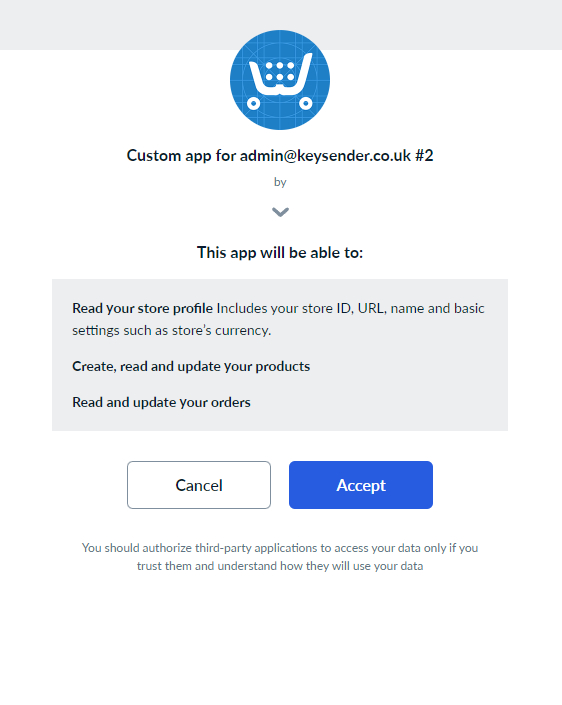
Authorize Keysender by approving the application permissions.
Open Products under Ecwid in Keysender.
Connect each product to a Keysender inventory.
Assign an email template to each product.
Your Ecwid products appear in Keysender with an inventory and templates assigned. When a buyer purchases on your Ecwid store, Keysender fulfills the order automatically.
| Symptom | Cause | Action |
|---|---|---|
| Keysender cannot connect to Ecwid | The application permissions were not fully approved | Reopen the store connection and approve every requested permission |
| An order was placed but no code was delivered | The product was not connected to an inventory | Connect it under Products, then resend the order |
| The wrong template sends on delivery | The product's email template selection was not saved | Reopen the product, reselect the template, and save |
Submit a claim so Keysender Support can review it.
You need access to your Keysender vendor account and an active Ecwid store with admin access. You activate Ecwid in Keysender Integrations, add your store by logging in and authorizing Keysender, then connect your products to inventory databases and email templates.
In Keysender, select Ecwid in the side panel, click Stores, then Add New. Enter your Ecwid store login and password, then authorize Keysender by approving the application permissions in Ecwid.
Open Products under Ecwid in Keysender, connect each product to a Keysender inventory database, and assign an email template to each product. After that, purchases on your Ecwid store are fulfilled automatically.
