Reading this in another language? Use your browser's built-in translate option. Button and field names stay in English on purpose, to match what you see in Keysender.
Connect your Gamivo seller account to Keysender to automate digital product delivery for Gamivo orders. Once connected, Keysender delivers the code for each paid Gamivo order from the inventory you map and keeps the Gamivo stock count aligned with your other channels. You need a registered Gamivo seller account and its API access.
TL;DR
Make sure you have:
Log in to your Gamivo account.
Go to API Settings under account settings.
Click Generate new API token.
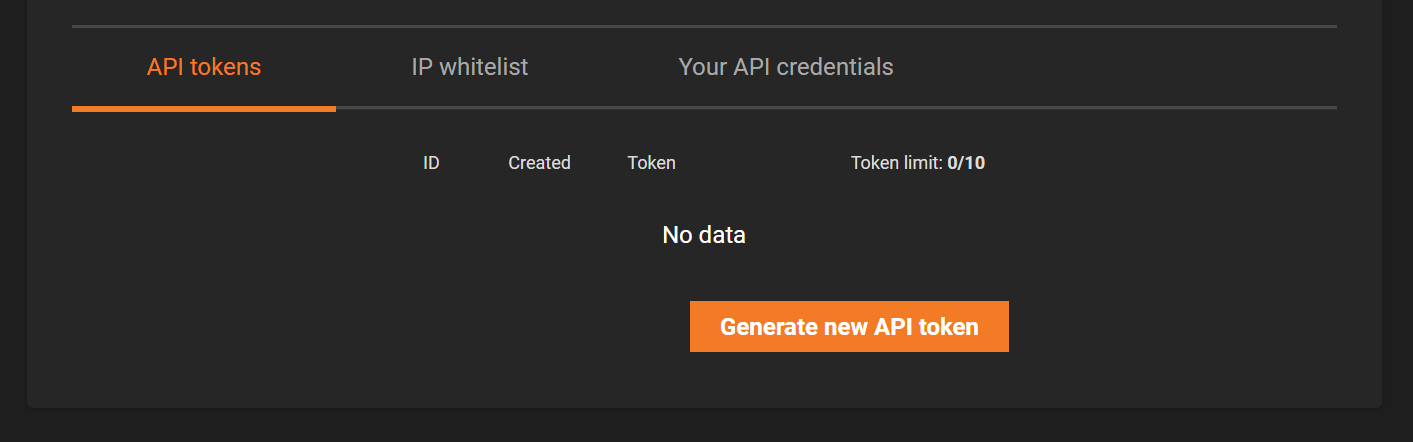
Copy the API token.
Open Integrations in Keysender.
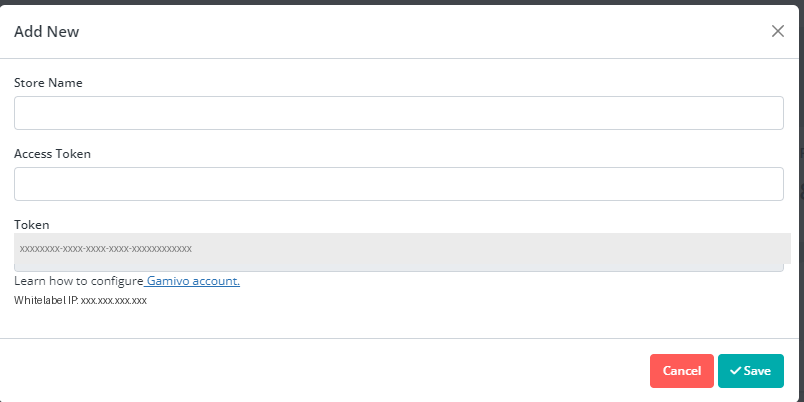
Click Add New, select Gamivo, then click Next.
Select Stores in the sidebar, then click Add New.
Enter your Gamivo store name and URL.
Paste the Gamivo API token into the API key field.
Click Save. Keysender provides you with an Access Token.
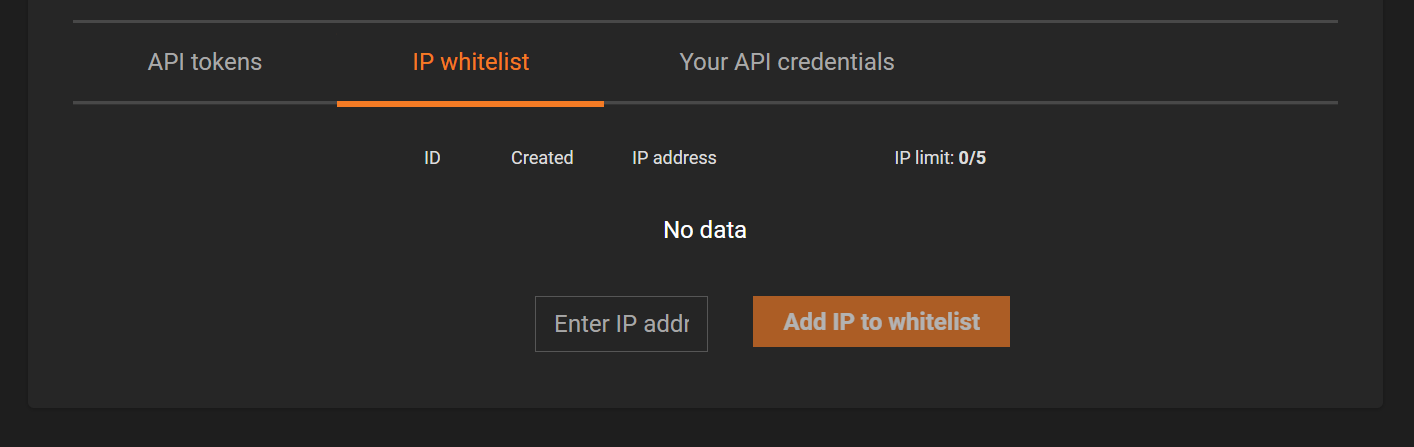
In your Gamivo account, go to IP Whitelist under Wholesale API.
Add the Keysender IP addresses: 209.38.234.89 and 164.92.203.1.
Save the changes.
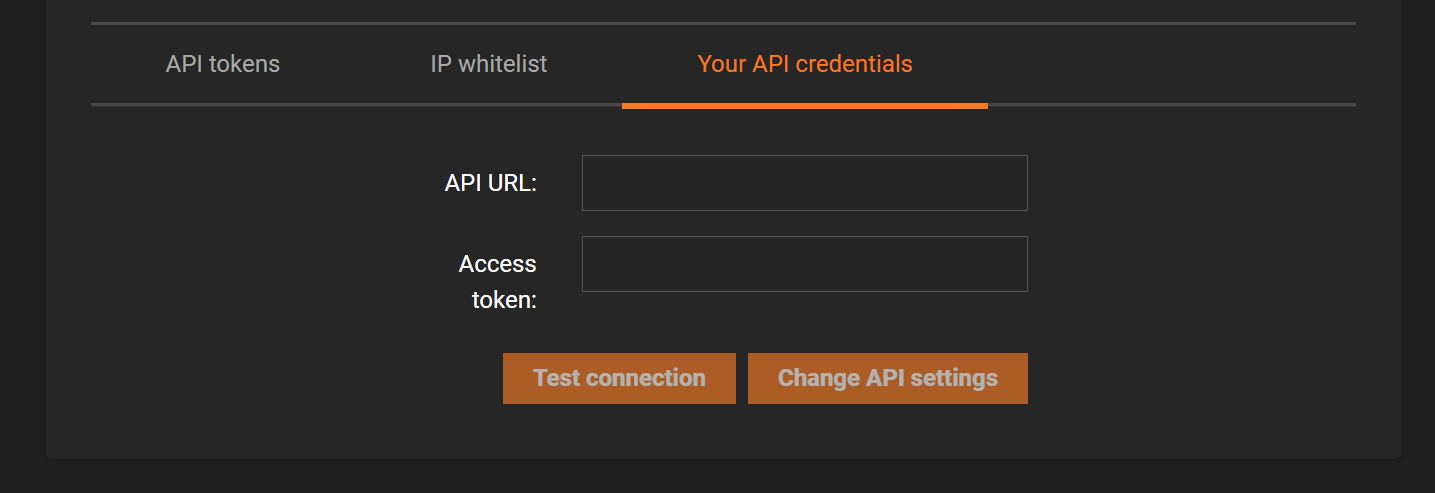
In your Gamivo account, go to Your API credentials.
Enter the Keysender URL provided during setup.
Enter the Access Token provided by Keysender.
Test the connection.
Save the changes.
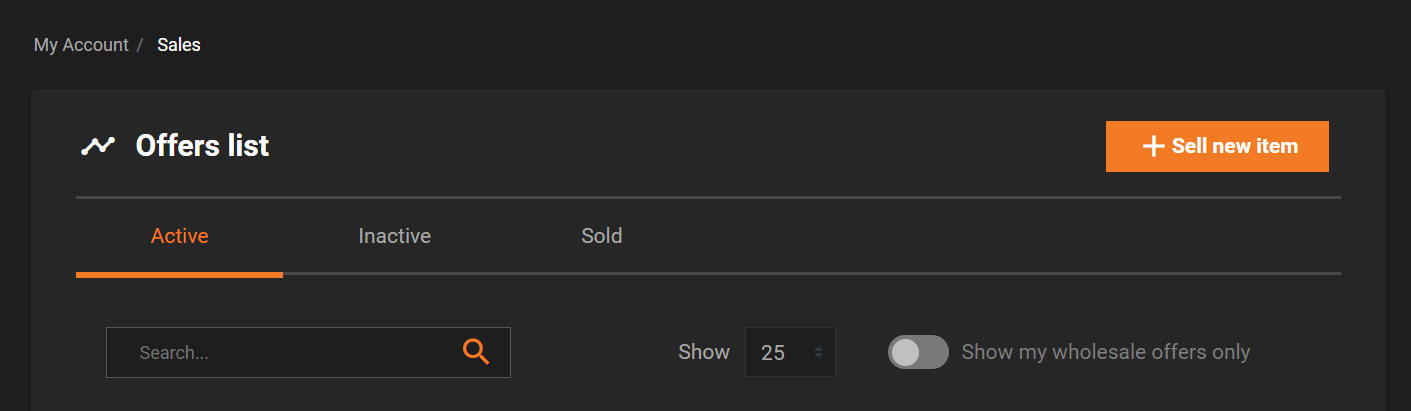
In Gamivo, create offers for the products you want to sell.
In Keysender, open Products under Gamivo.
Click Refresh to load your Gamivo listings.
Connect each listing to the correct Keysender inventory.
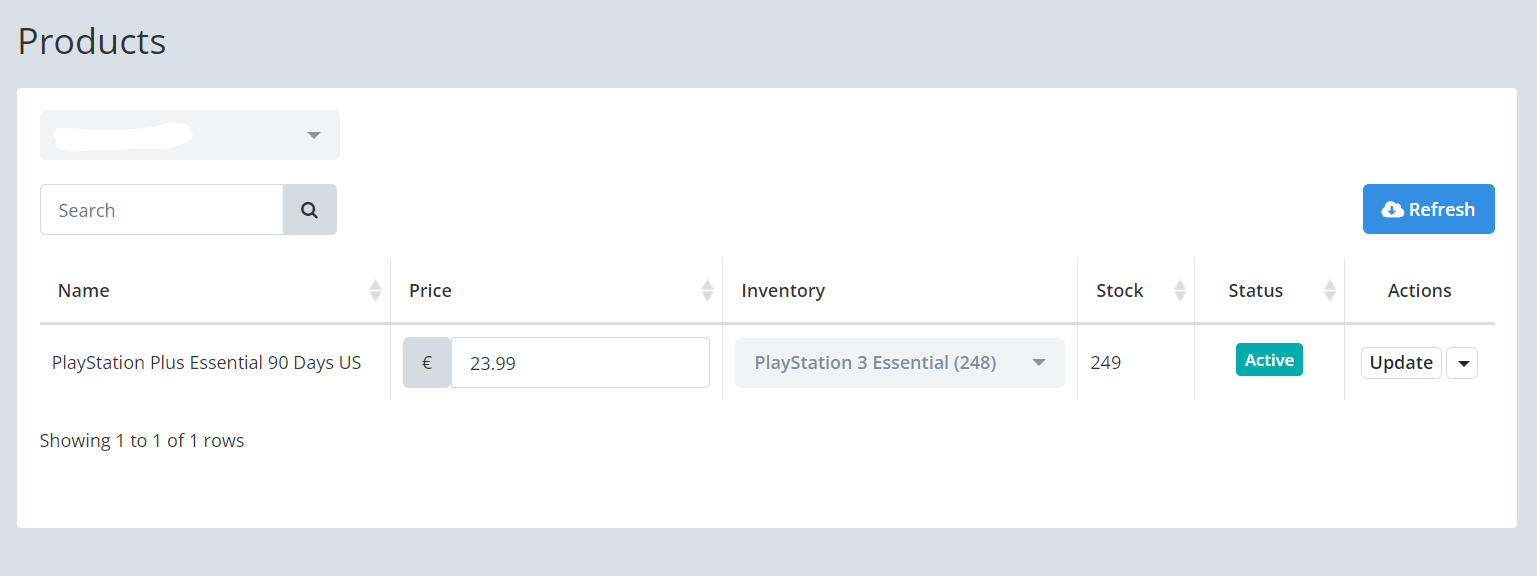
Your Gamivo products appear in Keysender with an inventory assigned. When a buyer purchases on Gamivo, Keysender fulfills the order automatically.
| Symptom | Cause | Action |
|---|---|---|
| Gamivo rejects the connection test | Keysender's IP addresses are missing from Gamivo's IP Whitelist | Add both 209.38.234.89 and 164.92.203.1 under Wholesale API |
| An order was placed but no code was delivered | The listing was not connected to an inventory | Connect it now under Products, then resend the order |
| Stock does not match between Gamivo and Keysender | The listing was connected after the offer was already live | Click Refresh under Products to resync the listing |
Submit a claim so Keysender Support can review it.
Log in to your Gamivo account, open API Settings under account settings, and click Generate new API token. Copy the token, then paste it into the API key field when you add the Gamivo store in Keysender.
In your Gamivo account, open IP Whitelist under Wholesale API and add the Keysender IP addresses 209.38.234.89 and 164.92.203.1, then save. Keysender also gives you a URL and Access Token to enter in your Gamivo API credentials.
When you save the store with your Gamivo name, URL, and API token, Keysender provides an Access Token. Enter the Keysender URL and this Access Token in Your API credentials on Gamivo, test the connection, and save the changes.
