Reading this in another language? Use your browser's built-in translate option. Button and field names stay in English on purpose, to match what you see in Keysender.
Connect your Hood.de seller account to Keysender to automate digital product delivery for Hood.de orders. Hood.de only grants API access to Platin Shop accounts, so upgrade your shop first if needed. After the connection, each paid Hood.de order is matched to an inventory and the code is delivered without manual work.
TL;DR
Make sure you have:
Log in to your Hood.de seller account.
Click Mein Hood in the top right corner.
Open Import & Anbindungen from the left menu.
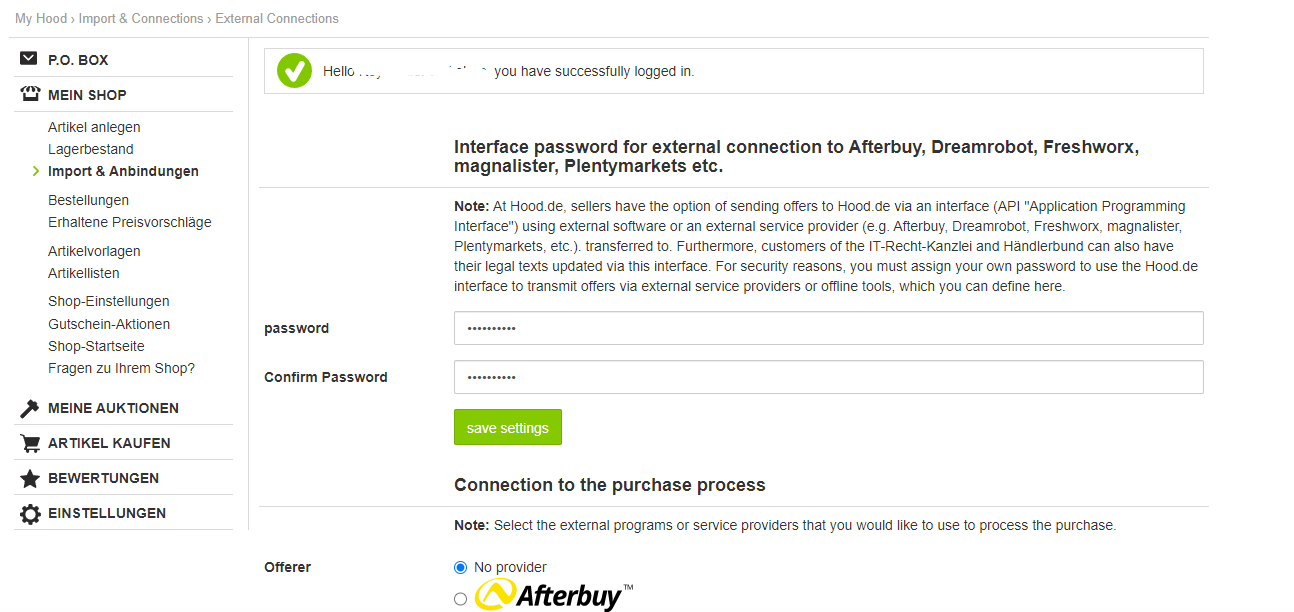
In the Externe Anbindung einrichten section, create your API password.
Click Einstellungen speichern.
Open Integrations in Keysender, click Add New, and select Hood.
Enter a store name for reference, your Hood.de username, and the API password.
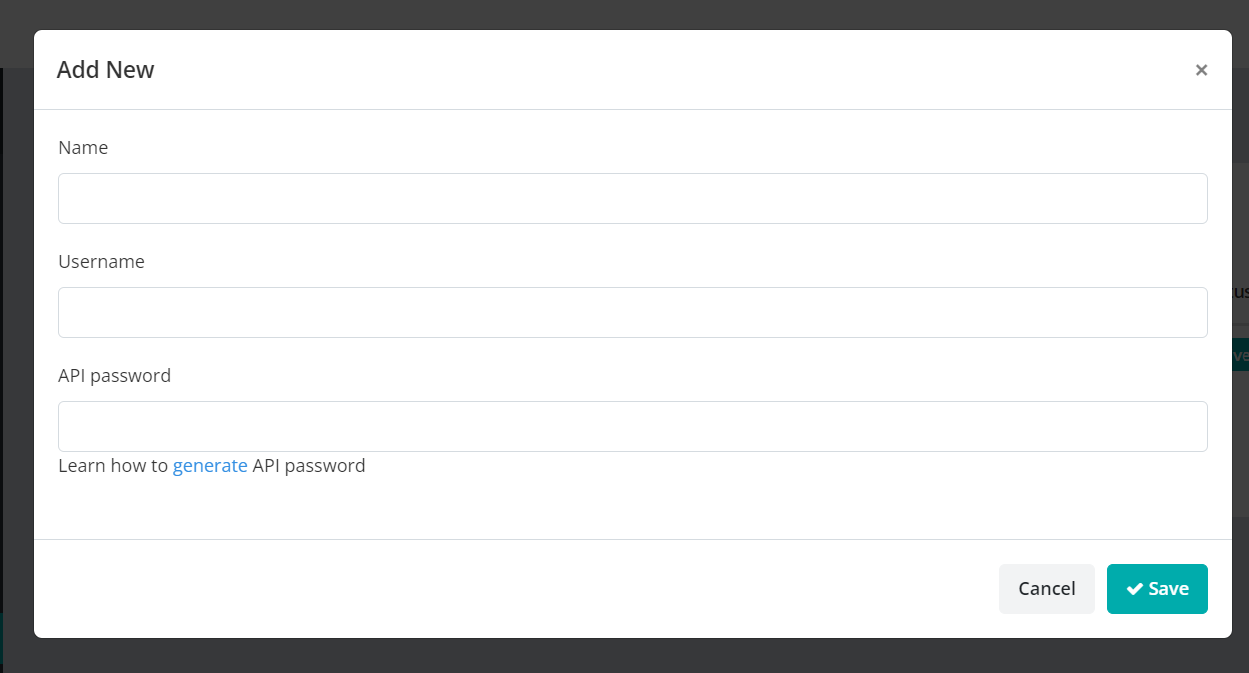
Click Save.
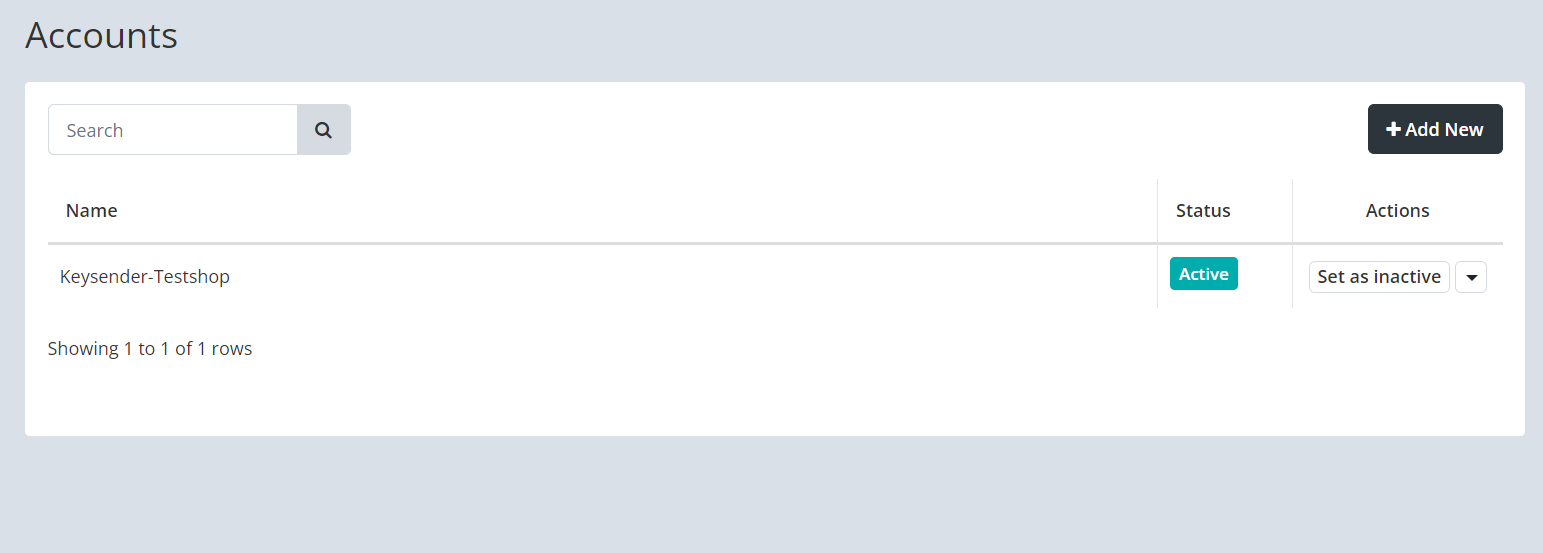
Confirm your store appears in the Stores table.
Select Hood.de in Keysender, then open the Products tab.
Click Refresh to load your Hood.de products, then set monitoring to Active for each product you want Keysender to distribute.
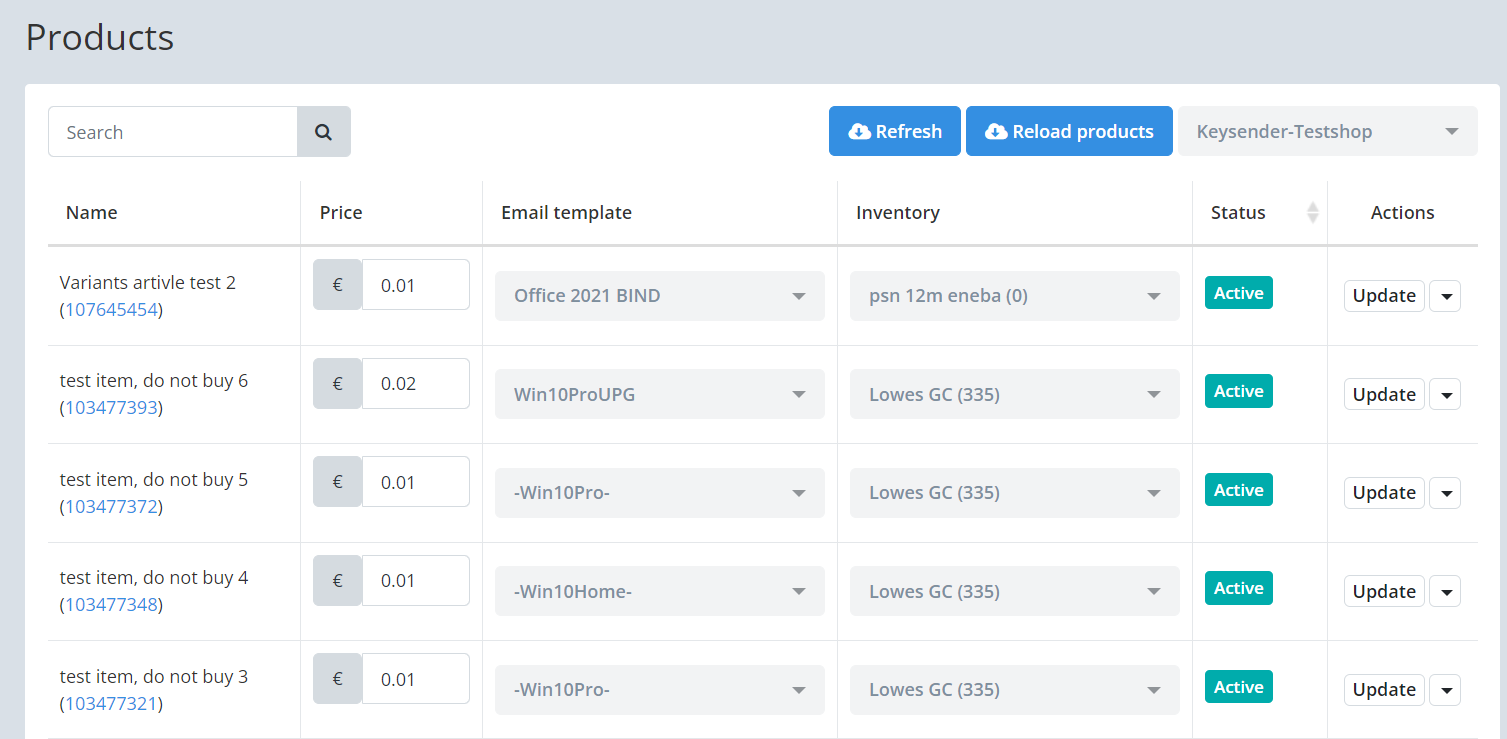
For each product, select the email template and connect the Keysender inventory.
Update the product price if needed and click Update.
Your Hood.de products appear in Keysender with monitoring active and an inventory assigned. When a buyer purchases on Hood.de, Keysender fulfills the order automatically.
| Symptom | Cause | Action |
|---|---|---|
| Keysender cannot connect to Hood.de | The account is not a Platin Shop, or the API password was entered incorrectly | Confirm your Hood.de shop tier, then regenerate the API password and re-enter it |
| An order was placed but no code was delivered | The product was not connected to an inventory, or monitoring was not Active | Set monitoring to Active and connect the inventory, then resend the order |
| A new Hood.de listing does not appear in Keysender | The products list has not been refreshed | Click Refresh under Hood.de, Products |
Submit a claim so Keysender Support can review it.
You need access to your Keysender vendor account, a registered Hood.de seller account, and a Platin Shop on Hood.de, which Hood.de requires for API access. You then generate an API password in Hood.de to use in Keysender.
Log in to your Hood.de seller account, click Mein Hood in the top right, and open Import und Anbindungen from the left menu. In the Externe Anbindung einrichten section, create your API password and click Einstellungen speichern.
Select Hood.de in Keysender, open the Products tab, and click Refresh to load your products. Set monitoring to Active for each product you want to distribute, select an email template, connect the inventory database, update the price if needed, and click Update.
