Reading this in another language? Use your browser's built-in translate option. Button and field names stay in English on purpose, to match what you see in Keysender.
Use the Transactions page to filter, export, and take bulk actions on orders across every connected channel. Filter by email, product, sent code, date, or platform, export for your records, and act on many orders at once instead of opening each one separately - the bulk-action counterpart to viewing and managing your orders.
TL;DR
Open Transactions, then Show all in Keysender to see orders from all connected channels.
Use the Filters panel to narrow orders by email, user name, product number, sent code, date from, or platform.
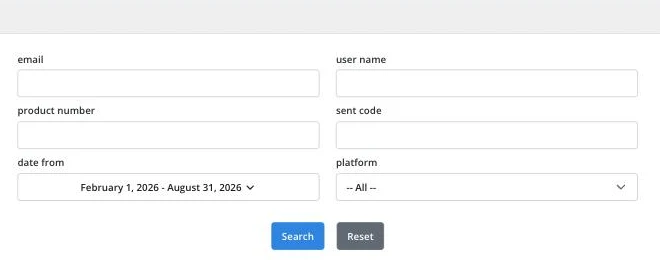
Click Search to apply the filters.
Click Export to download a CSV file of the filtered orders.
Select the orders you want to act on using the checkboxes.
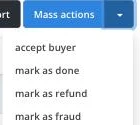
Click Mass actions and choose accept buyer, mark as done, mark as refund, or mark as fraud.
Click Add transaction in the Transactions sidebar menu.
Enter the Customer e-mail, choose a Product or enter an Item name, set Quantity and Unit Price, and select an Email Template.
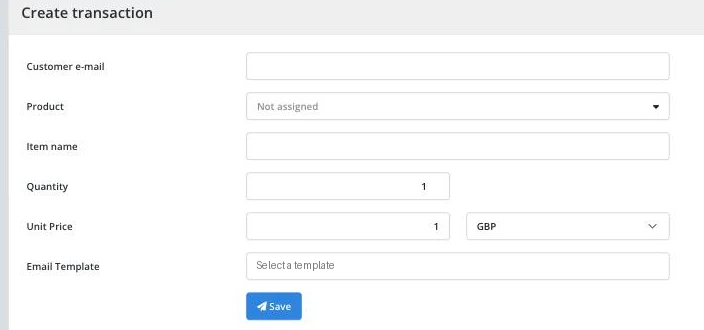
Click Save.
Your orders appear in the Transactions list with the applied filters. The exported CSV opens in Excel with all transaction data separated into columns.
| Symptom | Cause | Action |
|---|---|---|
| A filtered search returns nothing | The date from range does not cover the order | Widen the date range before assuming the order is missing |
| A CSV opens with everything in one column in Excel | The delimiter was left as the default instead of Semicolon | Re-import with Data, From Text/CSV, and set the delimiter to Semicolon |
| A mass action does not seem to apply | No rows were selected before clicking Mass actions | Check the row checkboxes first, then choose the action |
Submit a claim so Keysender Support can review it.
On the Transactions page, open Show All, apply your filters, choose a date range, and click Export to download a CSV file of the filtered orders. The CSV holds all the transaction data so you can open it in a spreadsheet for reporting or record keeping.
In Excel, go to Data then From Text/CSV and select the downloaded file. Set the delimiter to Semicolon so the transaction data separates into columns correctly, then click Load. The orders appear in Excel with each field in its own column.
Select the orders you want to act on, then choose an action from the list. The options include accept, mark as done, refund, and report fraud. You can also filter orders by email, auction number, code, or status before you act on them.
