Reading this in another language? Use your browser's built-in translate option. Button and field names stay in English on purpose, to match what you see in Keysender.
The Offers page is where you manage listings for a connected marketplace store from inside Keysender, instead of going back and forth to the marketplace's own seller panel. Pick a connected store, review or filter its offers, and list a new item without leaving Keysender.
TL;DR
Make sure you have at least one marketplace store connected under connecting your products to an integration. The workbench has nothing to show until a store is connected.
Open Sale Channels, then Offers in Keysender.
Select the connected store you want to manage from the dropdown at the top left. Only stores you have connected appear here.
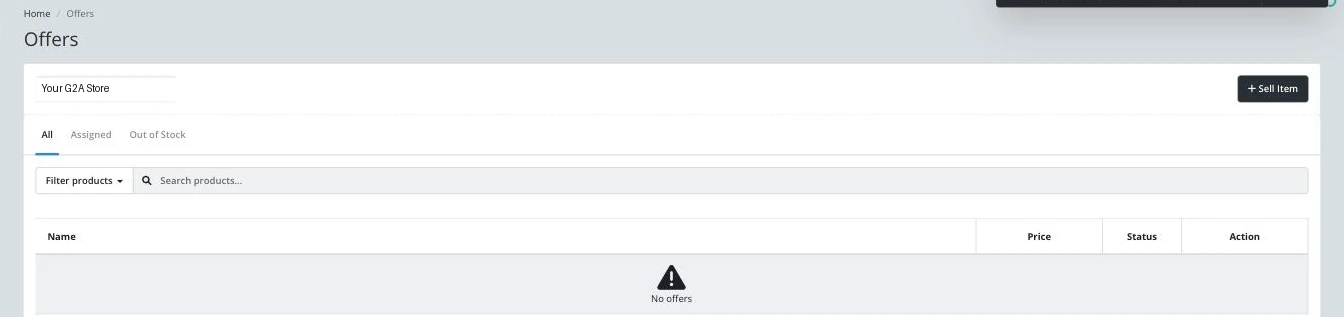
Use the All, Assigned, and Out of Stock tabs to switch which offers the list shows.
Open Filter products to narrow the list to a product type, for example Dropshipping, Game, or Promo, or use Search products to find one by name.
Click + Sell Item to list a new product on this store.
The offers list updates to match the store and filters you selected, and each row shows that offer's current Price, Status, and available Action.
| Symptom | Cause | Action |
|---|---|---|
| No offers appear at all | The selected store has no listings yet, or nothing matches the current filter | Try Filter products, All, and clear the search box before assuming the store is empty |
| The store dropdown is empty | No marketplace store is connected yet | Connect one first under connecting your products to an integration |
| An offer's Status looks wrong or stuck | The marketplace side has not reported back the latest state yet | Reload the page; if it persists, check the store's own seller panel for an account-level notice |
Submit a claim so Keysender Support can review it.
It lets you manage listings for a connected marketplace store from inside Keysender: switch between connected stores, filter or search, and list a new item, without going back to the marketplace's own seller panel.
No marketplace store is connected yet. Connect one first under Connecting your products to an integration.
All shows every offer for the selected store, Assigned narrows to products already linked to inventory, and Out of Stock shows offers with no stock left to sell.
