Reading this in another language? Use your browser's built-in translate option. Button and field names stay in English on purpose, to match what you see in Keysender.
Keysender keeps one record per buyer: an email, a name, contact details, notes, and whether they are on your allow or block list. The Customers page lists every record on your account, and is the same buyer data the Managing customers with the API endpoints read and write.
TL;DR
Most customer records are created automatically from an order. See Adding a customer to the block or allow list if you specifically want to change a buyer's list status.
Open People, then Customers in Keysender.
Use the All, Allowlisted, and Blocklisted tabs to filter the list, or type into Search customers to find one by email or name.
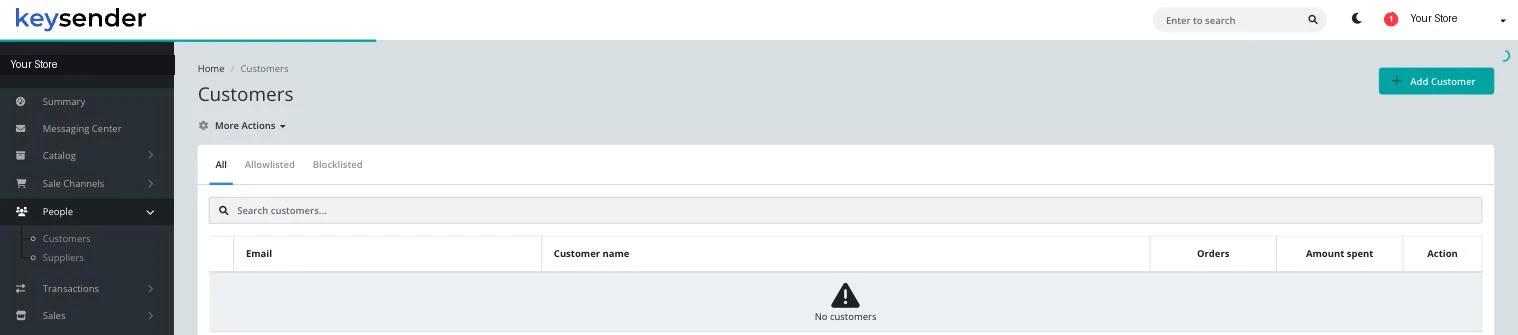
Check the Orders and Amount spent columns to see a buyer's history with your store at a glance.
Click Add Customer to create a record manually, for example ahead of a sale placed outside a connected channel.
Use More Actions for bulk operations across the customers currently shown.
A new or updated customer record appears in the list immediately, with the correct tab (All, Allowlisted, or Blocklisted) reflecting its current list status.
| Symptom | Cause | Action |
|---|---|---|
| A repeat buyer has two separate records | They ordered under two different email addresses | Keysender matches records by email, so treat each address as its own record until the buyer confirms which one to use going forward |
| A customer does not appear after an order | The order has not finished processing yet | Check the order under viewing specific order details; the customer record follows shortly after |
| Blocking a customer here does not stop a pending order | Blocking affects future orders, not one already in progress | Handle the in-progress order directly on its transaction detail page |
Submit a claim so Keysender Support can review it.
Most are created automatically from an order. You can also click Add Customer to create one manually, for example ahead of a sale placed outside a connected channel.
They filter the Customers list to buyers you have specifically allowed or blocked. See Adding a customer to the block or allow list for how to change a buyer's list status.
Yes. The Customers page shows the same buyer records the Managing customers with the API endpoints read and write.
