Also available in: Français·हिन्दी·Polski·中文
Reading this in another language? Use your browser's built-in translate option. Button and field names stay in English on purpose, to match what you see in Keysender.
Link a product from your connected channel to a Keysender inventory, set templates, and turn on monitoring so Keysender delivers a code for every order. This mapping is the step that makes an integration actually deliver: until a listing is connected to an inventory with codes, orders for it are seen but not fulfilled.
TL;DR
Make sure you have:
Select the connected channel from the dropdown menu at the top of the page in Keysender.
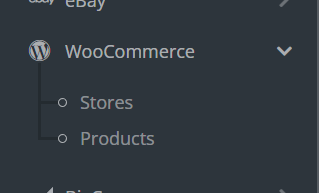
Open Products within the selected channel.
Find the product you want to configure and click Details.
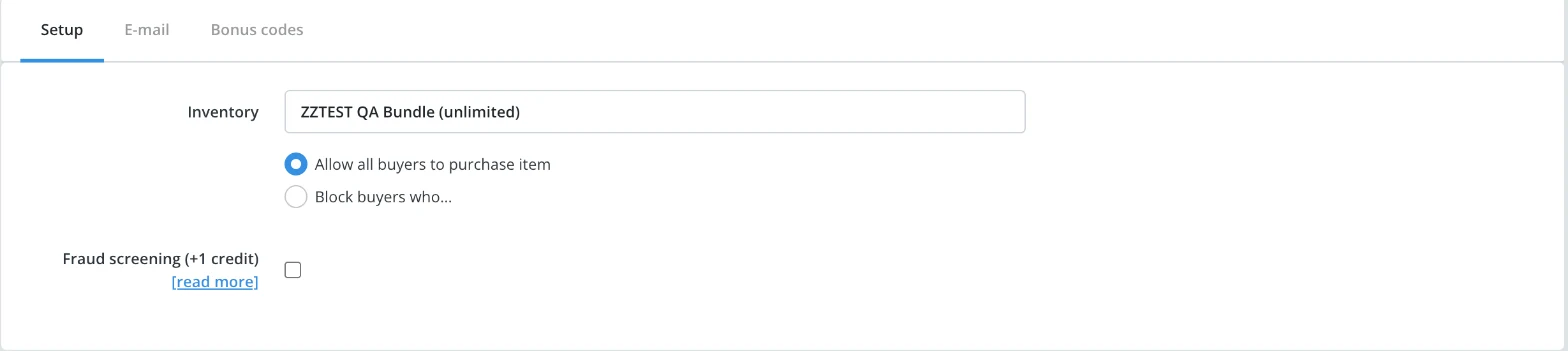
On the Setup tab, set Inventory to the inventory that holds this listing's codes.
Adjust the product price if needed.
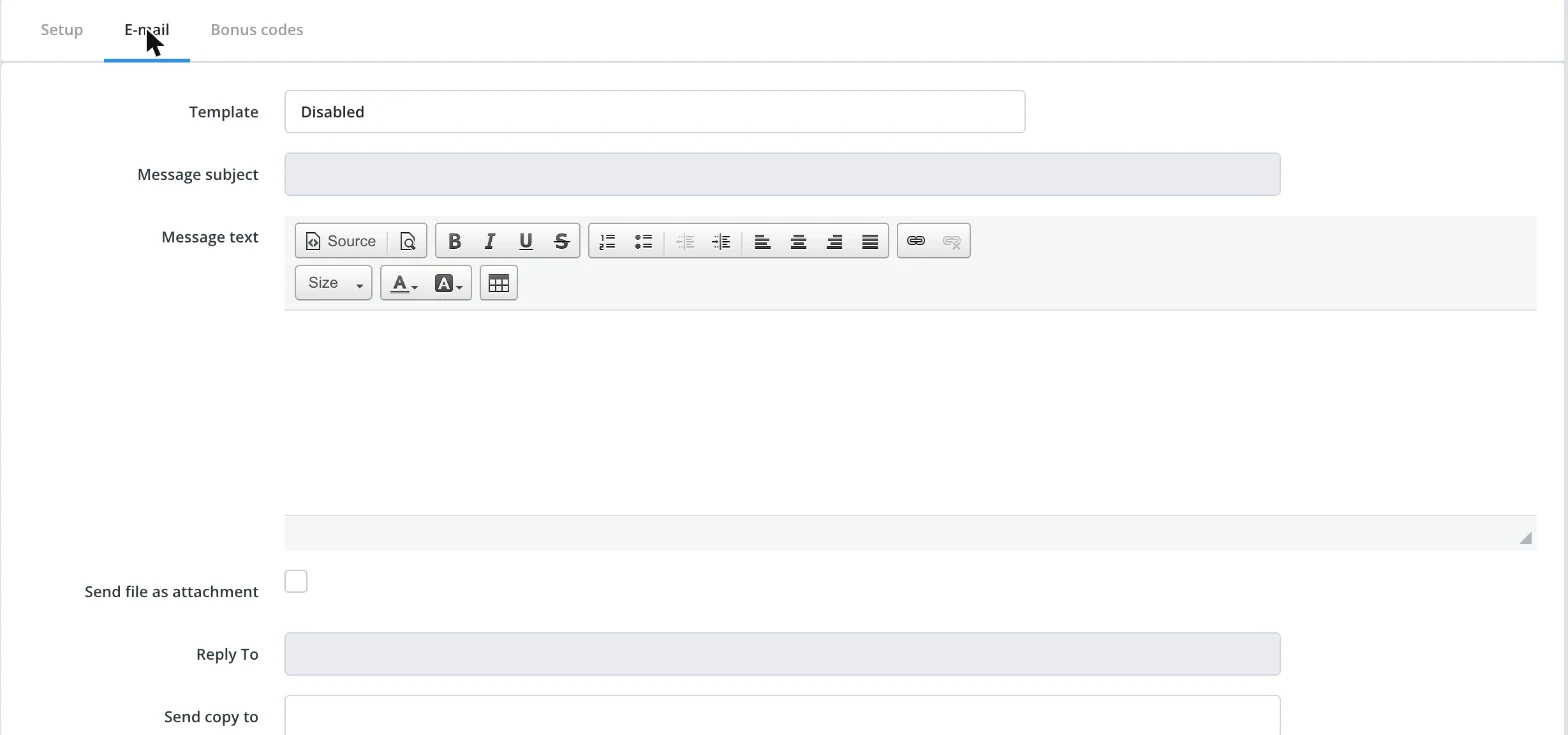
Open the E-mail tab and select your delivery template. Confirm the template is not set to Disabled.
Set Monitoring to active, if the channel offers it.
Click Save changes.
The product shows as connected to an inventory with a delivery template set. When a customer orders the product, Keysender delivers a code using the assigned template. Manage the resulting listing itself from Using the offers workbench.
| Symptom | Cause | Action |
|---|---|---|
| An order was placed but no code was delivered | The listing was not connected to an inventory when the order came in | Connect the inventory now, then resend the order |
| The order delivered, but with the wrong template | The E-mail tab's Template field pointed at a different template | Open the product's E-mail tab and select the correct template, then save |
| The Inventory field will not save | The chosen inventory has no codes in stock | Add codes to that inventory, then set it as the product's inventory again |
Submit a claim so Keysender Support can review it.
You need access to your Keysender vendor account, a connected channel already integrated with Keysender, and an inventory with codes added. With those ready, you can link a product to an inventory, set templates, and turn on monitoring.
The product shows as connected to an inventory with a delivery template set. When a customer orders that product, Keysender delivers a code using the assigned template. If delivery does not happen, confirm the template is not set to Disabled.
The template controls how Keysender delivers a code for each order. On the product's E-mail tab, select the delivery template and confirm it is not set to Disabled, so every order that comes in gets a code sent using the template you assigned.
