Reading this in another language? Use your browser's built-in translate option. Button and field names stay in English on purpose, to match what you see in Keysender.
Read and reply to eBay messages directly from Keysender so you can manage buyer communication without switching platforms. Messages from your authenticated eBay account, including buyer questions and eBay's own account notifications, all land in one inbox next to the order they relate to. This needs an authenticated eBay connection.
TL;DR
Make sure you have:
Open Messaging Center in Keysender.
Use the account dropdown to filter by eBay account, or the search box to find a specific message.

Use the toolbar icons to mark a message important (star) or delete it (trash), or click its subject to read the full thread.
Click the reply icon on a message's row to open Reply directly, without opening the full thread first.
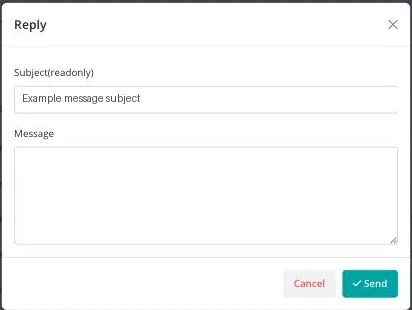
Write your response in Message, then click Send.
Your reply is sent through the eBay messaging system. The buyer receives it in their eBay inbox.
| Symptom | Cause | Action |
|---|---|---|
| No messages appear | The eBay connection is not authenticated, or the account filter is set to a different account | Reconnect eBay under Integrations, and check the account dropdown |
| A reply does not seem to send | The Message box was left empty | Enter a message before clicking Send; the Subject field is read-only and cannot be edited |
| A buyer says they never received your reply | eBay's own delivery, not Keysender's | Check the message thread on eBay directly to confirm eBay delivered it |
Submit a claim so Keysender Support can review it.
The Messaging Center shows the eBay messages sent to your authenticated eBay account. You can read them, mark a message as read or important, or delete one you no longer need, all without switching to eBay to manage your buyer communication.
You need access to your Keysender vendor account and an authenticated eBay connection. Once eBay is connected, the Messaging Center loads the messages sent to that account so you can open a thread, click Reply, and send your response.
Your reply is sent through the eBay messaging system, and the buyer receives it in their eBay inbox. Open the message subject to see the full conversation thread, click Reply, write your response in the text box, and click Send.
