Reading this in another language? Use your browser's built-in translate option. Button and field names stay in English on purpose, to match what you see in Keysender.
An order goes On Hold when Keysender stops it short of delivery, most often for fraud screening, buyer verification, or an out-of-stock inventory. The On hold screen lists every held order in one place with its own filters and bulk actions, separate from the full order history covered in viewing and managing your orders.
TL;DR
Held orders usually need fraud monitoring or a block or allow list entry to resolve the underlying cause, not just a one-off action on this screen.
Open Transactions, then On hold in Keysender, or click Show all on the On Hold card on your dashboard.
Use the Filters panel to search by email, user name, product number, or sent code, narrow by date from, or pick a platform.
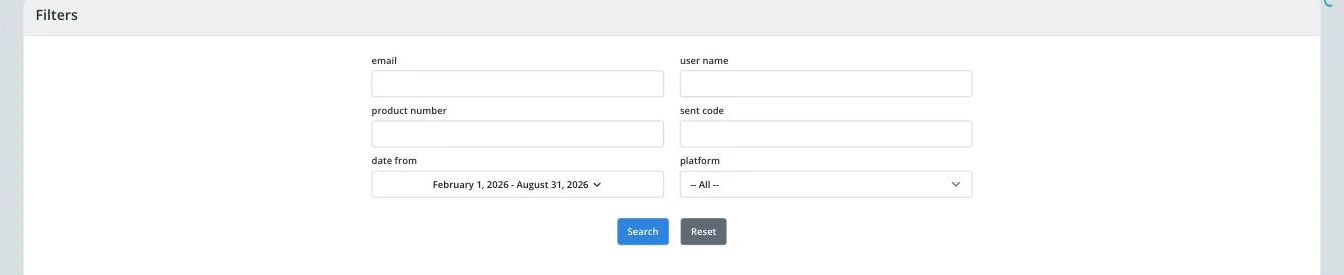
Click Search to apply the filters, or Reset to clear them.
Below the filters, use the status dropdown (defaults to Held) to switch to Under Review, Reserved, or another status.
Select one or more rows with the checkboxes, then use Mass actions to act on all of them at once, or click Export to download the filtered list.
Click into any row for the full record described in Viewing specific order details.
The list narrows to match your filters, and an order you resolve (delivered, refunded, or removed from hold) drops off this list on the next refresh.
| Symptom | Cause | Action |
|---|---|---|
| The list is empty even though the dashboard shows orders on hold | The status dropdown or a filter is narrower than expected | Click Reset, then set the status dropdown back to Held |
| The same order keeps coming back on hold after you clear it | The underlying fraud or verification rule has not been adjusted | Review the rule in activating fraud monitoring on orders rather than clearing the same order repeatedly |
| Export produces an empty or incomplete file | The export ran against the current filtered view, not the full list | Reset filters first if you want every held order, then export again |
| A bundle order is waiting because one of its inventories ran out | A bundle only delivers when every component inventory holds its per-sale quantity | Refill the short inventory, then resend the order as described in delivering more than one code per order |
Submit a claim so Keysender Support can review it.
Most often fraud screening, buyer verification, or an out-of-stock inventory. The On hold screen lists every held order with its own filters, separate from your full order history.
Yes. Select rows with the checkboxes, then use Mass actions to act on all of them together, or Export to download the filtered list.
On hold shows only orders Keysender stopped short of delivery, with filters built for that (email, product number, sent code). The full Orders list in Viewing and managing your orders covers every order regardless of status.
