Reading this in another language? Use your browser's built-in translate option. Button and field names stay in English on purpose, to match what you see in Keysender.
Keysender Supply lets you list eSIMs, games, gift cards and software without holding stock. On every sale, Keysender pulls the product from the source and charges your wallet. Our team switches Supply on per account, so you ask once: to buy from Supply, to sell your own stock through it, or both. See what is in Supply today.
TL;DR
Supply is switched on for an account, not an email address. Use the email you sign in to Keysender with, so we turn it on for the right account.
If you do not have an account yet, open panel.keysender.com/register and create one. It is free.
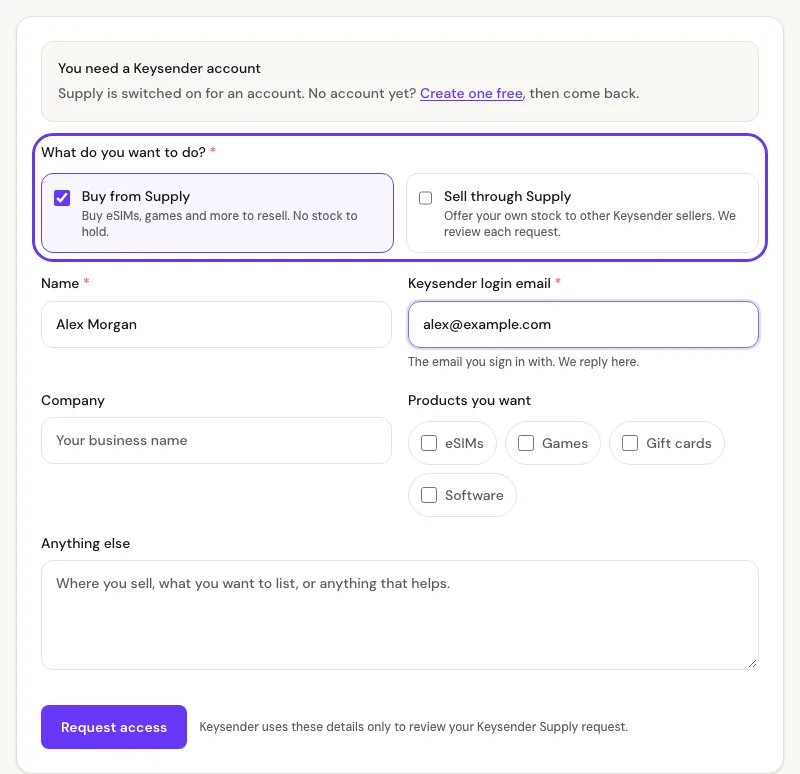
Open the Supply access request. Tick Buy from Supply to resell Supply products, Sell through Supply to offer your own stock, or both.
Enter your name and your Keysender login email, then click Request access.
Wait for our email. We switch Supply on by hand and write to your login email when it is on.
Sign in to Keysender and open External Inventory to see the catalog with live prices, then add products to your inventory.
External Inventory shows the Supply catalog with prices and stock. If you use the API, catalog calls stop answering 403. See Buying from the Supply catalog with the API.
| Symptom | Cause | Action |
|---|---|---|
| No reply yet | Requests are switched on by hand | Do not send a second request; submit a ticket with the login email you used |
| External Inventory is missing after our email | You are signed in to a different account | Sign out and sign in with the login email you put on the request |
Catalog API calls still answer 403 |
Supply is not on for the account behind your API key | Check the API key belongs to the same account, then reply to our email |
Submit a ticket with your Keysender login email.
Yes. Supply is switched on for an account, so create a free Keysender account first, then send the request with the email you sign in with.
Our team switches Supply on by hand and emails your login email when it is on. Send the request once; a second request does not move it faster.
Tick Sell through Supply on the request. Selling through Supply is not self-serve today, so we review each request with you.
Was this article helpful?
