Also available in: Français·हिन्दी·Polski·中文
Reading this in another language? Use your browser's built-in translate option. Button and field names stay in English on purpose, to match what you see in Keysender.
Purchase credits so Keysender can dispatch orders and run fraud screening. Credits do not expire, and you can buy up to 25,000 at once. Every account starts with free credits to test delivery before you buy more. When the balance runs low, orders wait until you add credits, so keep a buffer ahead of busy periods.
TL;DR
Every account starts with free credits, so you do not need to buy any to connect a channel and add inventory first and test delivery.
Open Account then Billing in Keysender.
Check Current Plan, which shows your credits left, and Balance, your current wallet balance in your billing currency.

Click Buy More next to Current Plan.
Select a credit tier. The price for each tier appears next to it, along with what sending one code will cost you at that tier.
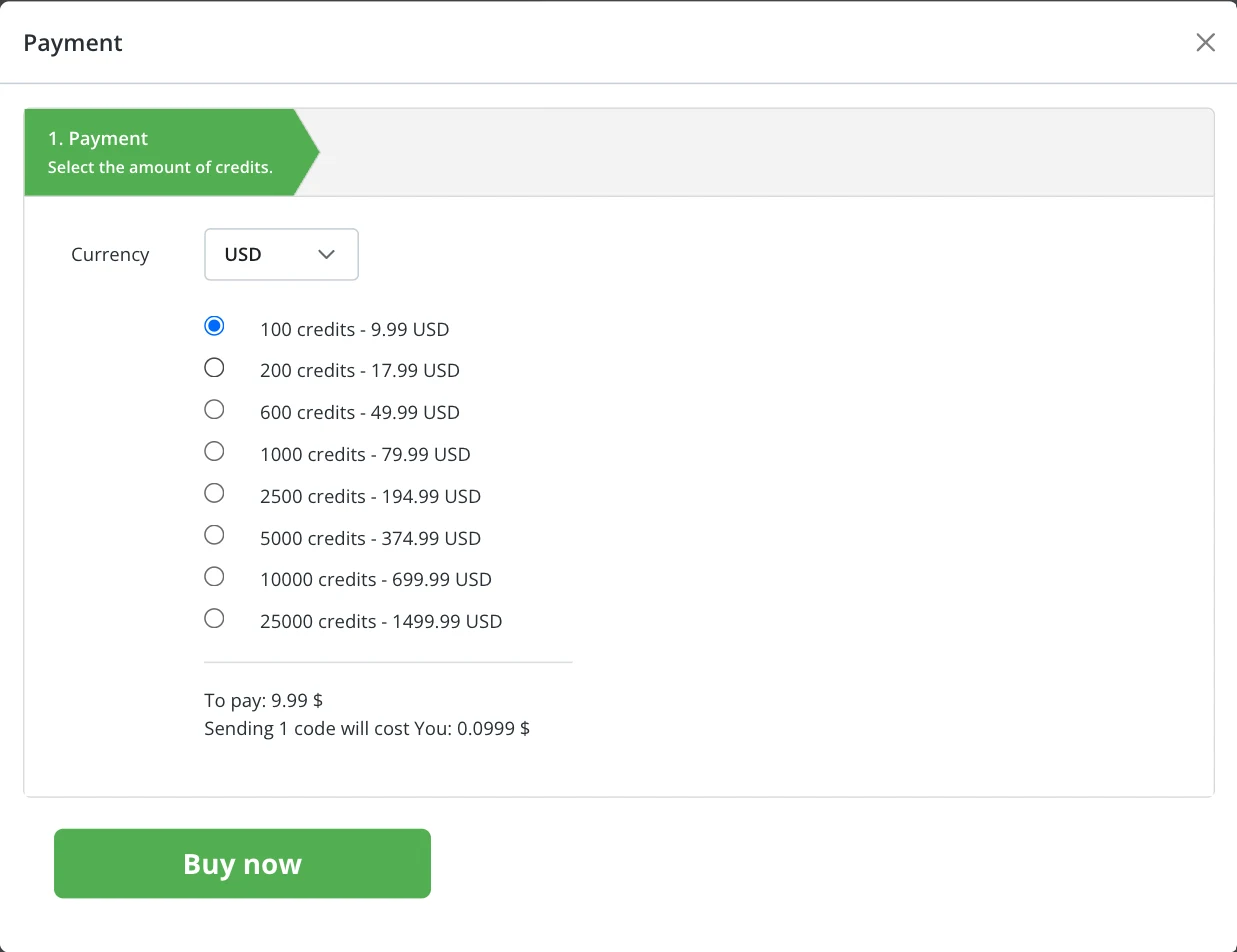
Click Buy now and complete the checkout.
Your updated Current Plan credit count and Balance update immediately on the Billing page, and a new row appears in the Invoices table below it. See Understanding billing and plans for the rest of what that page shows.
| Symptom | Cause | Action |
|---|---|---|
| The balance did not update after checkout | The checkout has not finished processing yet | Wait a minute, then reload the Billing page |
| An invoice shows Pending instead of Paid | The payment has not settled yet | Reload the Billing page after a few minutes; contact your bank if it stays Pending past a day |
| Orders are not dispatching even though credits are showing | The credits purchase and order dispatch are separate systems | Confirm the credit balance on Billing is above zero, then check the specific order under viewing specific order details |
Submit a claim so Keysender Support can review it.
No. Credits do not expire, so you can buy them whenever it suits you, and you can purchase up to 25,000 credits at once. Your updated balance appears on the Billing page immediately after checkout.
Open Billing, click Buy More, pick a credit tier, then complete the checkout. A new row appears in your Invoices table once the payment is confirmed.
You purchase credits so Keysender can dispatch orders and run fraud screening. Check your current balance on the Billing page, under Account, and top up before you run low.
