Also available in: Français·हिन्दी·Polski·中文
Reading this in another language? Use your browser's built-in translate option. Button and field names stay in English on purpose, to match what you see in Keysender.
Connect your G2A seller account to Keysender to automate digital product delivery, pricing, and inventory sync for G2A orders. You copy the Client ID and Secret from G2A's API credentials into Keysender, then import the connection back into G2A. From then on, paid orders deliver automatically and your G2A stock follows the inventory count.
TL;DR
Make sure you have:
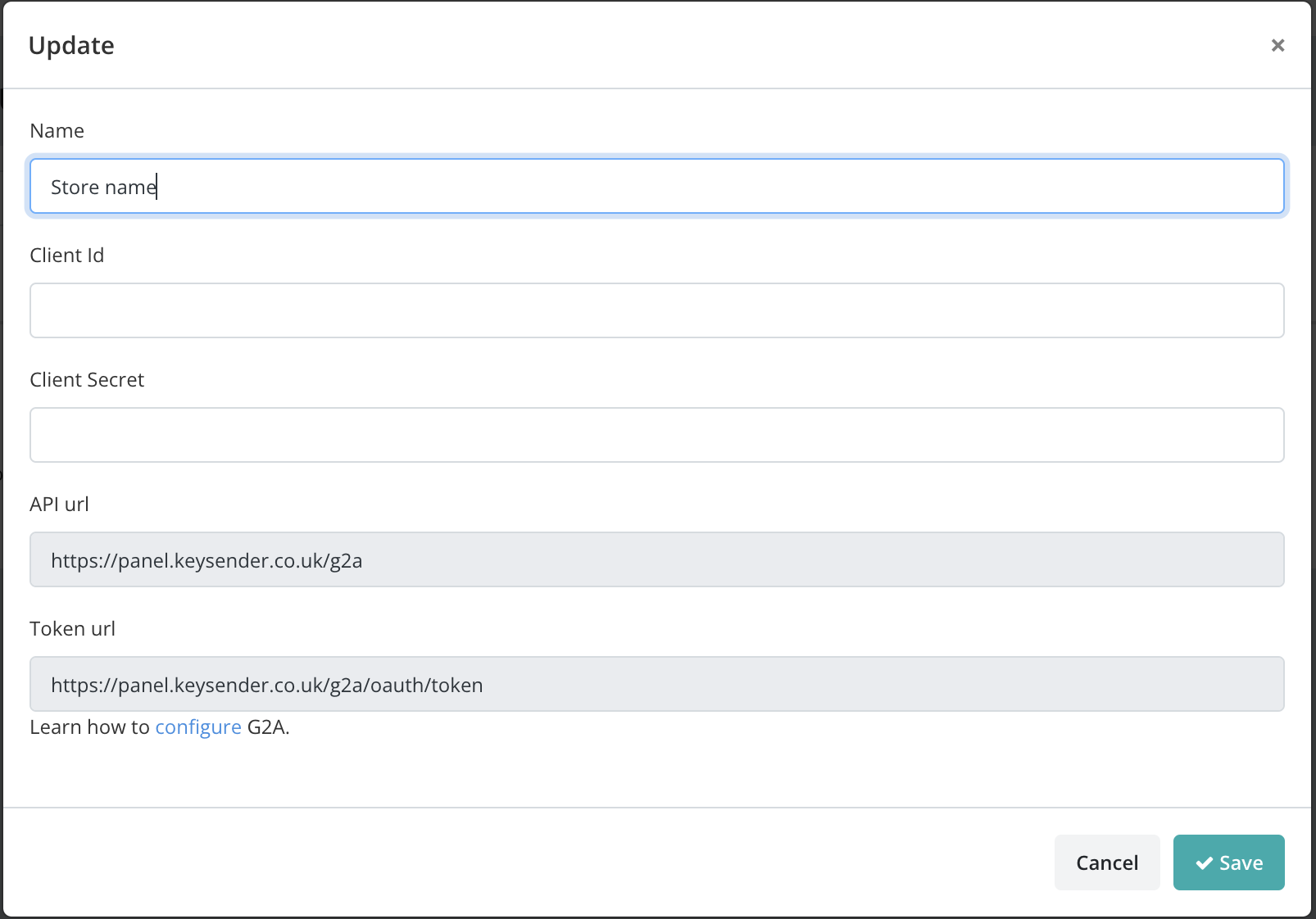
Open Integrations in Keysender, click Add New, select G2A, and click Next.
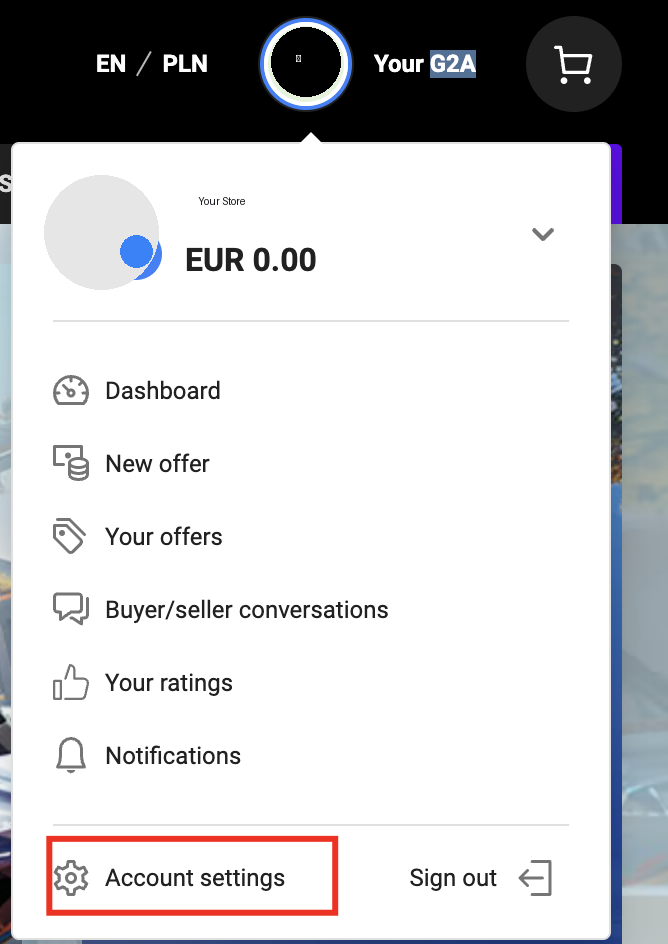
In G2A, go to Account settings, then Store settings, then API integration.
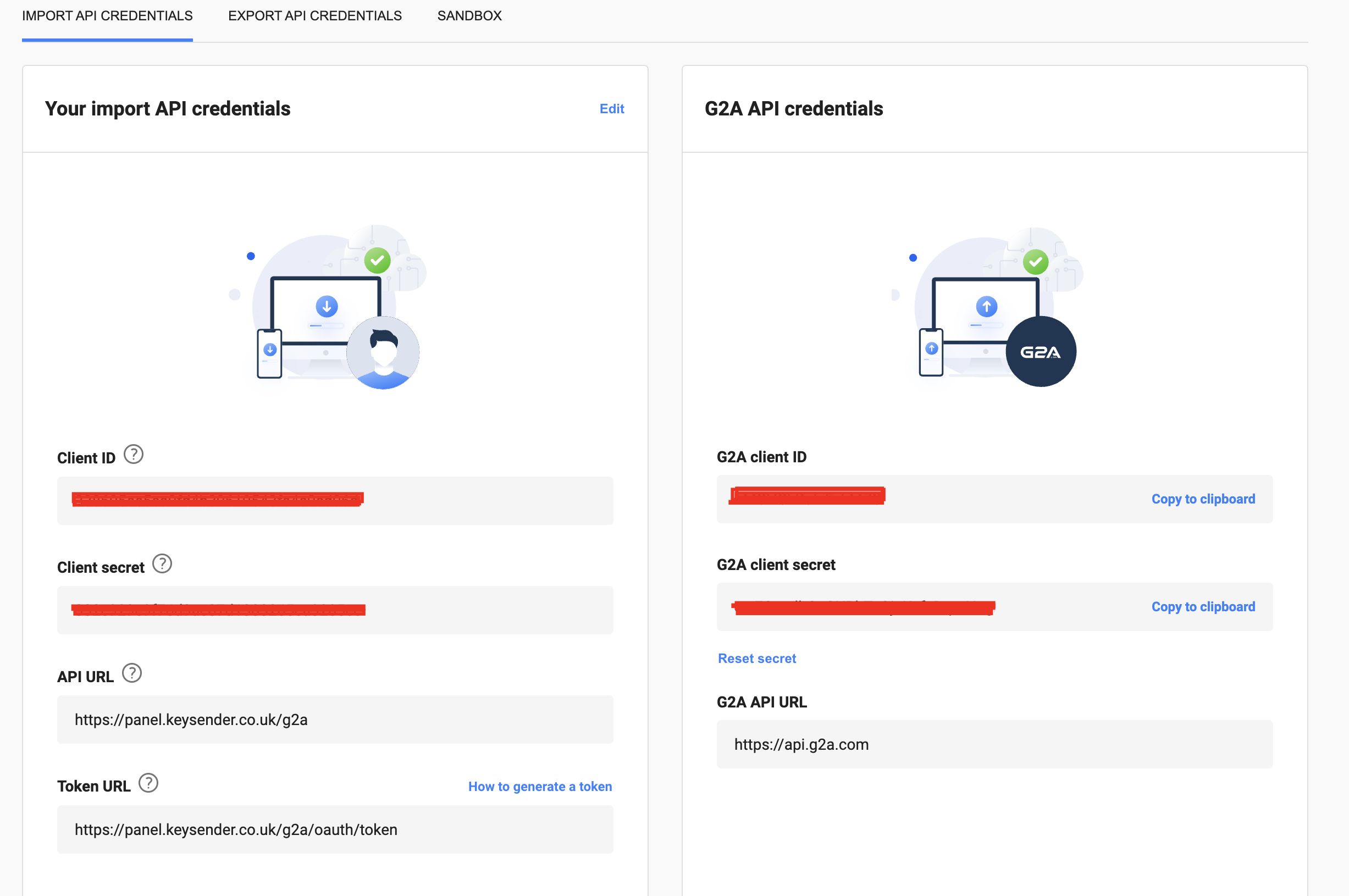
Start the verification process.
Copy the Client ID and Secret from the G2A API Credentials section.
Paste the Client ID and Secret into the matching fields in Keysender.
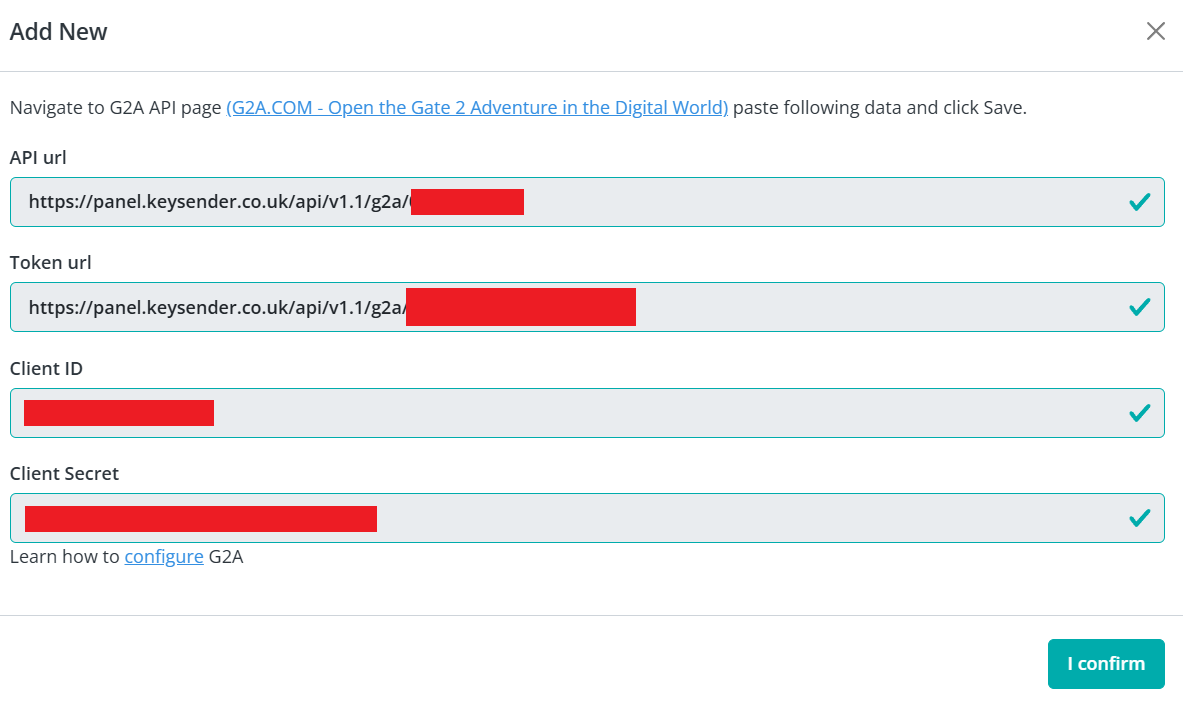
Copy the Keysender API URL and Token URL from the same page in Keysender.
https://panel.keysender.com/g2ahttps://panel.keysender.com/g2a/oauth/tokenIn G2A, click Import API Connection and paste both URLs into the G2A API Credentials section.
In Keysender, go to Account, then Settings, then Security, and copy your API Key and API Secret.
Paste them into the Client ID and Client Secret fields in G2A.
Click Save. The integration is authorized and marked as Active.
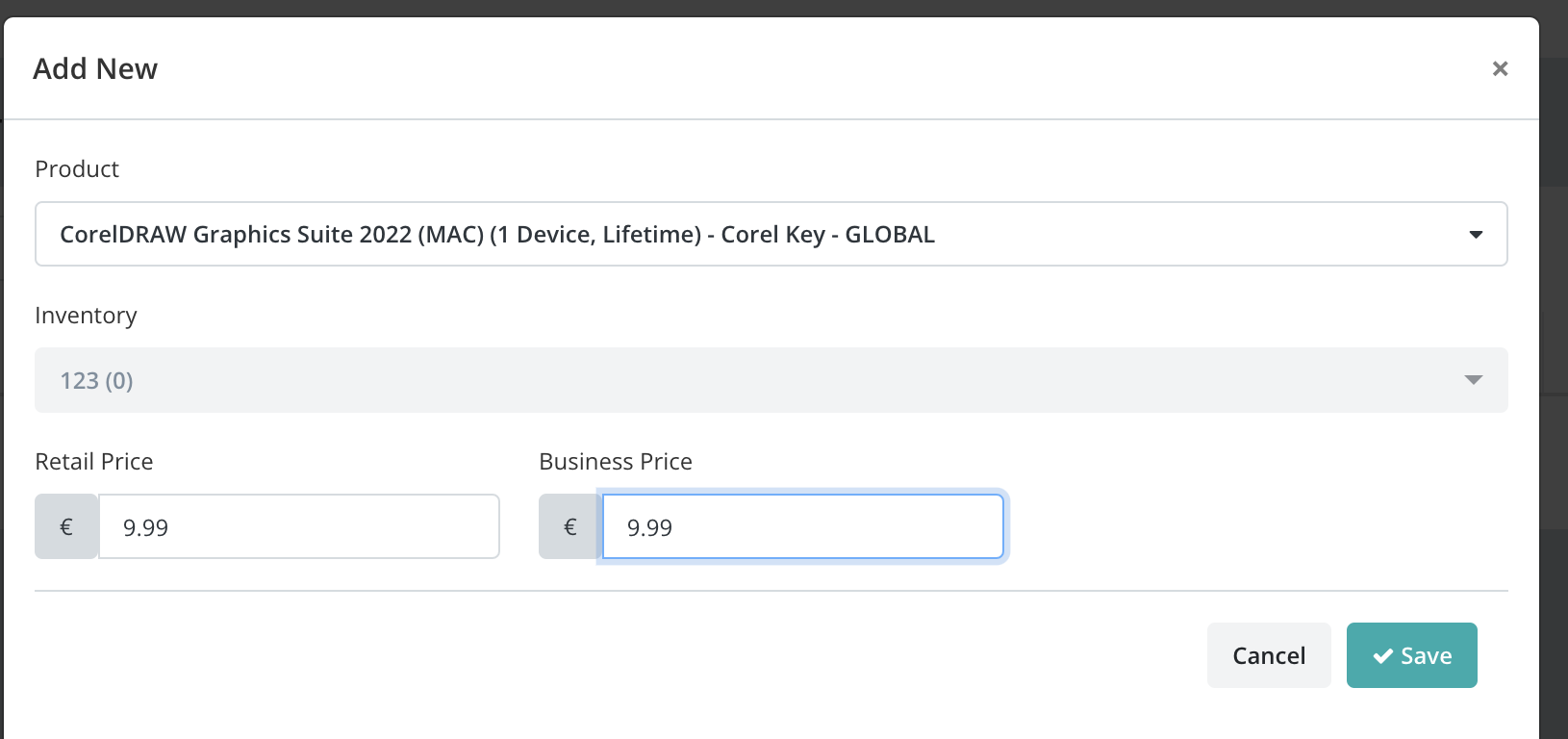
In Keysender, open G2A Products and click Add New.
Select the G2A product from the Product dropdown.
Select the Keysender inventory to draw stock from.
Set the retail and business prices, then click Save.
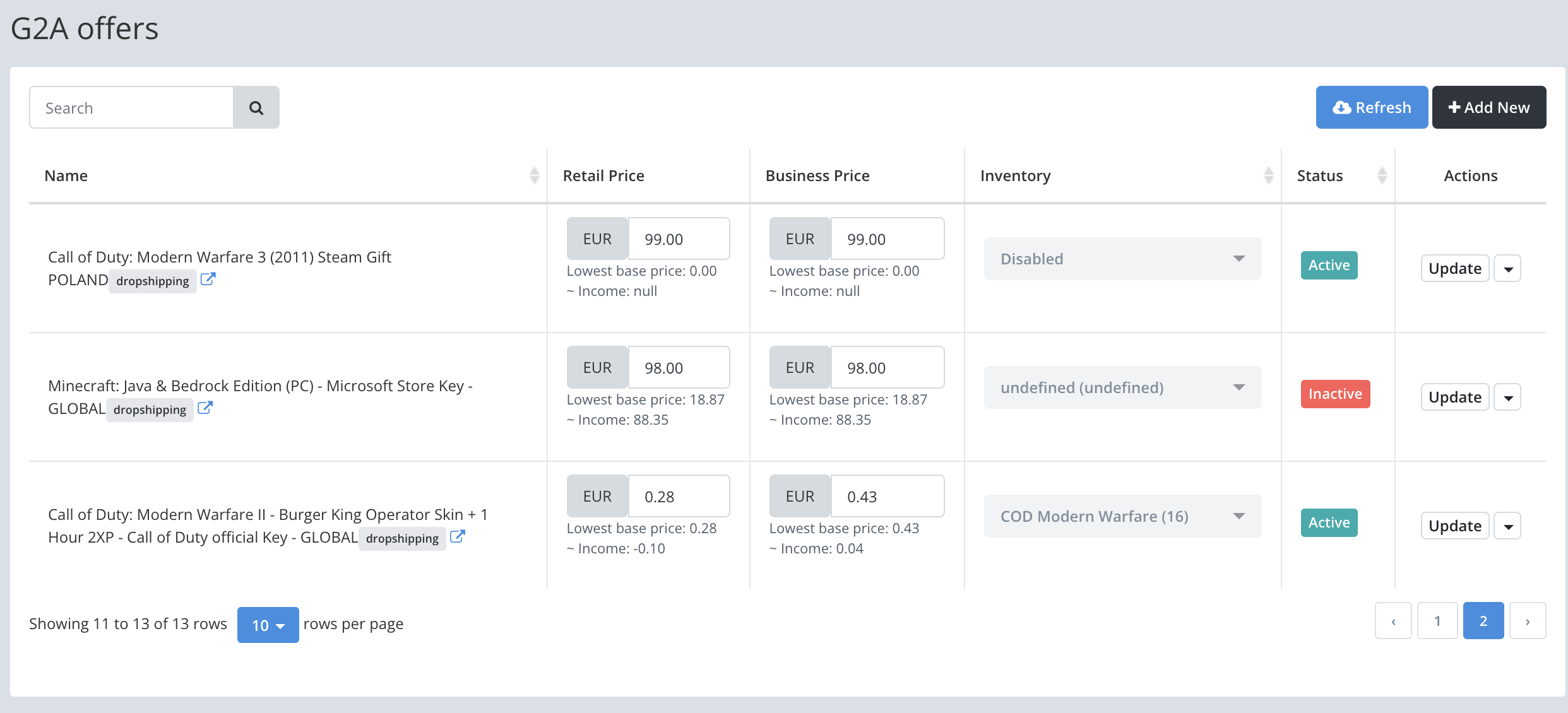
Your offer then appears in Keysender. In the Product view you can adjust the retail and business prices, and inventory updates automatically based on your assigned inventory.
Click a G2A offer's price to open its Adjust Price dialog, then use the AUTOMATIC PRICING tab to set the lowest Retail and Business prices you will accept, and turn pricing on with the lightning-bolt icon on that offer's row. See Setting up automatic pricing for G2A for the full walkthrough.
Open Catalog, then Inventory in Keysender.
Click Edit on the inventory you want to sync, then open its Settings tab.
Your G2A offer shows as a "Dropshipping" listing in the Your Offers tab on G2A. G2A sales appear on your Keysender Summary page with order details and assigned keys, and inventory updates automatically based on your assigned inventory.

Orders marked as "Reserved" on G2A are held temporarily. They are usually canceled within 6 hours but can take up to 24 hours, especially if they stay unpaid.
| Symptom | Cause | Action |
|---|---|---|
| G2A shows the integration as not connected | The Client ID/Secret or API/Token URL was copied incorrectly | Recopy the credentials in both directions and click Save again in G2A |
| A product does not sync stock | It is not connected to a Keysender inventory | Reopen the product under G2A Products and select the correct inventory |
| An order stays "Reserved" for a long time | G2A holds unpaid or unverified orders before canceling them | Wait; reserved orders are usually canceled within 6 hours, up to 24 hours for unpaid ones |
Submit a claim so Keysender Support can review it.
In G2A, go to Account settings, then Store settings, then API integration. Start the verification process, then copy the Client ID and Secret from the G2A API Credentials section. Paste both into the matching fields in Keysender.
Open G2A Products, select Auto Price for a product, enter the lowest retail and business prices you will accept, and click Save. The auto pricer runs every 5 minutes, keeping prices competitive while respecting your minimums and checking between Keysender sellers to avoid price wars. It is optional and in beta.
Orders marked as Reserved on G2A are held temporarily. They are usually canceled within 6 hours but can take up to 24 hours, especially if they stay unpaid. Paid G2A sales appear on your Keysender Summary page with order details and assigned keys.
