Reading this in another language? Use your browser's built-in translate option. Button and field names stay in English on purpose, to match what you see in Keysender.
Keysender only delivers an order when the listing the buyer bought is switched on and has an inventory attached. This is true on every sales channel. If orders are missing, check those two things first, then check the channel connection, then pull in the orders you missed.
TL;DR
Make sure you have:
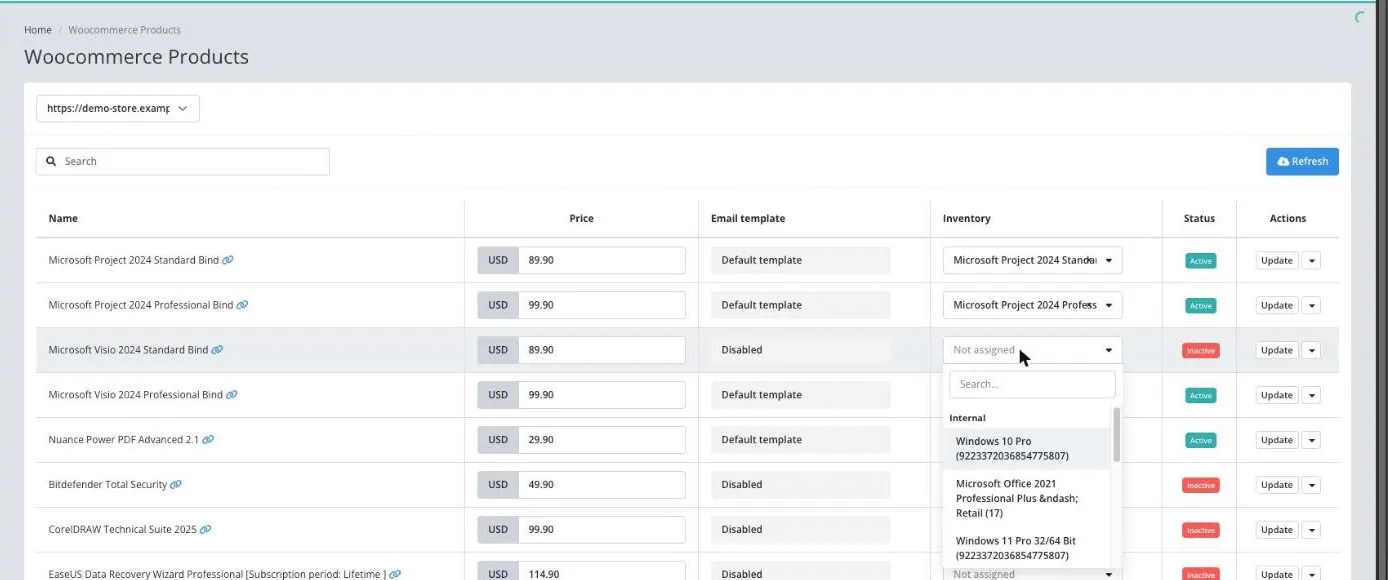
Open the products page for your channel, for example Sale Channels > eBay, WooCommerce Products or Kinguin Products.
Find the listing. If its Inventory shows Not assigned, choose the inventory that holds its codes.
On eBay and Shopify, open the listing's details and set Inventory there, then click Save changes.
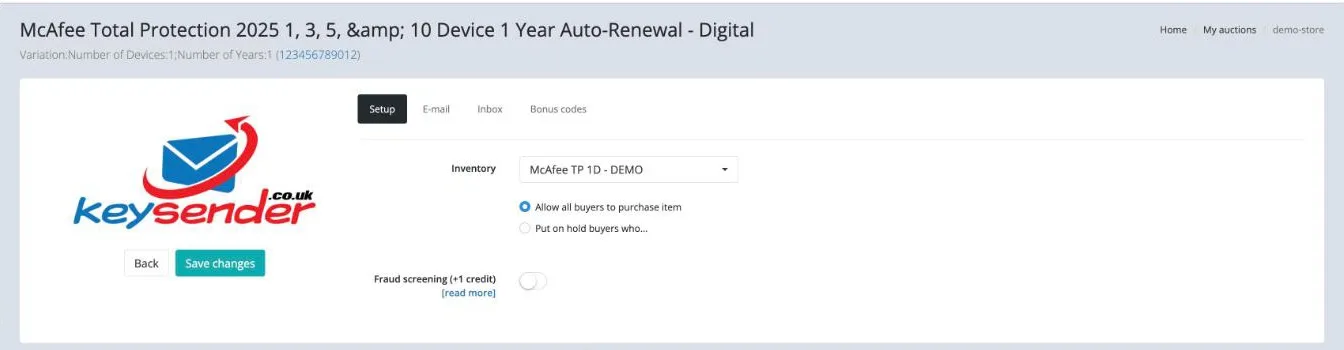
Choosing an inventory switches the listing on in most channels.
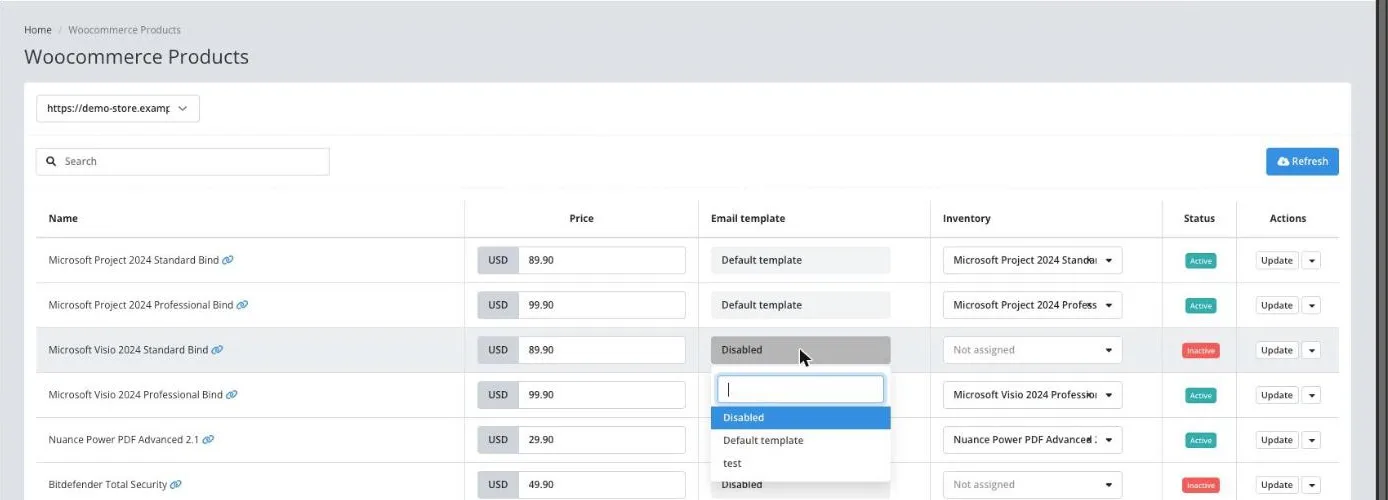
On WooCommerce, BigCommerce, Etsy, Hood, Allegro, Ecwid and Eneba, each product needs a template. In the product's Email template column, choose your template. Disabled means no message with the code is sent.
On eBay, Shopify and Mercado Libre your default template is used. If you have no template yet, see Setting up your delivery template.
Open the action menu on the listing row and check its status. The control depends on the channel:
| Channel | Where to switch it on |
|---|---|
| eBay | Row menu, Activate Monitoring |
| Shopify | Row menu, Activate monitoring |
| WooCommerce, Allegro, Kinguin, Eneba, Gamivo, K4G | Row menu, Set as active |
| G2A | Attach an inventory to the offer on the Offers page |
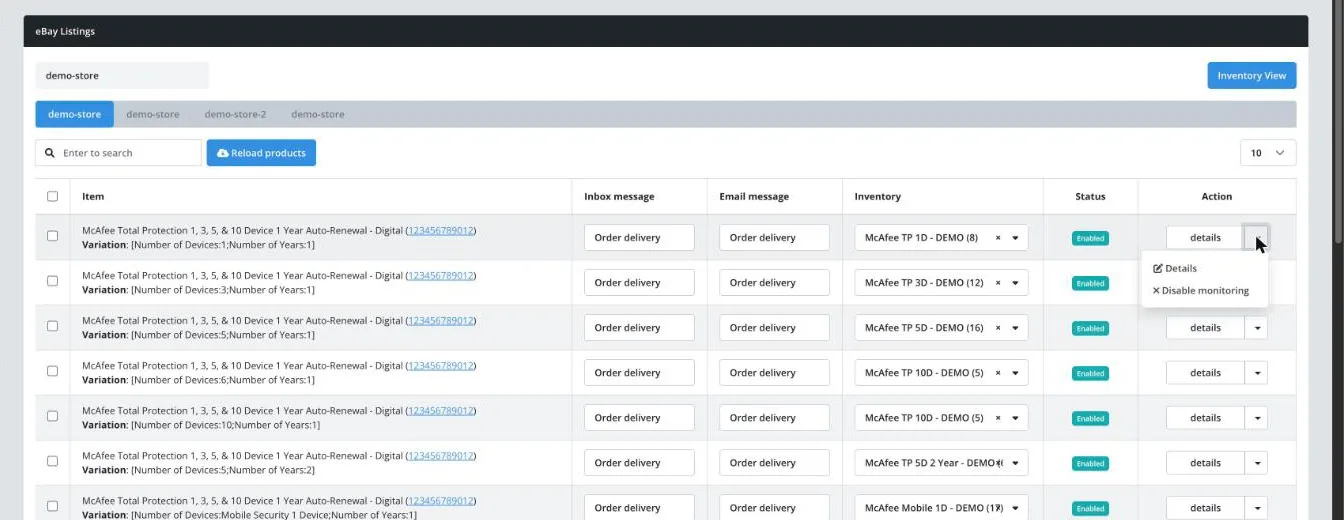
If the menu shows Disable monitoring, the listing is already on.
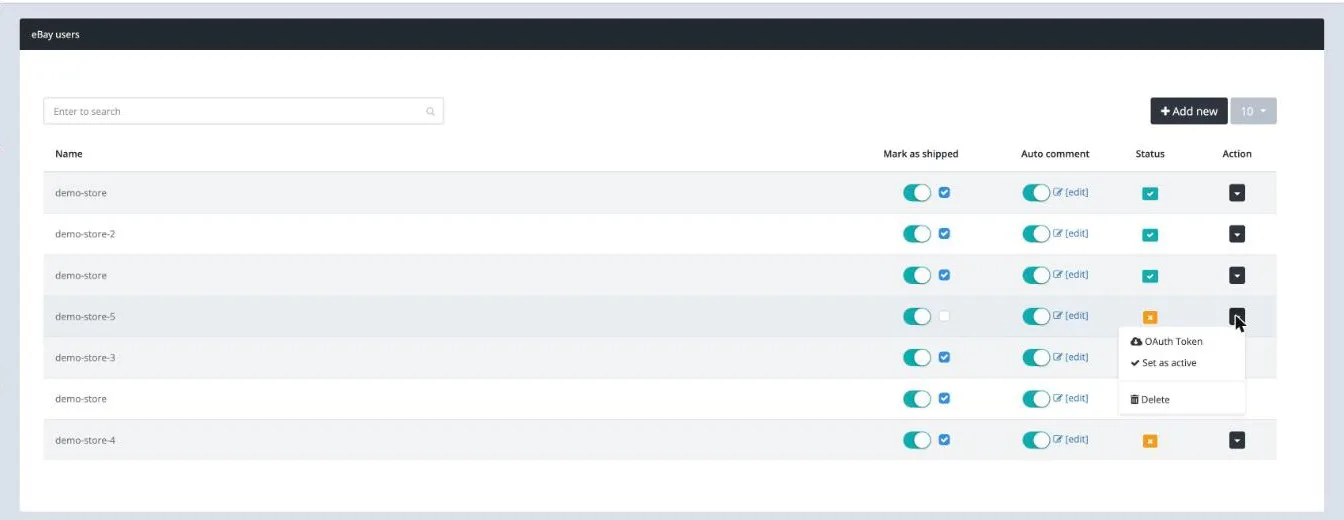
Open the channel's accounts page and check the account is still connected. On eBay, open eBay users and look at Status: a tick means connected, a cross means it is not. To reconnect, open the row menu and click OAuth Token. See Integrating eBay.
Open the order on the channel and check the buyer has paid. Keysender only picks up paid orders.
Wait about five minutes after payment. Keysender checks for new orders on a schedule.
Force Sync works for eBay, Shopify, WooCommerce, Allegro, BigCommerce, Hood, Ecwid, Magento and Mercado Libre.
Open Summary and click Force Sync.

Under Select Sale Channel's Account, choose the account.
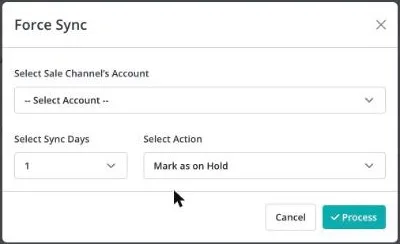
Under Select Sync Days, choose how many days back to look, from 1 to 7. WooCommerce syncs 1 day.
Under Select Action, keep Mark as on Hold to review the orders first, or choose Start processing for orders you have not delivered yourself.
Click Process. You can run it again on the same channel after 5 minutes.
Force Sync only sends orders placed after the listing got its inventory or its monitoring was switched on. Earlier orders are never sent, so an order you already delivered by hand does not go out twice. Deliver earlier orders to the buyer yourself.
On G2A, Kinguin, Eneba, Gamivo and K4G the marketplace asks Keysender for a key at the moment of sale. There is nothing to sync afterwards: once the listing is fixed, the next sale is delivered.
The listing shows an inventory and is switched on. The orders you missed appear on Summary, see Viewing specific order details. A new paid order on that listing appears there within a few minutes.
| Symptom | Cause | Action |
|---|---|---|
| Orders for one listing are missing | The listing is off or has no inventory | Attach an inventory and switch the listing on |
| The order arrived but the buyer got no code message | The product's Email template is Disabled | Choose your template in the product's Email template column |
| No orders arrive from a whole channel | The channel connection needs renewing | Reconnect the account on the channel's accounts page |
| An order from today is missing | The buyer has not paid yet | Wait until the channel shows it as paid |
| An order from before the listing got its inventory or was switched on is missing | Force Sync only sends orders placed after that point | Send the code to the buyer yourself |
| Force Sync says to wait | You ran it a moment ago | Wait 5 minutes and run it again |
| A marketplace sale failed with no key | The offer had no inventory or no codes at the time | Attach an inventory and add codes, then check the sale on the marketplace |
Submit a claim so Keysender Support can review it. Include the order ID, the channel account name and the time the order was placed.
Keysender only delivers an order when the listing the buyer bought is switched on and has an inventory attached. Check both on the channel's products page, then check the channel is still connected and the buyer has paid.
On eBay, Shopify, WooCommerce, Allegro, BigCommerce, Hood, Ecwid, Magento and Mercado Libre, open Summary and click Force Sync. Choose the account and how many days back to look, then click Process.
Force Sync never reaches back past the time the listing was switched on, so orders you already sent by hand are not delivered twice. Send the code to the buyer yourself.
On WooCommerce and similar stores, the product's Email template is set to Disabled. Choose your template in the product's Email template column.
Was this article helpful?
