Reading this in another language? Use your browser's built-in translate option. Button and field names stay in English on purpose, to match what you see in Keysender.
Once an inventory exists, its Details, Settings and Inventory tabs cover everything beyond adding it and its first codes: editing its name and SKU, choosing how codes are handed out, exporting or bulk-importing stock, and recording a code's supplier, cost and dates.
TL;DR
Make sure you have:
Open Catalog, then Inventory in Keysender, and click an inventory's Edit button.
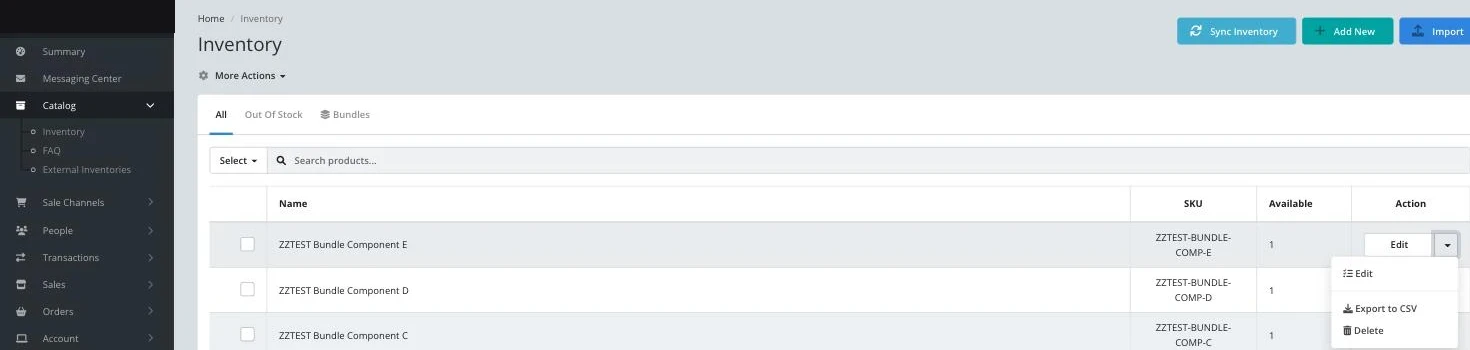
On the Details tab, change the Name or SKU, or add an Inventory message, then click Update.
Open the inventory's Settings tab.

Turn on Automatically mark codes as expired once the expiration date has passed if you set expiration dates on your codes and want them removed from available stock on their own.
Set Inventory assignment to First-In, First-Out (FIFO), Last-In, First-Out (LIFO), or First-Expired, First-Out (FEFO) to control which code an order draws next.
On the Inventory list, click the chevron next to an inventory's Edit button for Export to CSV or Delete.
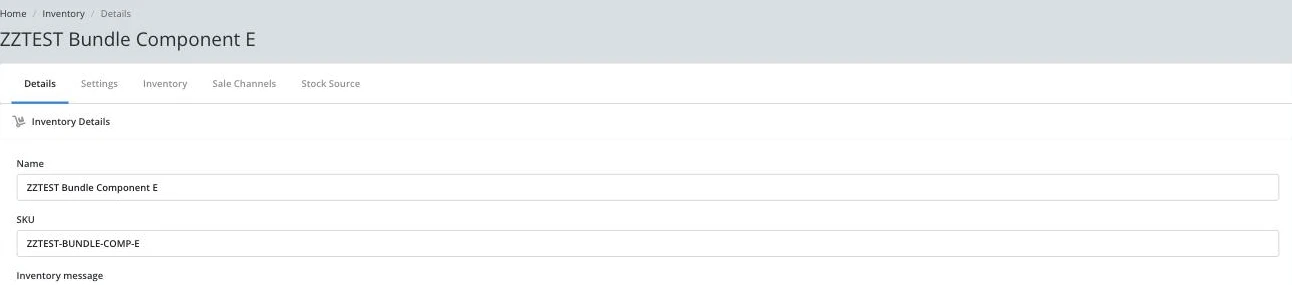
To bulk-load inventories or stock instead of one at a time, click Import at the top of the Inventory list, choose the Import Inventory or Import Stock tab, and click Download Example File to get the exact column layout before uploading your own file.
Open the inventory's Inventory tab, find the code in the list, and click its Details button.
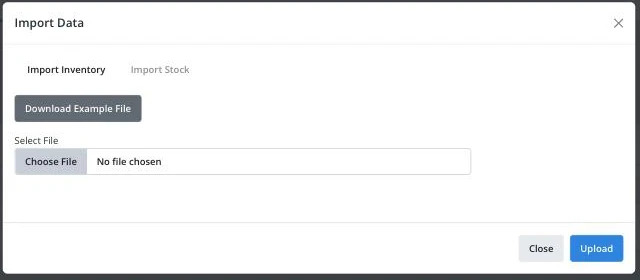
Fill in Supplier, Order Number, Unit Cost, Currency, Purchase Date and Expiration Date, then save. See Managing your suppliers to record who you buy codes from.
To act on several codes at once, select their checkboxes and use Mass actions to mark them Available, Faulty, Expired, or Send First. Moving a Faulty or Expired code back to Available returns it to stock for the next order.
An edited Name or SKU appears immediately across the Inventory list and any connected listing. An assignment change applies to the next order the inventory fulfills, and a code marked back to Available can be delivered again.
| Symptom | Cause | Action |
|---|---|---|
| Delete does nothing or errors | The inventory is probably still connected to a listing on a sale channel | Disconnect the inventory from its listings first, then try Delete again. If it still fails, submit a claim rather than force it |
| An imported file is rejected | The columns do not match the expected layout | Click Download Example File in the Import dialog and match its column order exactly |
| A code will not go back to Available | It was marked Used rather than Faulty or Expired | A Used code has already been delivered; add new stock instead of trying to reissue it |
Submit a claim so Keysender Support can review it.
Open the inventory's Settings tab and set Inventory assignment to First-In First-Out (FIFO), Last-In First-Out (LIFO), or First-Expired First-Out (FEFO).
The inventory is probably still connected to a listing on a sale channel. Disconnect it from its listings first, then try Delete again.
Click Import at the top of the Inventory list, choose the Import Inventory or Import Stock tab, and click Download Example File to get the exact column layout before uploading your own file.
