
Shopify को इंटीग्रेट करना
अन्य भाषाओं में उपलब्ध: English·Français·Polski·中文
Overview
Shopify ऑर्डर के लिए डिजिटल प्रोडक्ट डिलीवरी को ऑटोमेट करने के लिए अपना Shopify स्टोर Keysender से कनेक्ट करें। Keysender एक Shopify ऐप के रूप में उपलब्ध है: स्टोर कनेक्ट होने और किसी प्रोडक्ट को इन्वेंटरी से जोड़ने के बाद, हर पेड ऑर्डर पर ईमेल या आपके Access Page के जरिए अपने-आप कोड मिल जाता है, और स्टॉक आपके सभी चैनल में सिंक रहता है।
TL;DR
- अपने Shopify एडमिन में एक कस्टम ऐप बनाएं और उसका Admin API access token कॉपी करें।
- स्टोर URL और वह token देकर Keysender में स्टोर जोड़ें।
- ऑर्डर अपने-आप फुलफिल हों, इसके लिए हर प्रोडक्ट को एक इन्वेंटरी से कनेक्ट करें।
Before you start
पक्का कर लें कि आपके पास ये हैं:
- अपने Keysender वेंडर अकाउंट का एक्सेस।
- अपने Shopify स्टोर का एडमिन एक्सेस।
[your-shop-name].myshopify.comफॉर्मेट में आपका Shopify स्टोर URL।- जिस भी प्रोडक्ट को आप कनेक्ट करने वाले हैं, उसके लिए कोड डाली हुई एक इन्वेंटरी।
Steps
Shopify में एक ऐप बनाएं
अपने Shopify एडमिन में लॉगिन करें।
Apps खोलें, फिर Develop apps पर क्लिक करें।

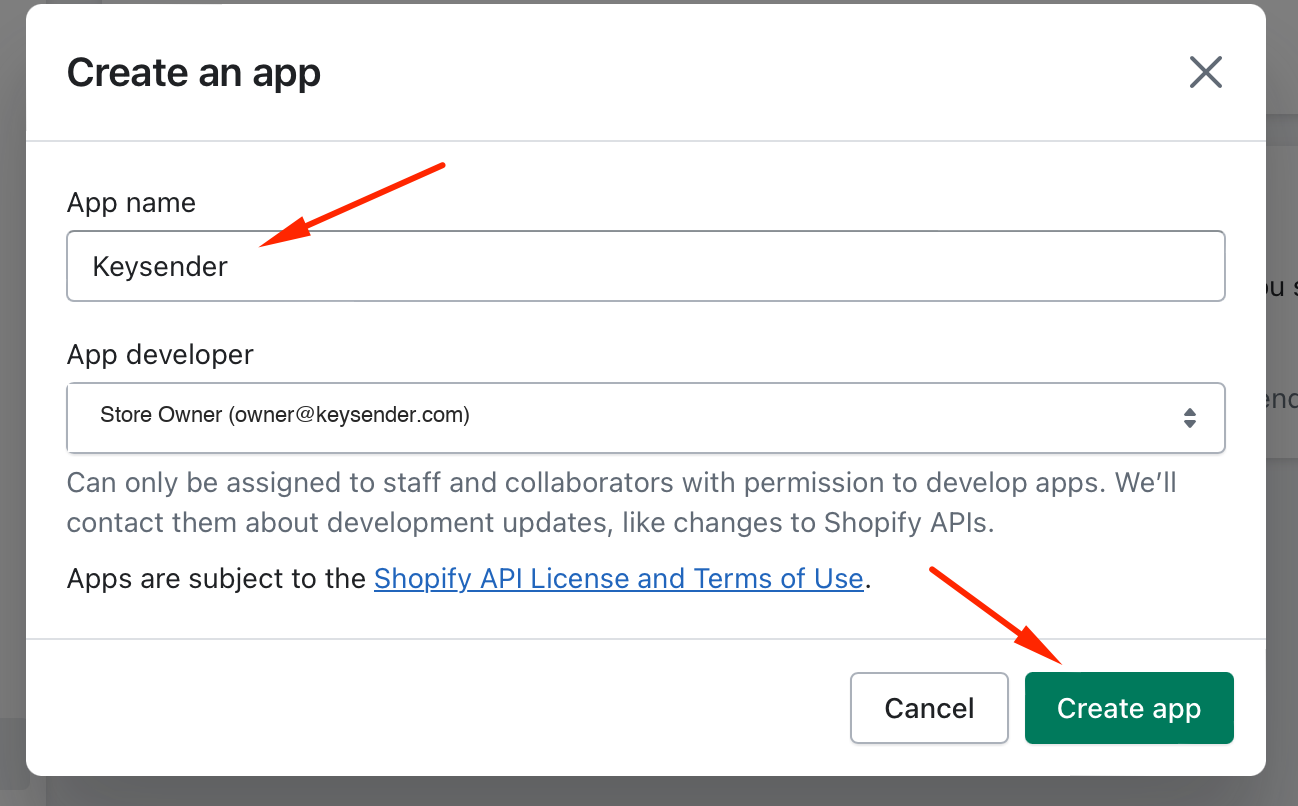
Create an app पर क्लिक करें।

ऐप का नाम Keysender रखें, फिर Create app पर क्लिक करें।
Admin API scopes सेट करें
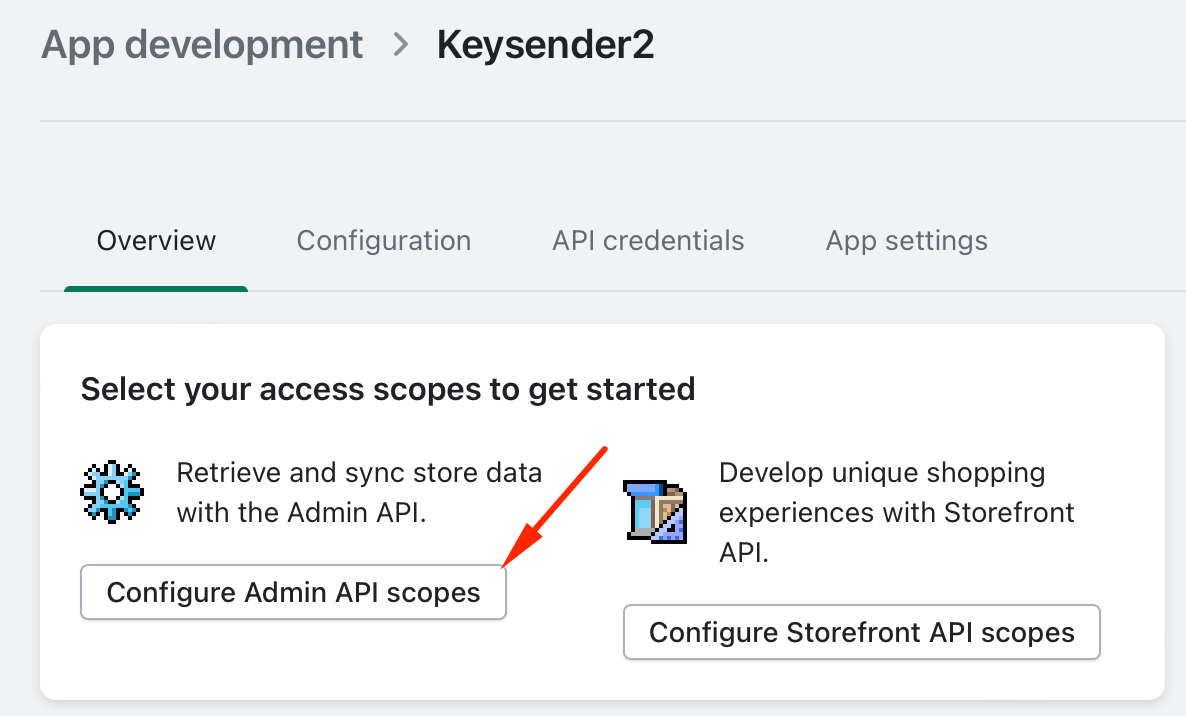
Overview खोलें, फिर Configure Admin API Scopes पर क्लिक करें।
इन scopes में से हर एक के लिए read और write दोनों चुनें:
- Assigned fulfillment orders.
- Customers.
- Fulfillment services.
- Merchant-managed fulfillment orders.
- Orders.
- Products.
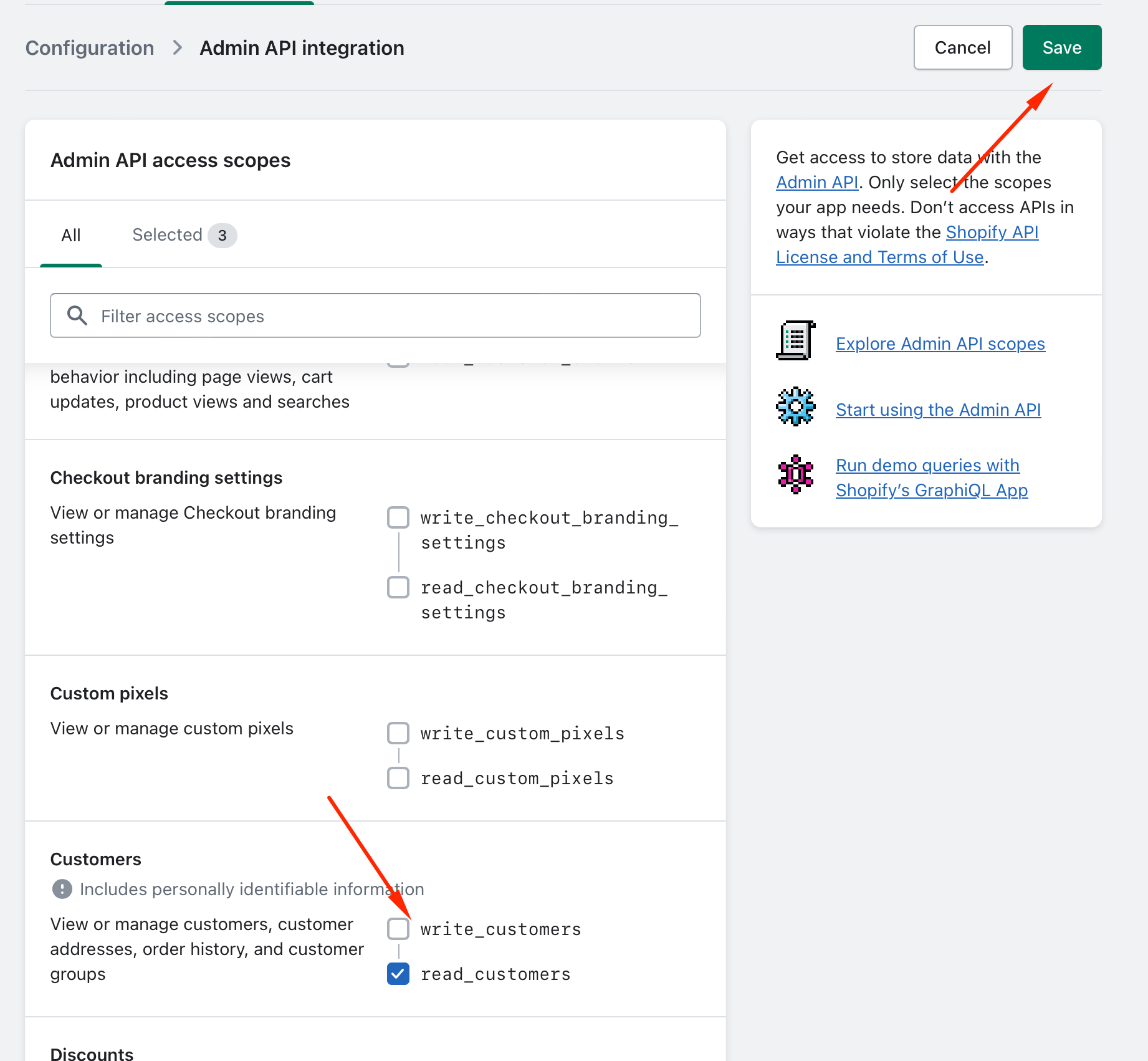
Save पर क्लिक करें।
ऐप इंस्टॉल करें और access token कॉपी करें
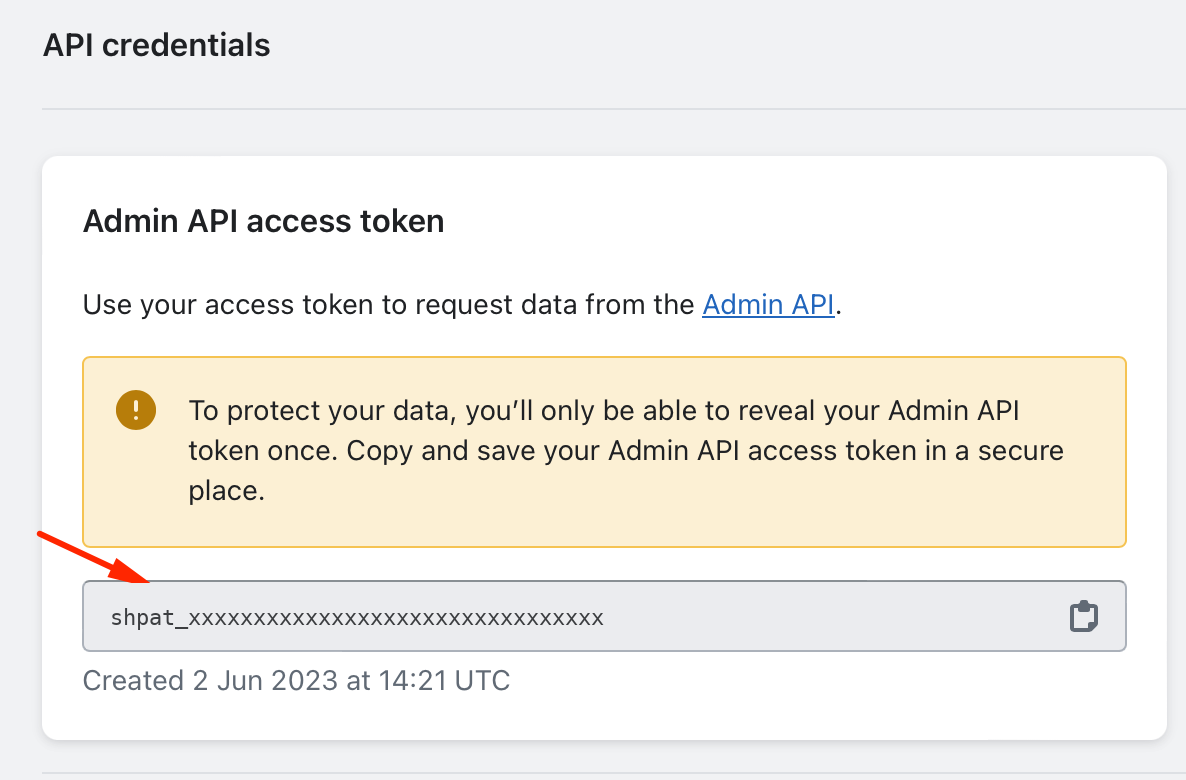
API credentials खोलें, फिर Install app पर क्लिक करें।
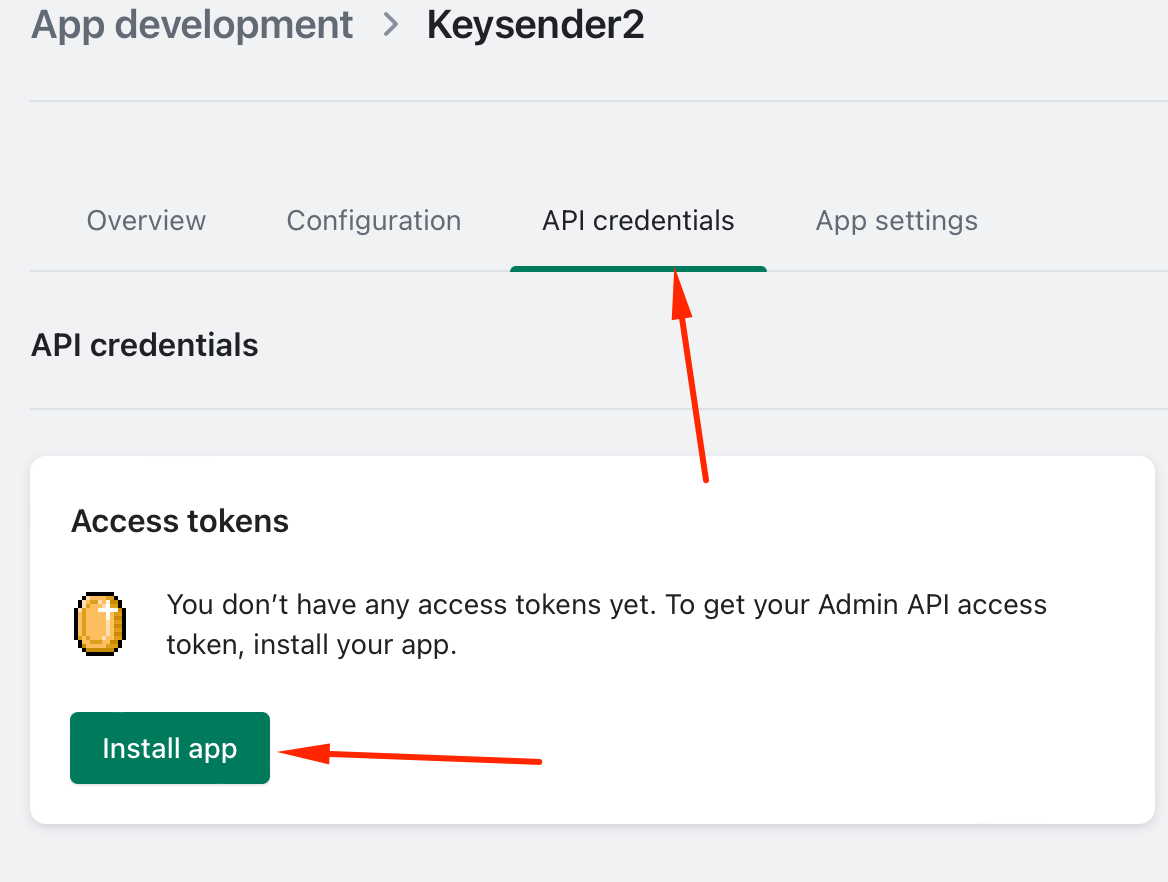
Admin API access token कॉपी करें।
Keysender में Shopify स्टोर जोड़ें
Keysender में Integrations खोलें।
उसे एक्टिवेट करने के लिए Shopify पर क्लिक करें।
साइड पैनल में Shopify चुनें, फिर Stores पर क्लिक करें।

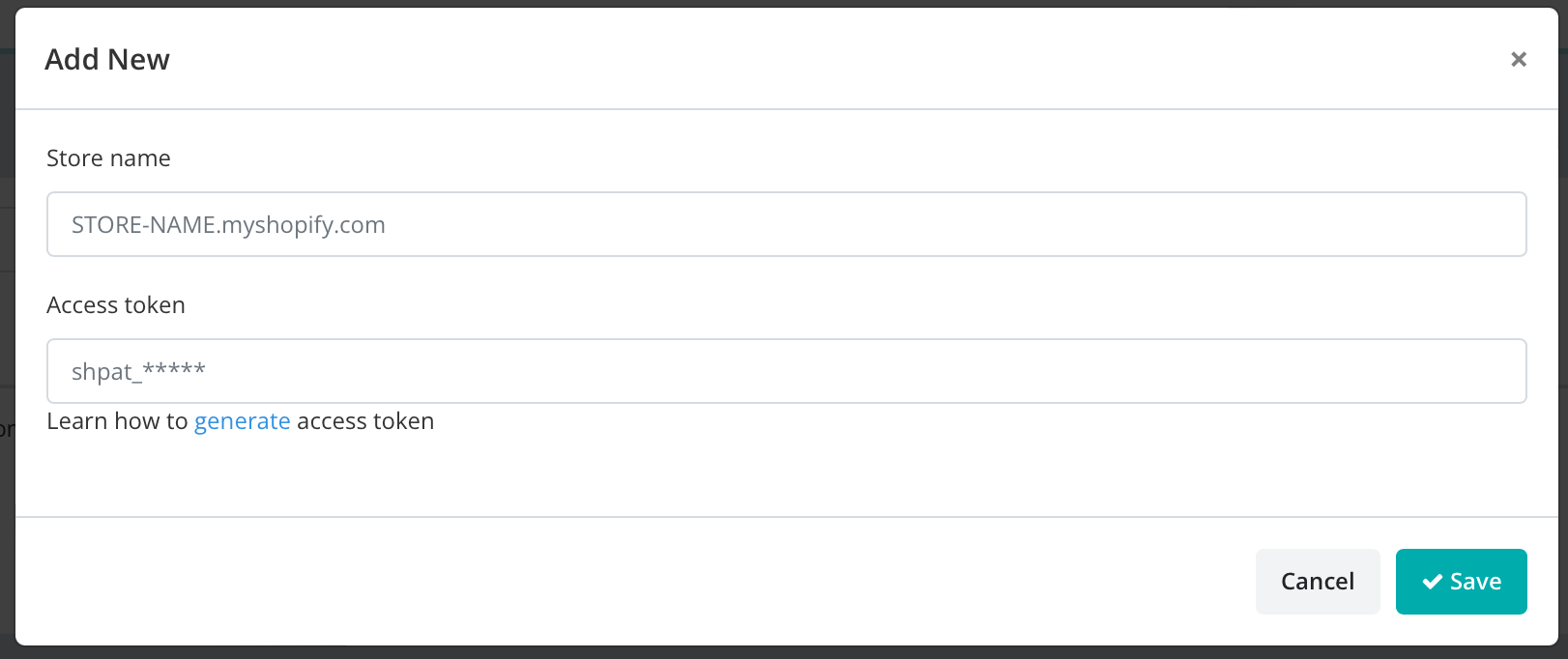
Add New पर क्लिक करें।
[your-shop-name].myshopify.comफॉर्मेट में अपना Shopify स्टोर URL डालें। यह आपके Shopify एडमिन में Settings, फिर Store details के तहत मिलेगा।Shopify से कॉपी किया गया access token पेस्ट करें।
Save पर क्लिक करें।
प्रोडक्ट को इन्वेंटरी से कनेक्ट करें
Keysender में Shopify के तहत Products खोलें।
एक प्रोडक्ट चुनें और Details पर क्लिक करें, फिर उसकी Inventory Connecting your products to a connected channel में बताए तरीके से सेट करें।

अगर डिलीवरी के लिए कस्टम टेम्पलेट चाहिए तो एक ईमेल टेम्पलेट असाइन करें। फिर सेव करें।
Troubleshooting
| Symptom | Cause | Action |
|---|---|---|
| Keysender स्टोर से कनेक्ट नहीं हो पा रहा | Admin API access token गलत है, या कोई जरूरी scope मिसिंग है | Configure Admin API Scopes में हर scope पर read और write दोनों सेट होने की दोबारा जांच करें, सेव करें, फिर token दोबारा Keysender में पेस्ट करें |
| Keysender में कोई Shopify प्रोडक्ट नहीं दिख रहा | ऐप की सिंकिंग अभी पूरी नहीं हुई, या प्रोडक्ट Online Store सेल्स चैनल पर पब्लिश नहीं है | Keysender में Shopify Products लिस्ट रीलोड करें; पुष्टि करें कि प्रोडक्ट Shopify में किसी सेल्स चैनल पर पब्लिश है |
| ऑर्डर आया लेकिन कोई कोड डिलीवर नहीं हुआ | ऑर्डर आने के वक्त प्रोडक्ट किसी इन्वेंटरी से कनेक्टेड नहीं था | अभी इन्वेंटरी कनेक्ट करें, फिर resend the order |
Confirm it works
आपके Shopify प्रोडक्ट Keysender में एक असाइन की गई इन्वेंटरी के साथ दिखते हैं। जब कोई खरीदार आपके Shopify स्टोर पर खरीदारी करता है, तो Keysender अपने-आप ऑर्डर फुलफिल कर देता है।
If it still is not working
Keysender Support इसकी समीक्षा कर सके, इसके लिए एक क्लेम सबमिट करें।
FAQ
Keysender स्टोर से कनेक्ट नहीं हो पा रहा
Configure Admin API Scopes में हर scope पर read और write दोनों सेट होने की दोबारा जांच करें, सेव करें, फिर token दोबारा Keysender में पेस्ट करें (Admin API access token गलत है, या कोई जरूरी scope मिसिंग है).
Keysender में कोई Shopify प्रोडक्ट नहीं दिख रहा
Keysender में Shopify Products लिस्ट रीलोड करें; पुष्टि करें कि प्रोडक्ट Shopify में किसी सेल्स चैनल पर पब्लिश है (ऐप की सिंकिंग अभी पूरी नहीं हुई, या प्रोडक्ट Online Store सेल्स चैनल पर पब्लिश नहीं है).
ऑर्डर आया लेकिन कोई कोड डिलीवर नहीं हुआ
अभी इन्वेंटरी कनेक्ट करें, फिर resend the order (ऑर्डर आने के वक्त प्रोडक्ट किसी इन्वेंटरी से कनेक्टेड नहीं था).