
接入 Shopify
其他语言版本: English·Français·हिन्दी·Polski
Overview
连接 Shopify 店铺,让 Keysender 自动交付每笔订单的数字产品。
Keysender 以 Shopify 应用的形式提供:店铺连接并将产品关联到库存后,每笔已付款订单都会自动通过邮件或您的 Access Page 收到对应的码,库存也会在各渠道间保持同步。
TL;DR
- 在 Shopify 后台创建一个自定义应用,并复制其 Admin API 访问令牌。
- 用店铺网址和该令牌把店铺添加到 Keysender。
- 将每个产品关联到一个库存,让订单自动发货。
Before you start
请确认您已具备:
- Keysender 卖家账户的访问权限。
- Shopify 店铺的管理员权限。
- 您 Shopify 店铺的网址,格式为
[your-shop-name].myshopify.com。 - 计划关联的每个产品都已建好并添加了码的库存。
Steps
在 Shopify 中创建应用
登录您的 Shopify 后台。
打开 Apps,然后点击 Develop apps。

点击 Create an app。

将应用名称设为 Keysender,然后点击 Create app。
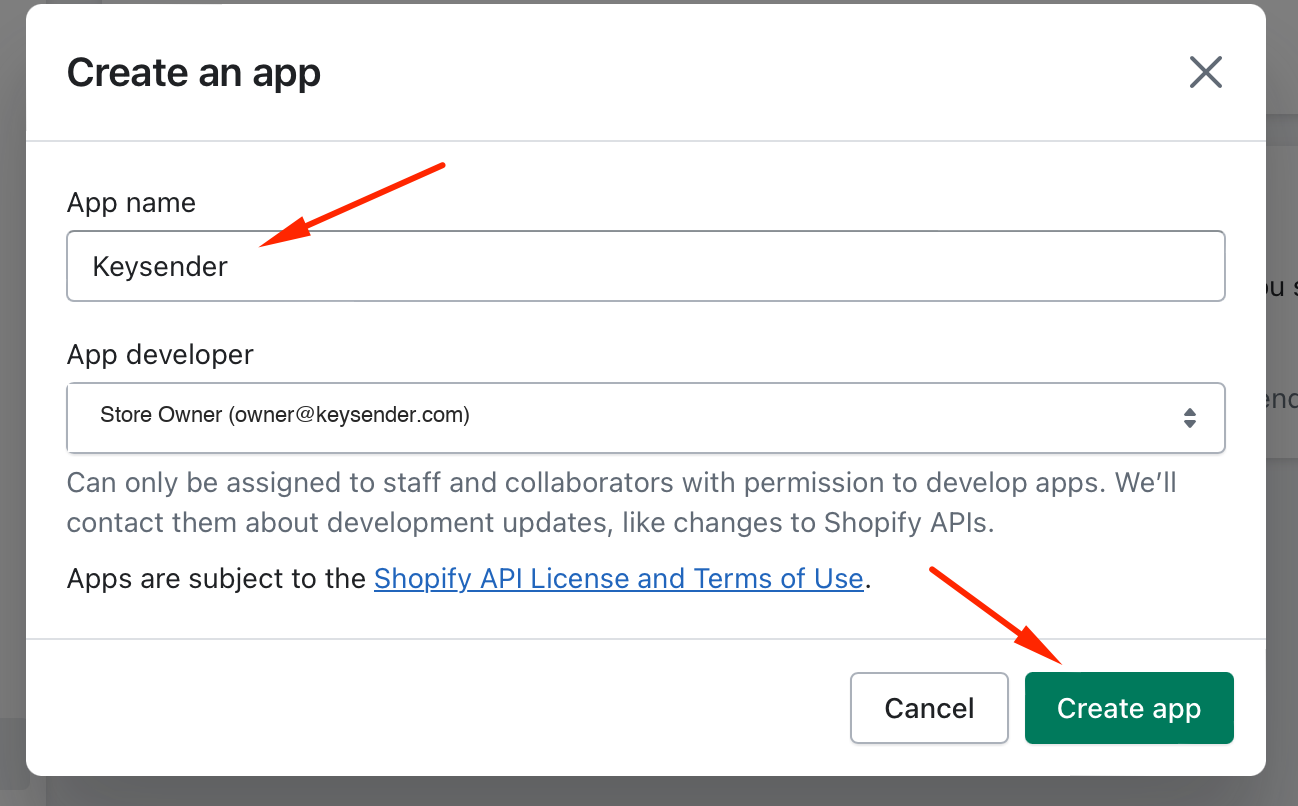
配置 Admin API 权限范围
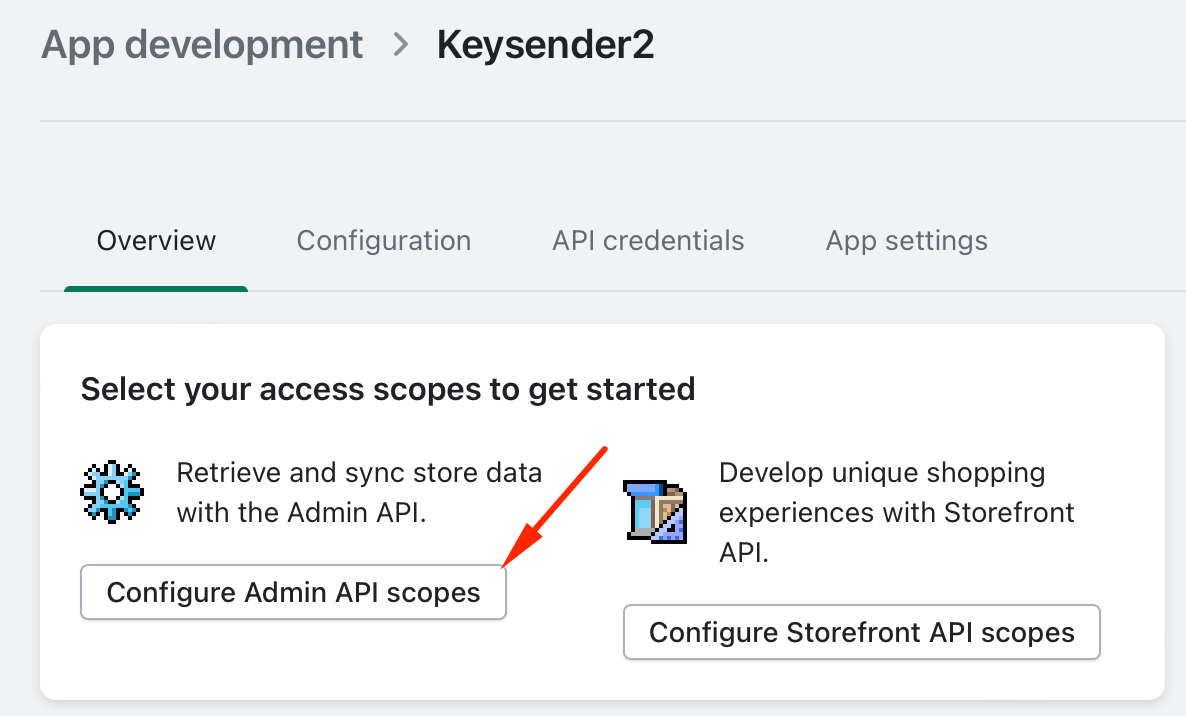
打开 Overview,然后点击 Configure Admin API Scopes。
为以下每个范围同时勾选 read 和 write:
- Assigned fulfillment orders。
- Customers。
- Fulfillment services。
- Merchant-managed fulfillment orders。
- Orders。
- Products。
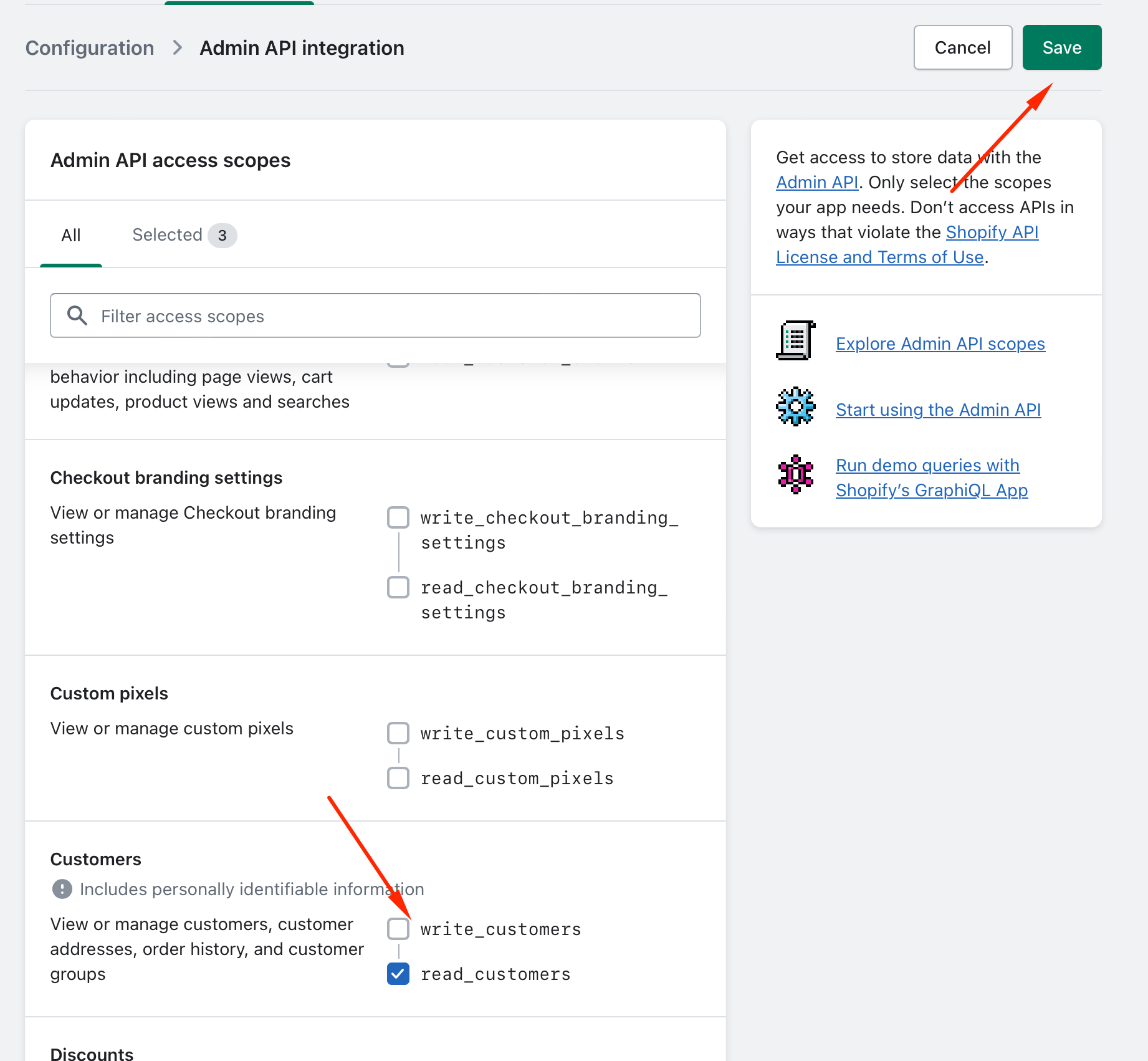
点击 Save。
安装应用并复制访问令牌
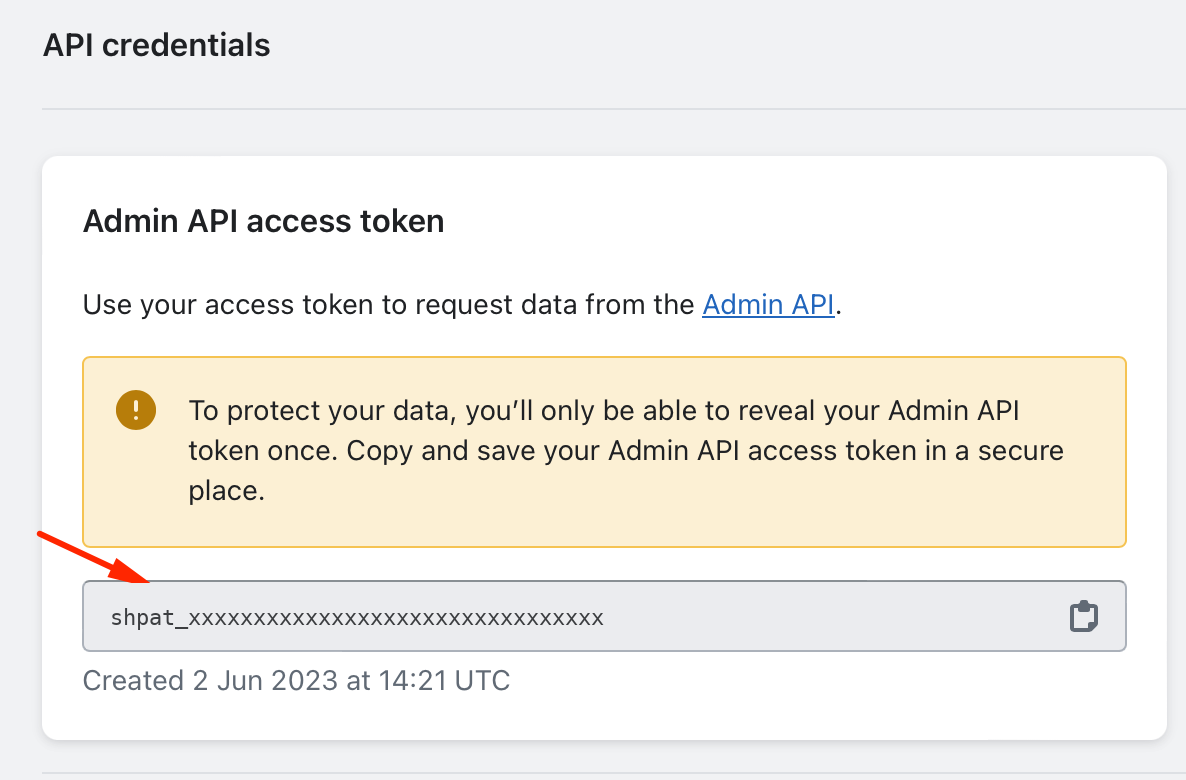
打开 API credentials,然后点击 Install app。
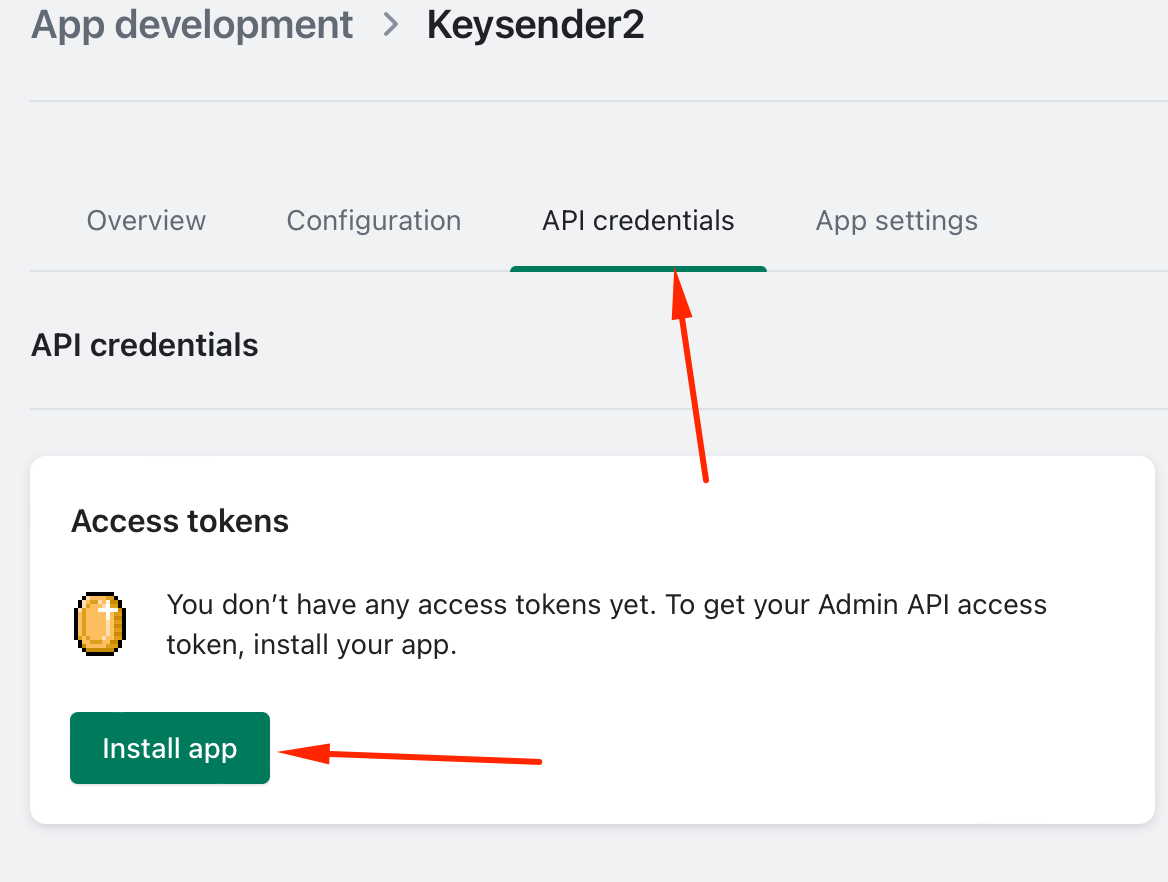
复制 Admin API access token。
在 Keysender 中添加 Shopify 店铺
在 Keysender 中打开 Integrations。
点击 Shopify 以激活。
在侧边面板中选择 Shopify,然后点击 Stores。

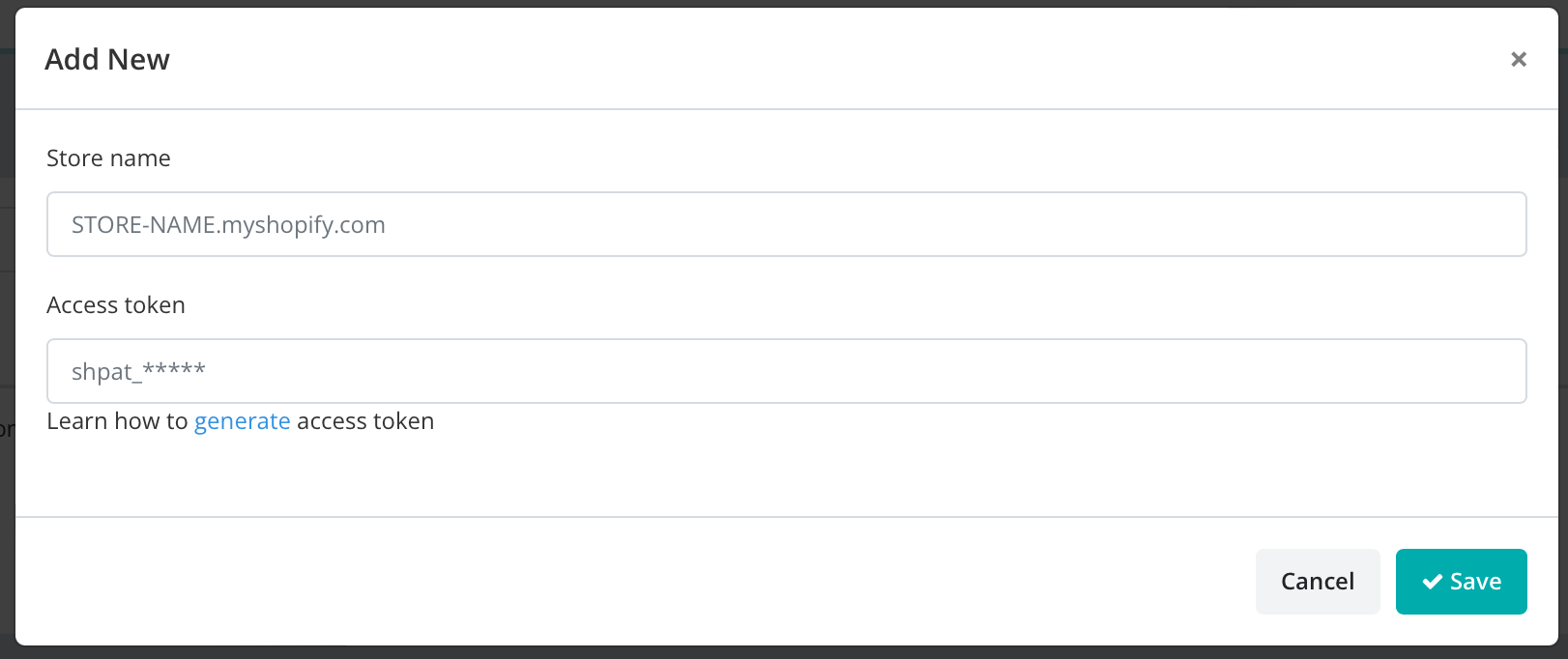
点击 Add New。
输入您的 Shopify 店铺网址,格式为
[your-shop-name].myshopify.com。可在 Shopify 后台的 Settings,然后 Store details 中找到。粘贴您从 Shopify 复制的访问令牌。
点击 Save。
将产品关联到库存
在 Keysender 中打开 Shopify 下的 Products。
选择一个产品并点击 Details,然后按照将产品连接到已连接的渠道中的说明设置其 Inventory。

如果想使用自定义发货邮件模板,可为其指定一个模板,然后保存。
Troubleshooting
| Symptom | Cause | Action |
|---|---|---|
| Keysender 无法连接店铺 | Admin API 访问令牌错误,或缺少必要的权限范围 | 在 Configure Admin API Scopes 中重新检查每个范围是否同时勾选了 read 和 write,保存后重新将令牌粘贴到 Keysender |
| Shopify 产品未出现在 Keysender 中 | 应用尚未完成同步,或该产品未发布到 Online Store 销售渠道 | 在 Keysender 中重新加载 Shopify 的 Products 列表;确认该产品已在 Shopify 中发布到某个销售渠道 |
| 订单已生成但未发码 | 订单生成时该产品尚未关联库存 | 现在关联库存,然后重新发送该订单 |
Confirm it works
您的 Shopify 产品会在 Keysender 中显示并关联好库存。买家在您的 Shopify 店铺下单后,Keysender 会自动完成发货。
If it still is not working
请提交一份工单,以便 Keysender 支持团队进行审核。
FAQ
Keysender 无法连接店铺
在 Configure Admin API Scopes 中重新检查每个范围是否同时勾选了 read 和 write,保存后重新将令牌粘贴到 Keysender (Admin API 访问令牌错误,或缺少必要的权限范围).
Shopify 产品未出现在 Keysender 中
在 Keysender 中重新加载 Shopify 的 Products 列表;确认该产品已在 Shopify 中发布到某个销售渠道 (应用尚未完成同步,或该产品未发布到 Online Store 销售渠道).
订单已生成但未发码
现在关联库存,然后重新发送该订单 (订单生成时该产品尚未关联库存).