Reading this in another language? Use your browser's built-in translate option. Button and field names stay in English on purpose, to match what you see in Keysender.
Connect Claude to your Keysender account so you can ask about your orders, stock, and credits in plain words. You add a custom connector with one address, choose Read only on a Keysender page, and sign in with your normal login. It takes about two minutes on claude.ai or the desktop app.
TL;DR
https://mcp.keysender.com/mcp.The Keysender MCP is in beta, open to every Keysender user. To join, email [email protected] with the subject "Join the Keysender AI beta". We reply with access and this guide. See the Keysender AI beta: rules and feedback.
The Keysender MCP launches as Read only: Claude can look at your account but cannot change anything. Read and act is coming soon.
Make sure you have:
You do not need your API key.
The Keysender MCP is a beta. Before the steps below, email [email protected] with the subject "Join the Keysender AI beta". We reply to grant access and send the setup guide. Without access, the sign-in shows a "Limited beta" page. Read the Keysender AI beta: rules and feedback first.
Open claude.ai in your browser, or open the Claude desktop app, and sign in.
Open the Customize page and select Connectors. Claude may word this menu a little differently over time. If you cannot find it, search the settings for "Connectors".
Select + Add, then Add custom connector.
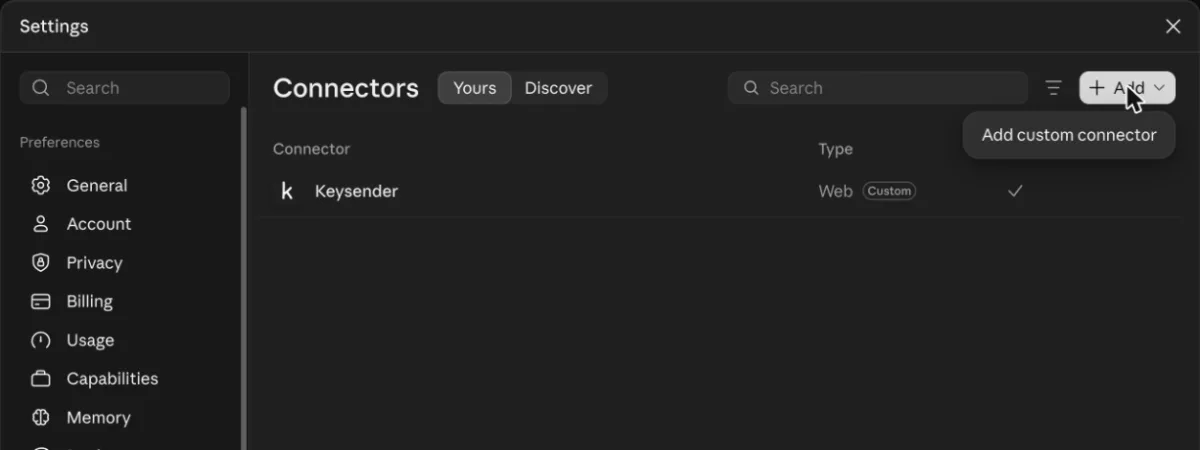
In Name, type Keysender. In the address field, paste this address, then select Continue.
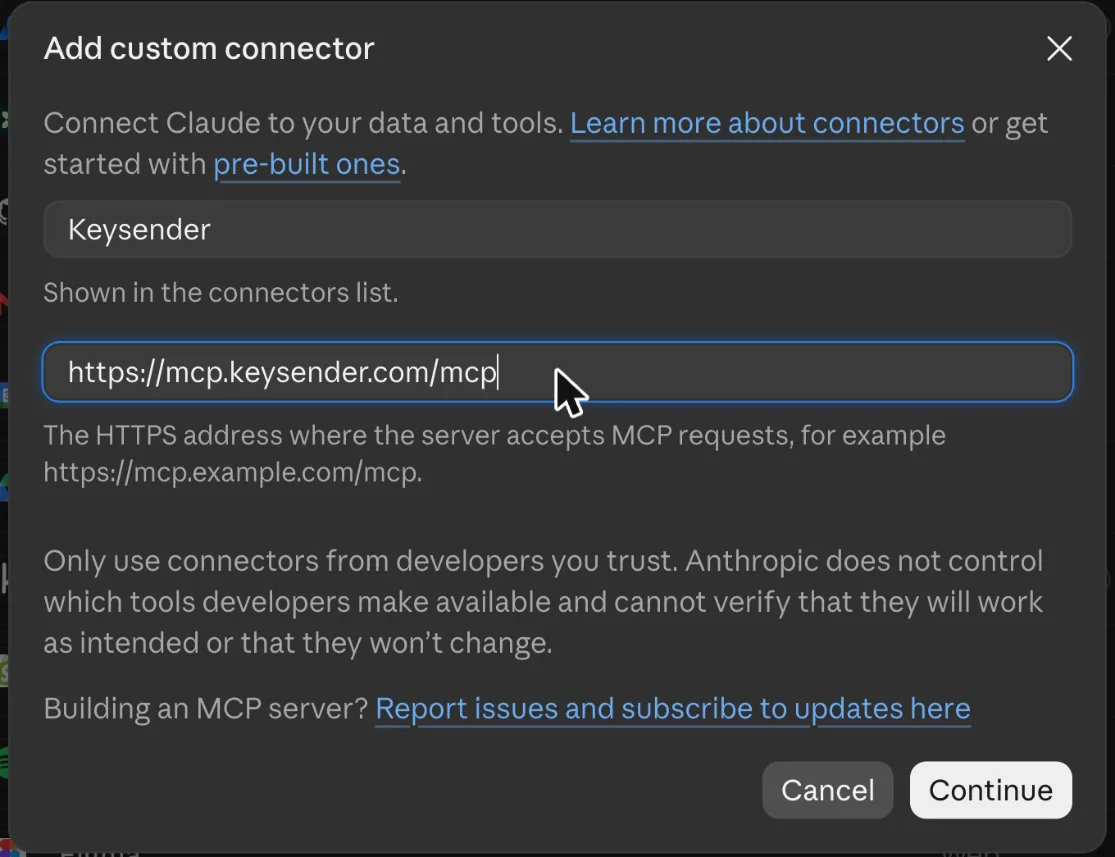
https://mcp.keysender.com/mcp
If Claude shows detected sign-in settings, leave them as they are and select Continue, then Add. Do not type a client ID or secret.
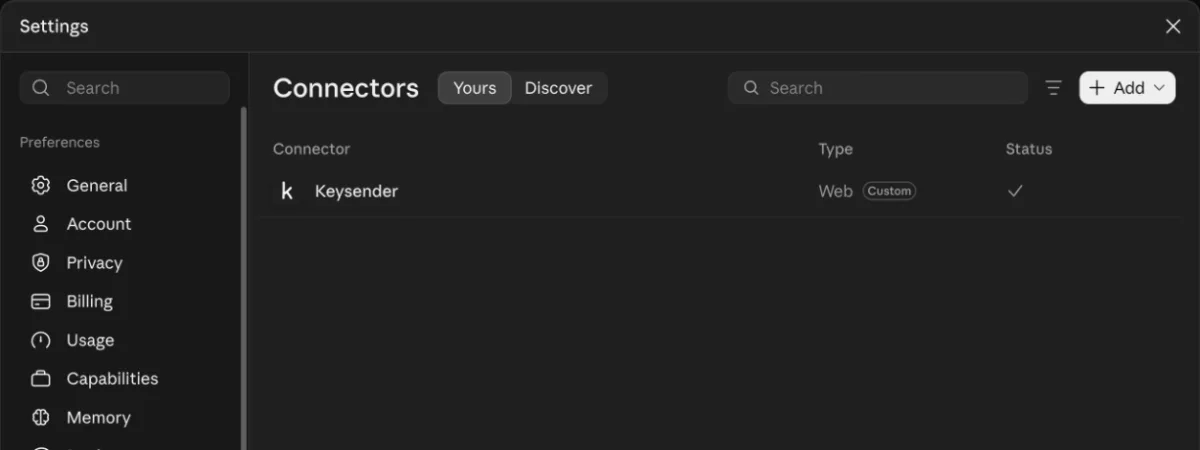
Keysender is now in your connector list. Select Connect next to it. A Keysender page opens.
A Keysender page titled Connect Claude to Keysender opens. Check that the app is Claude and that Returns to shows the Claude address. Under What can the assistant do?, choose Read only. It is already selected. Claude can look at your orders, stock, customers and messages, but cannot change anything. Read and act is coming soon and is not available yet.
Select Continue to Keysender sign-in. Select Cancel instead if you did not start this yourself.
Sign in with your normal Keysender email and password, as you do for the panel.
You return to Claude, and Keysender shows as connected.
Ask your first question:
How did we do today?
Claude should answer with today's and this month's orders, sent codes, and your credit balance. If you see numbers from your own account, you are connected. The first time Claude uses a tool it may ask permission to run it. Choose to allow it.
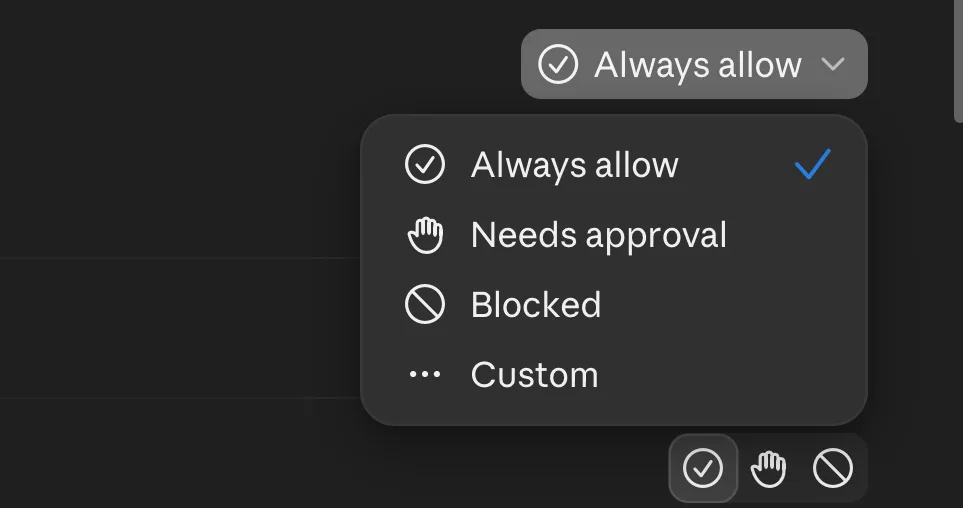
Claude lets you set, for each connector, how each group of tools runs. Open the Keysender connector in Claude (Customize, then Connectors, then Keysender) and look for its tool permissions. The menu wording may change over time. Claude shows these options:
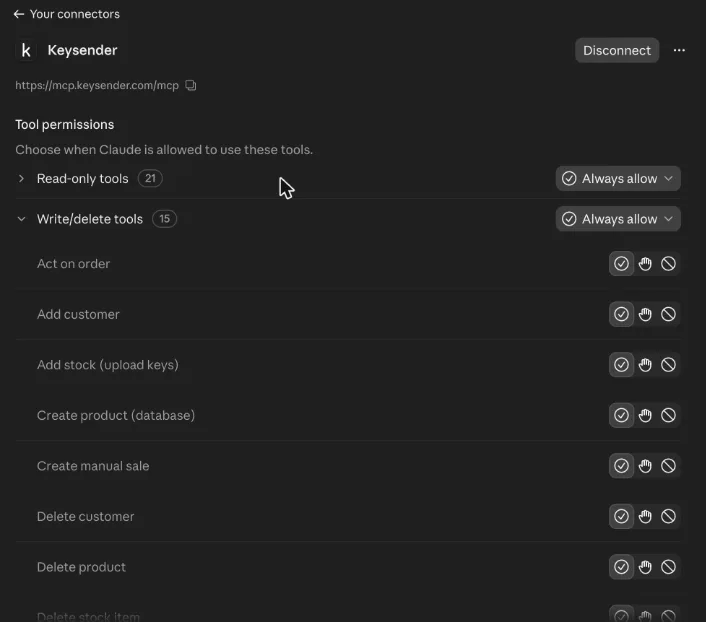
Claude splits the tools into read-only tools and write/delete tools.
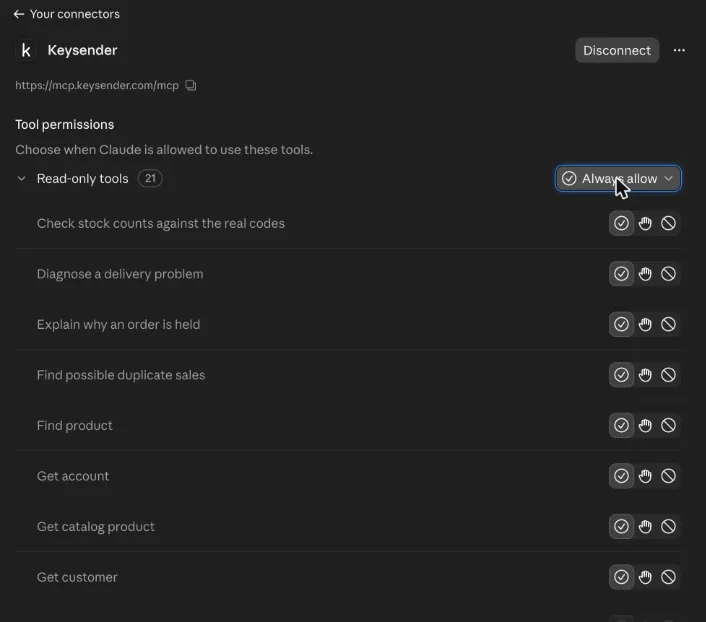
Set the read-only tools to Always allow or Needs approval, whichever you prefer. Set the write/delete tools to Needs approval. Claude sets them to Always allow by default. Keysender has these tools switched off for now, but set it once so Claude asks you when they arrive.
| Symptom | Action |
|---|---|
| There is no Add custom connector | Your plan or role may not allow it. On Team or Enterprise, ask your owner to add it. |
| The Keysender page says the return address is not allowed | Connect from Claude on claude.ai or the Claude desktop app, not from another tool. |
| You land back in Claude and are not connected | The sign-in was cancelled or took over 10 minutes. Select Connect again. |
| Claude says it cannot change anything | That is expected. Keysender launches as Read only, and making changes from the assistant is coming next. |
| A tool says a limit was reached | Wait a minute and try again, or try again later if you reached the daily limit. For very long lists, use the filters and export in your panel. If your work needs more, email [email protected] with your business case and the process you're trying to run, and we'll look at it. Ideas to improve the assistant are welcome there too. |
| Claude does not show codes or buyer details | For security, codes stay in Keysender. See them in your panel. Buyer details stay in your panel. Claude gives you a link to the page. |
| Keysender worked before and now asks you to connect again | A connection lasts up to 30 days, and ends after 14 days unused |
The Keysender sign-in page shows invalid_client |
The sign-in could not be matched to this connection. Remove the Keysender connector in Claude, add it again, and leave the client ID and secret empty. |
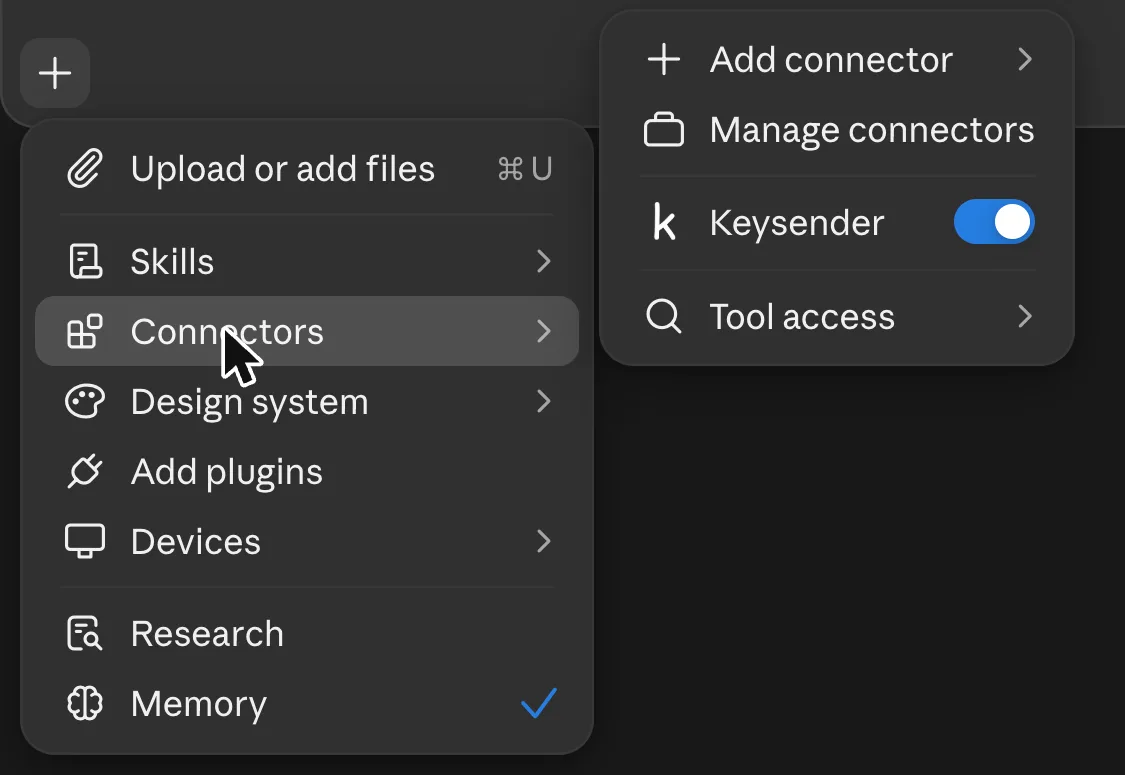
| Keysender is not in the Connectors list of your chat | The connector is off for this chat. Select +, then Connectors, and switch Keysender on. |
More fixes are in Limits, read only, and troubleshooting.
Submit a claim so Keysender Support can review it.
Enter https://mcp.keysender.com/mcp as the address of a custom connector named Keysender.
No. You sign in with your normal Keysender login on Keysender's own page.
Your plan or role may not allow it. On Team or Enterprise plans an owner adds the connector first.
Yes. In the Keysender connector's tool permissions, choose Always allow, Needs approval, Blocked or Custom for the read-only tools and for the write/delete tools. Set the write/delete tools to Needs approval.
Was this article helpful?
